
Branding Options in Action

Spinzo's Branding Options Editor offers a variety of ways to customize your promotion pages to match your organization's branding or the goals of a specific promotion. From adjusting colors and opacity to incorporating background images and videos, small changes can make a big difference in the overall appearance of the page.
Before exploring the Branding Options Editor examples, it's helpful to understand the different visual elements that make up a promotion page. The images below highlight where these elements appear and recommended image dimensions. For more information on branding assets, check out this Pulse article: Standard Branding & Visual Assets.
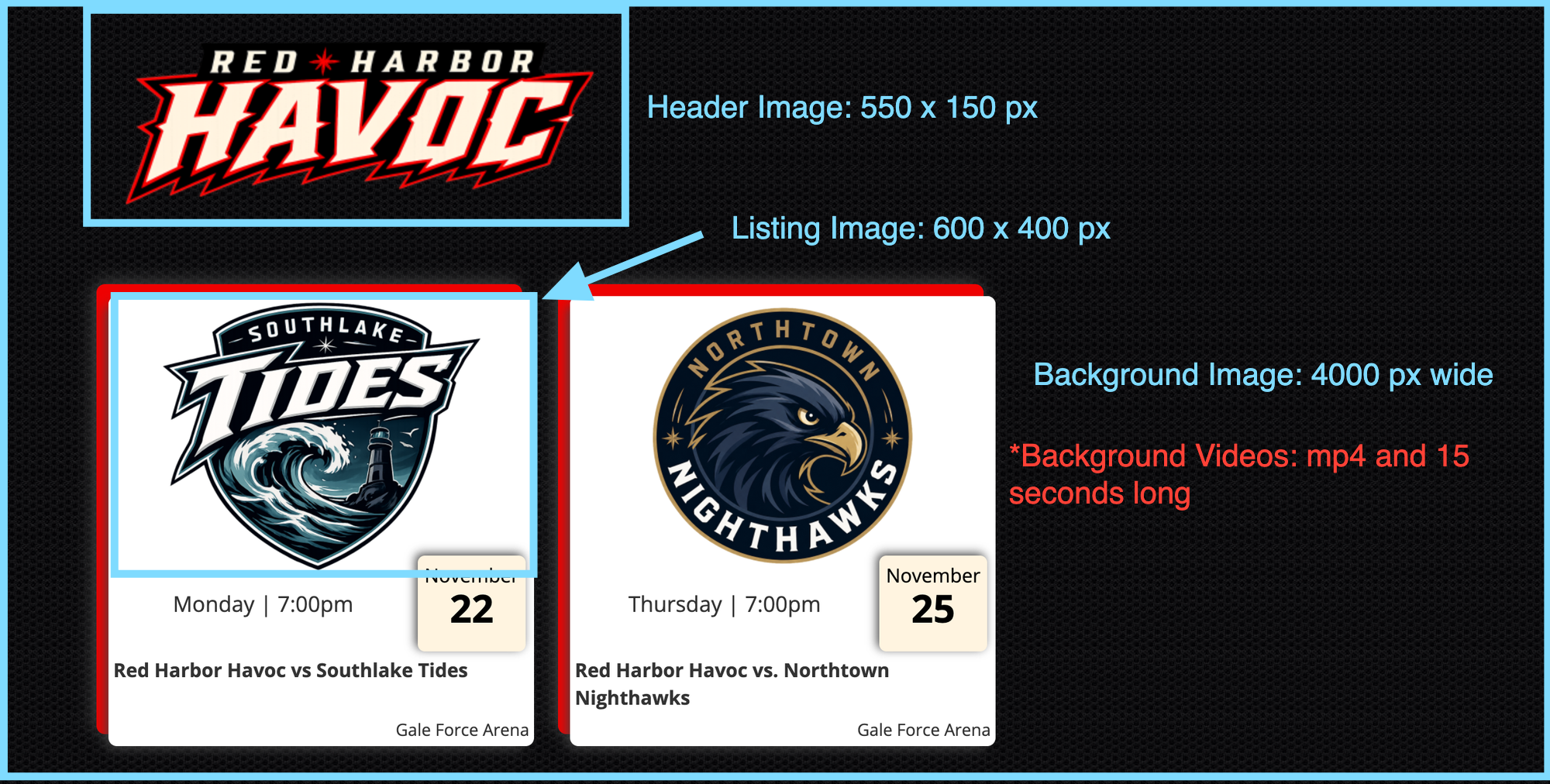
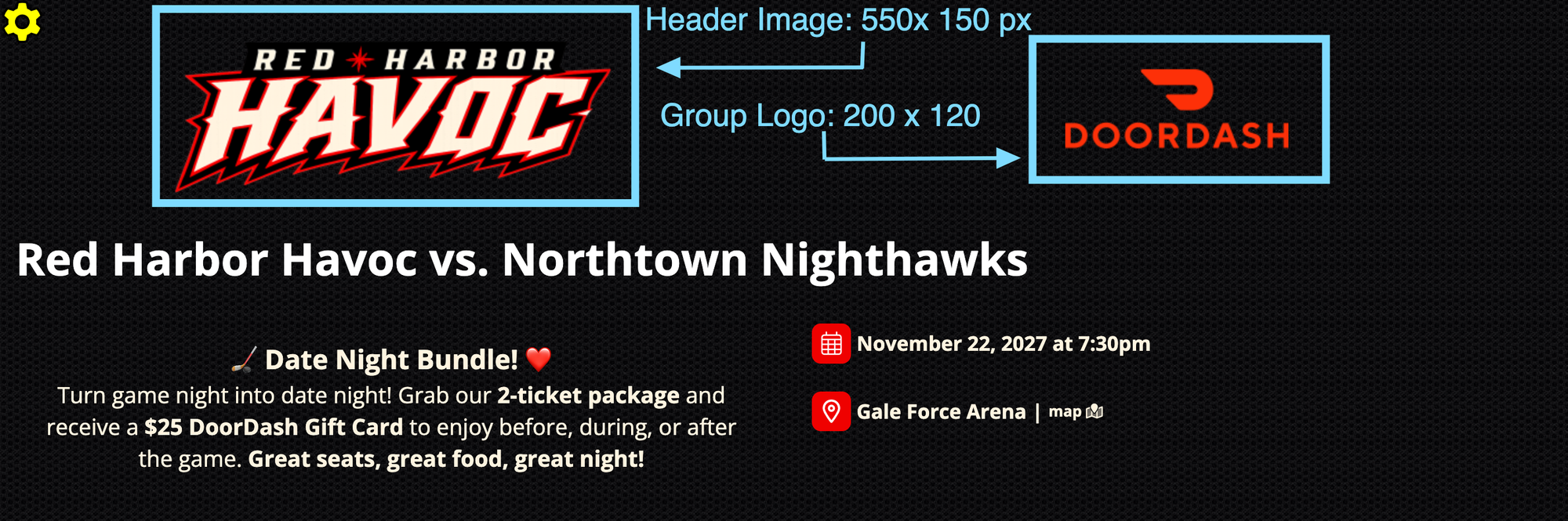
Below are a few examples of how you can use the Branding Options Editor to create different looks for your promotions.
Example #1: Includes Ribbon & Content Boxes
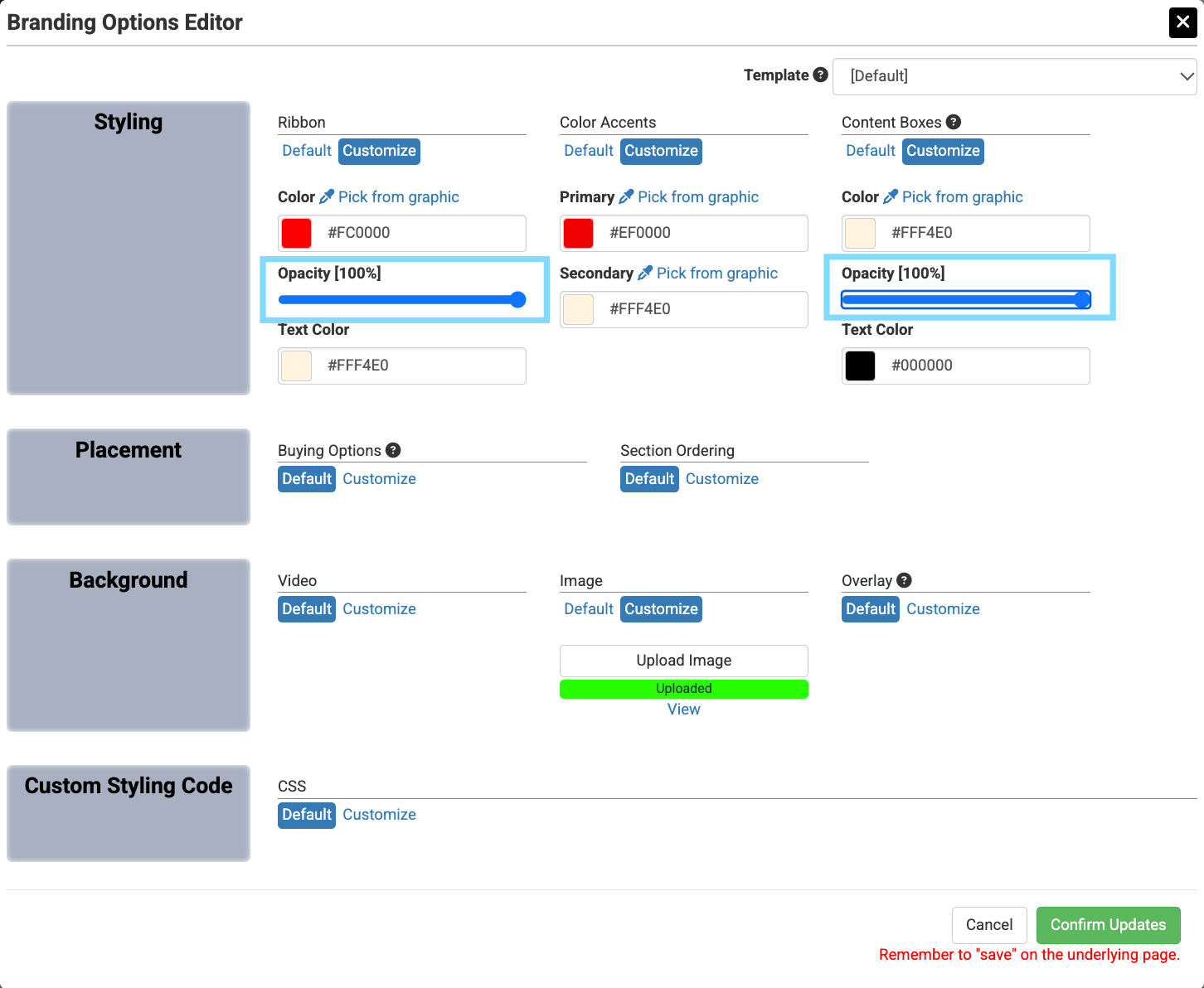
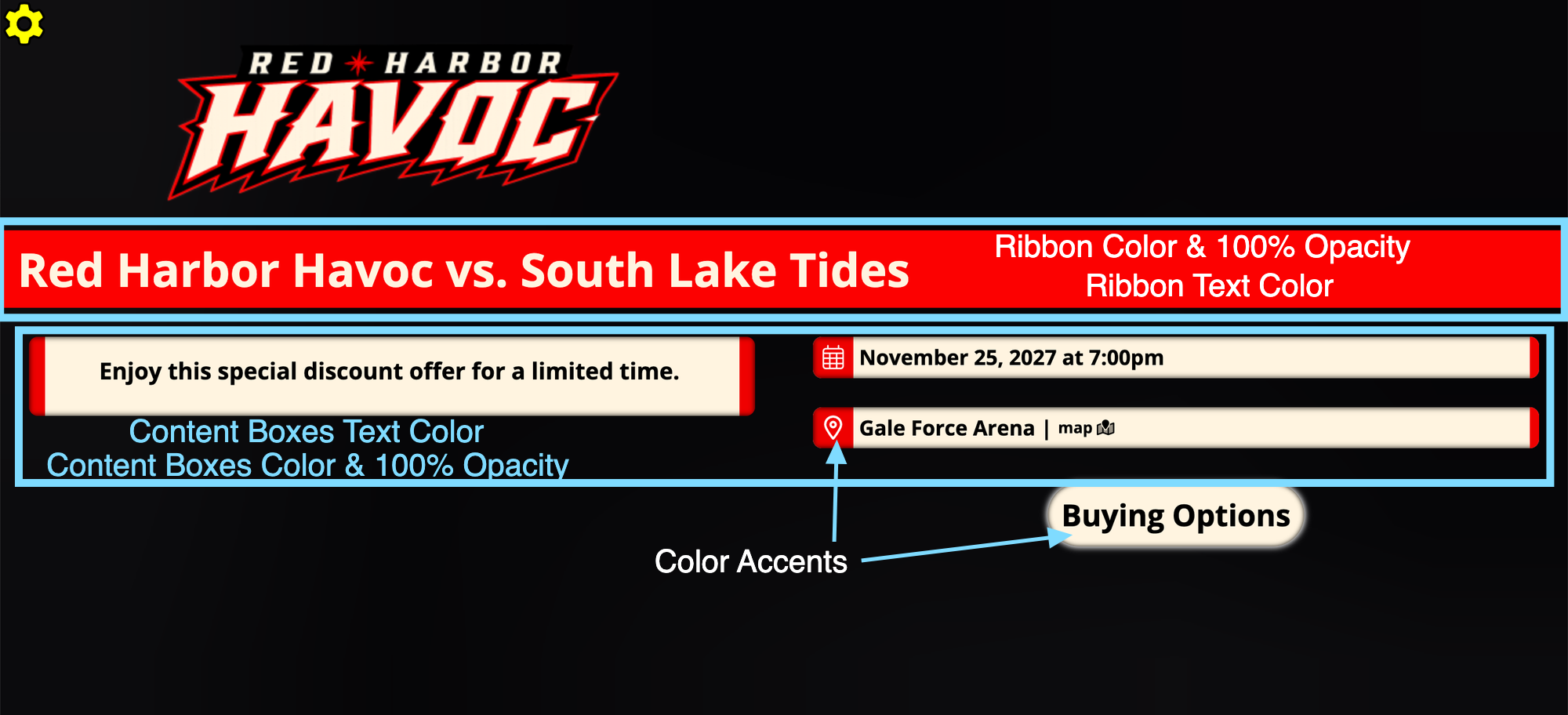
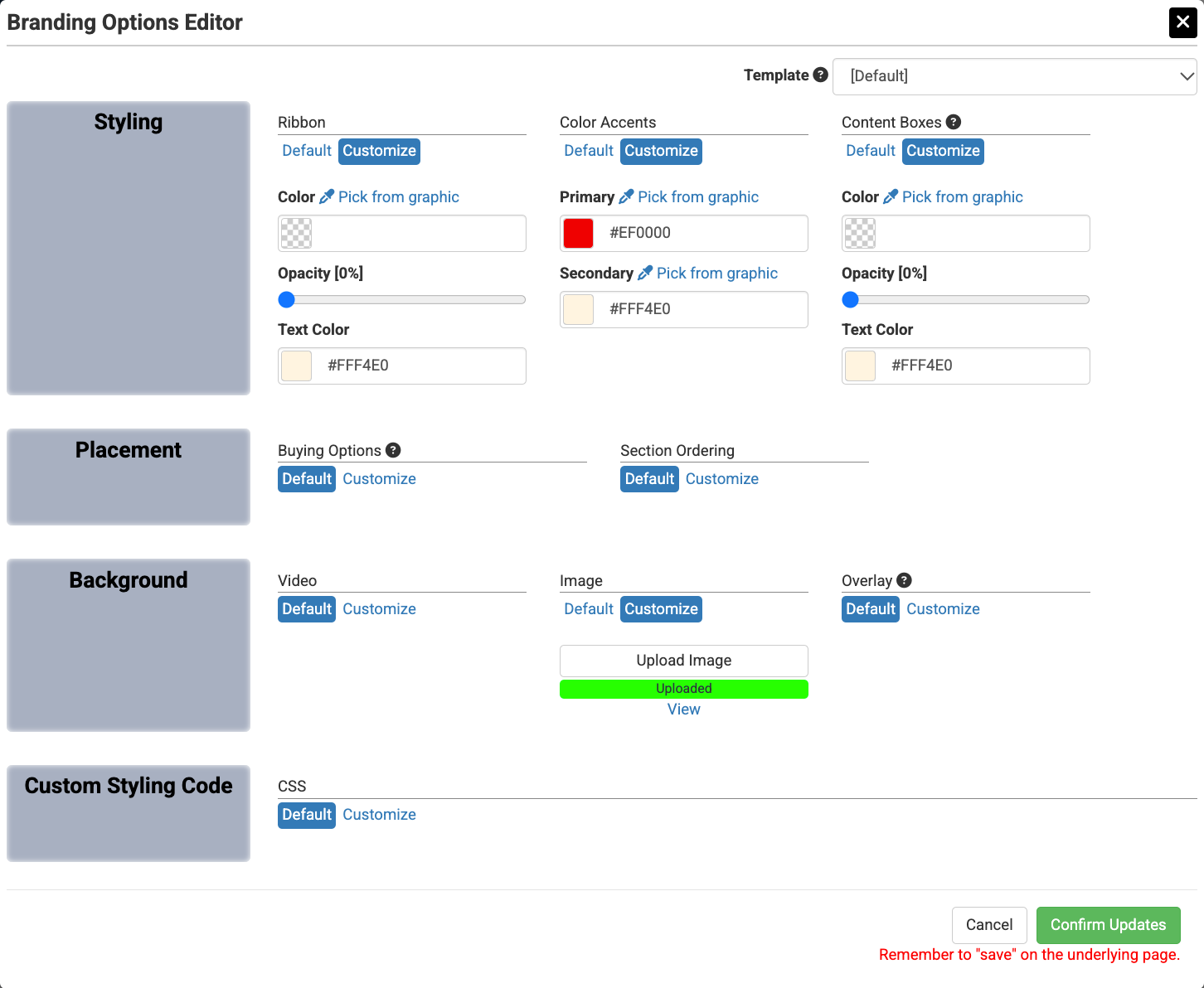
In this first example, the "Ribbon," "Color Accents," and "Content Boxes" have all been customized with specific colors and opacity settings. A simple black background is also included to create a clean, structured design. *Note: The default opacity is 50%, but in this example, each opacity setting has been adjusted to 100%.
*Pro Tip: Adjusting opacity allows you to control how visible different elements are on your page. Setting opacity to 100% makes an element fully visible, while 0% makes it completely transparent.
With these settings applied, the ribbon and content boxes stand out against the dark background, helping organize the information on the page.
Final Promotion Design Screenshot
Example #2: Ribbon & Content Boxes Removed
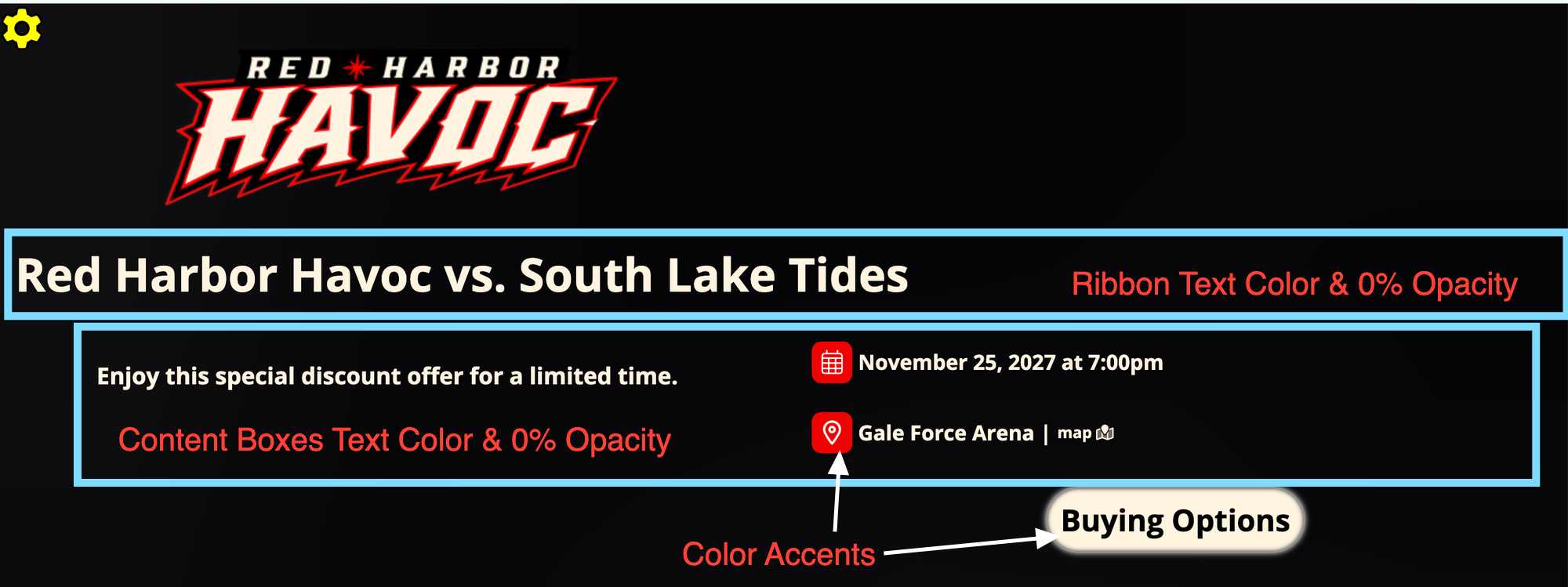
For a more minimal design, the "Ribbon" and "Content Box" opacity settings have both been adjusted to 0%, making these elements transparent.
This approach works especially well with simple backgrounds, creating a clean, streamlined appearance without distracting from the promotion details.
Final Promotion Design Screenshot
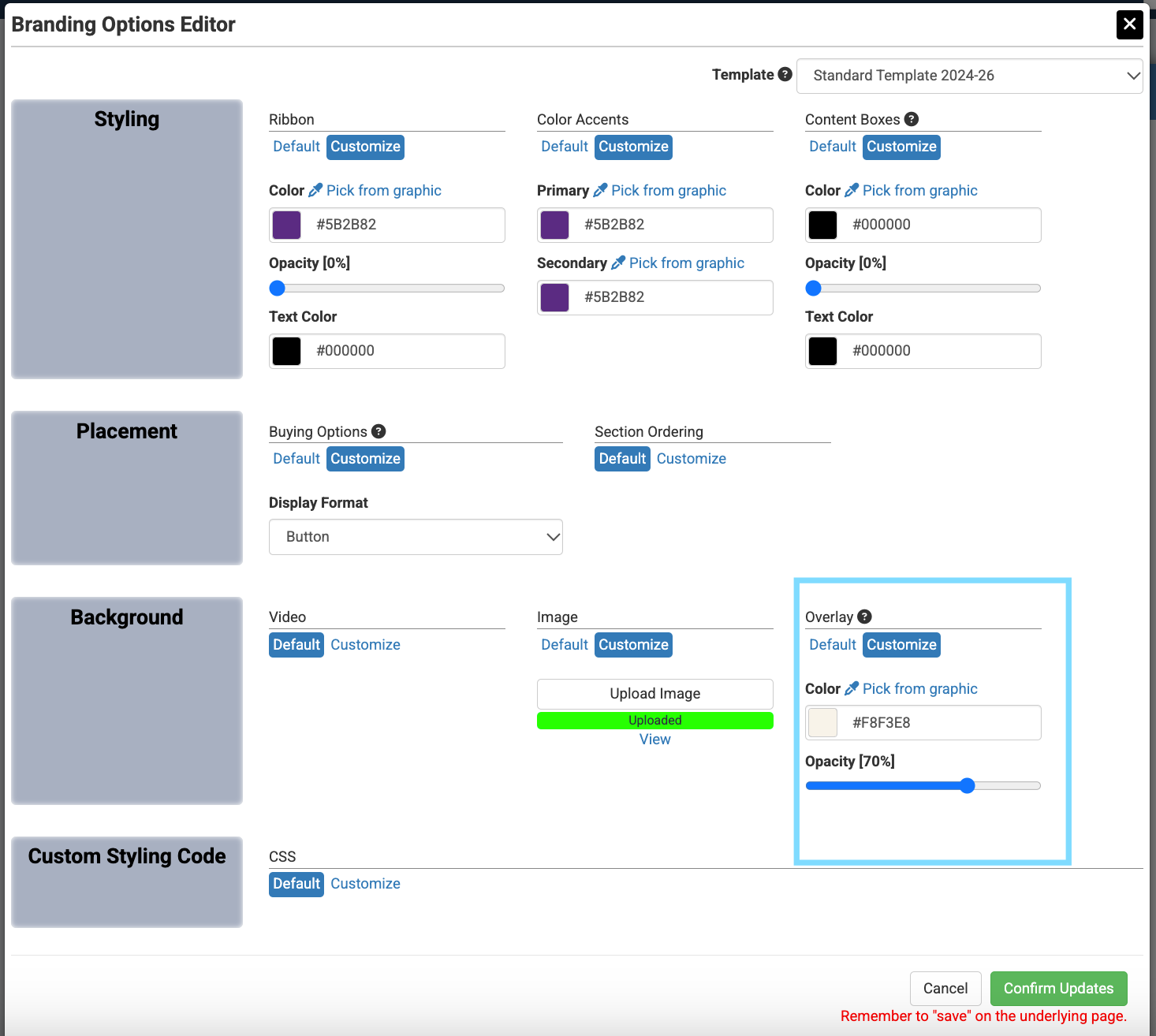
Example #3: Busy Background with Overlay
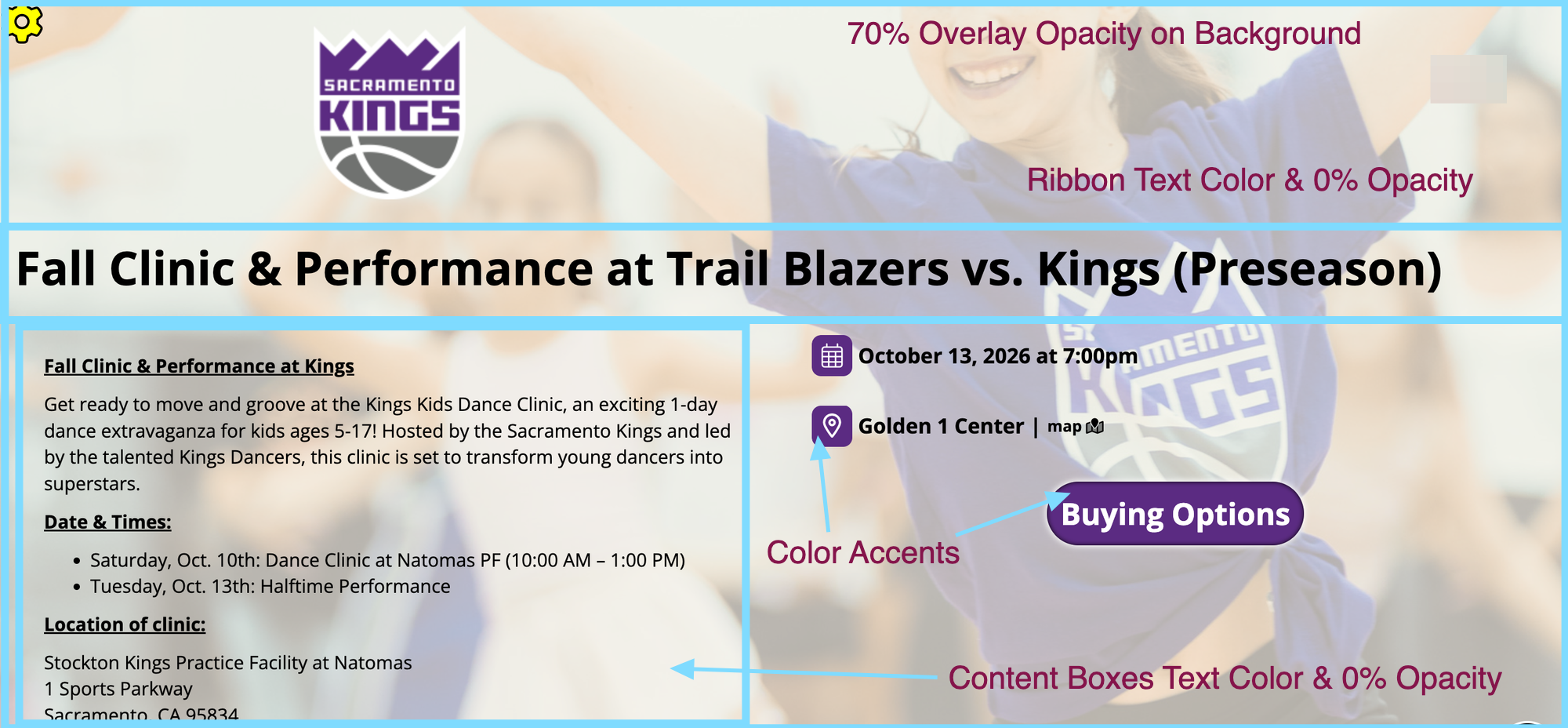
When using a more detailed background image, adding an overlay can help ensure the text remains easy to read. In this example, the "Ribbon" and "Content Boxes" have been made transparent, while an overlay has been added to the background image. This allows the imagery to remain visible without overwhelming the promotion details.
Final Promotion Design Screenshot
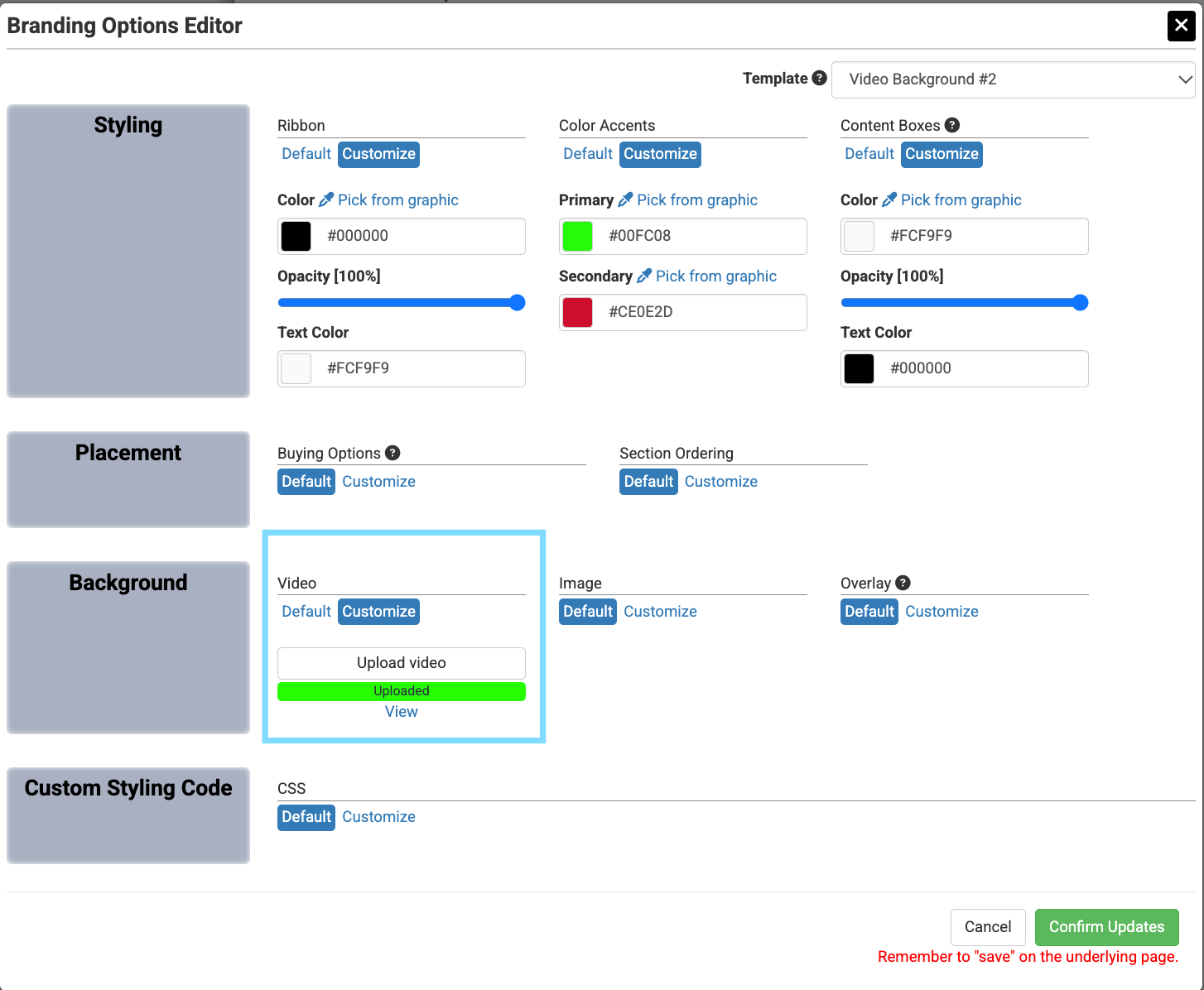
Example #4: Background Video
Background videos are another way to create an engaging and dynamic promotion page. However, because videos introduce movement and additional visual elements, it is important to ensure the promotion details remain easy to read.
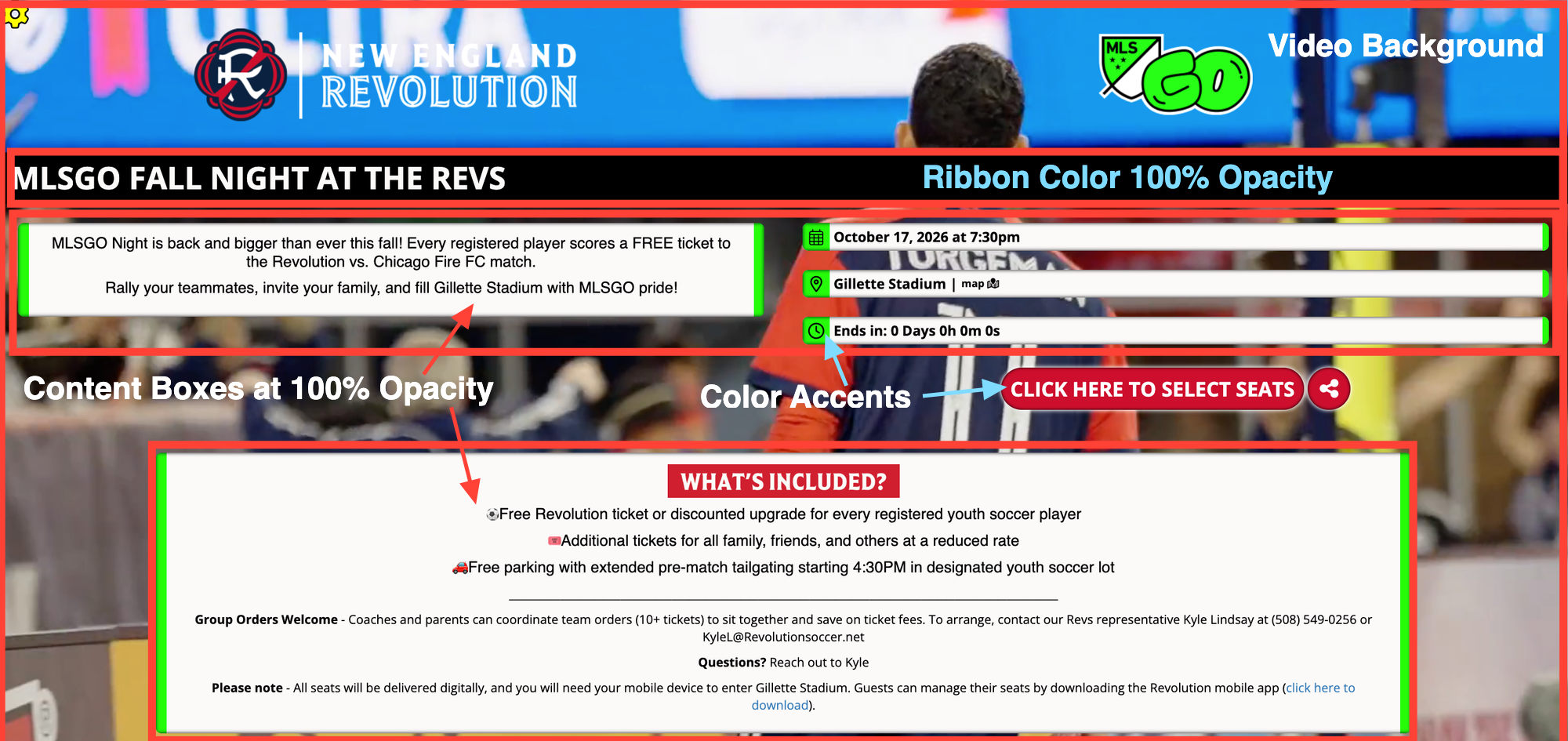
In this example, the "Ribbon" and "Content Boxes" can help separate the text from the moving background, keeping the important information visible while allowing the video to enhance the overall design.
Final Promotion Design Screenshot
Whether you are looking for a clean, minimal design or a more dynamic page with images and videos, Spinzo's Branding Options Editor gives you the flexibility to customize the appearance of your promotions. Experiment with different colors, opacity settings, and backgrounds to find the combination that best complements your promotion and keeps important information easy to read.
For more on Branding Options and promotion design, check out these resources: