
How To Set Up Fundraisers & Ticket Donations
Spinzo offers a seamless way for groups to raise money while selling tickets. In addition to standard fundraising, Spinzo supports full ticket donation functionality. This allows buyers to donate purchased tickets to a specific cause. Below are the ways to set up offers to include this functionality.
Fundraisers ("Donations")
Spinzo fundraisers allow groups to sell tickets while allocating a portion of each sale to a charity or back to the group/organization. These can be set with fixed or dynamic pricing.
Fixed Price Donation
Step 1: Create a Group and Sales Event, then click "Create Offer."
Step 2: Select the ticket class and add the price code(s) for the desired seating zone.
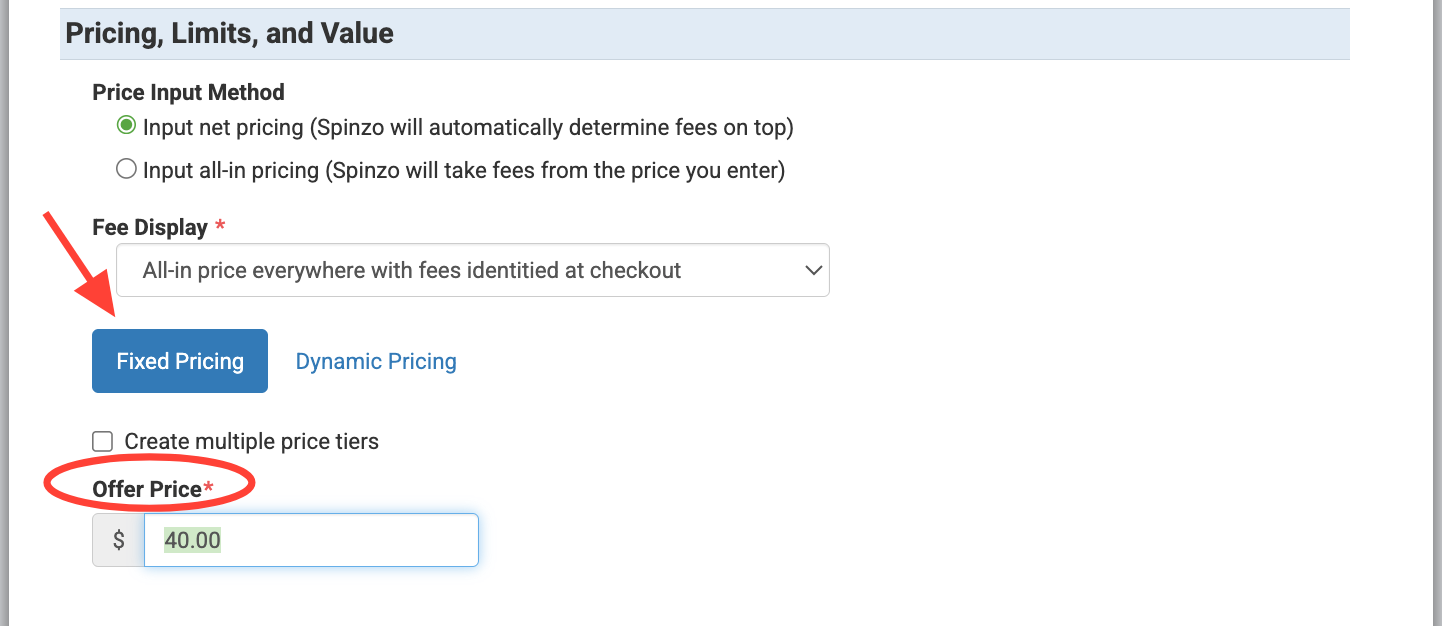
Step 3: In the "Offer Price", located under "Pricing, Limits, and Value, enter the total price that the buyer should pay. This should be the total ticket price plus the additional money for fundraising that will go back to the group. For example, if the ticket is $35.00 and the fundraising amount is $5.00, the total in the "Offer Price" box should be $40.00.
*Note: "Fixed Pricing" is the default for all offers
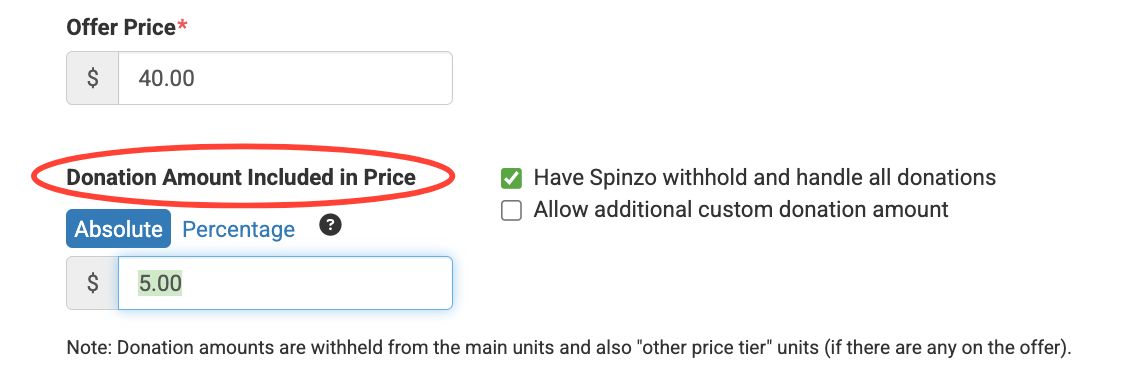
Step 4: Enter the "Donation Amount Included in Price."
*Note: Spinzo automatically withholds donations and can distribute them once a 'Third Party Batch" is completed post event. Click here to learn how to do a "Third Party Batch" post event.
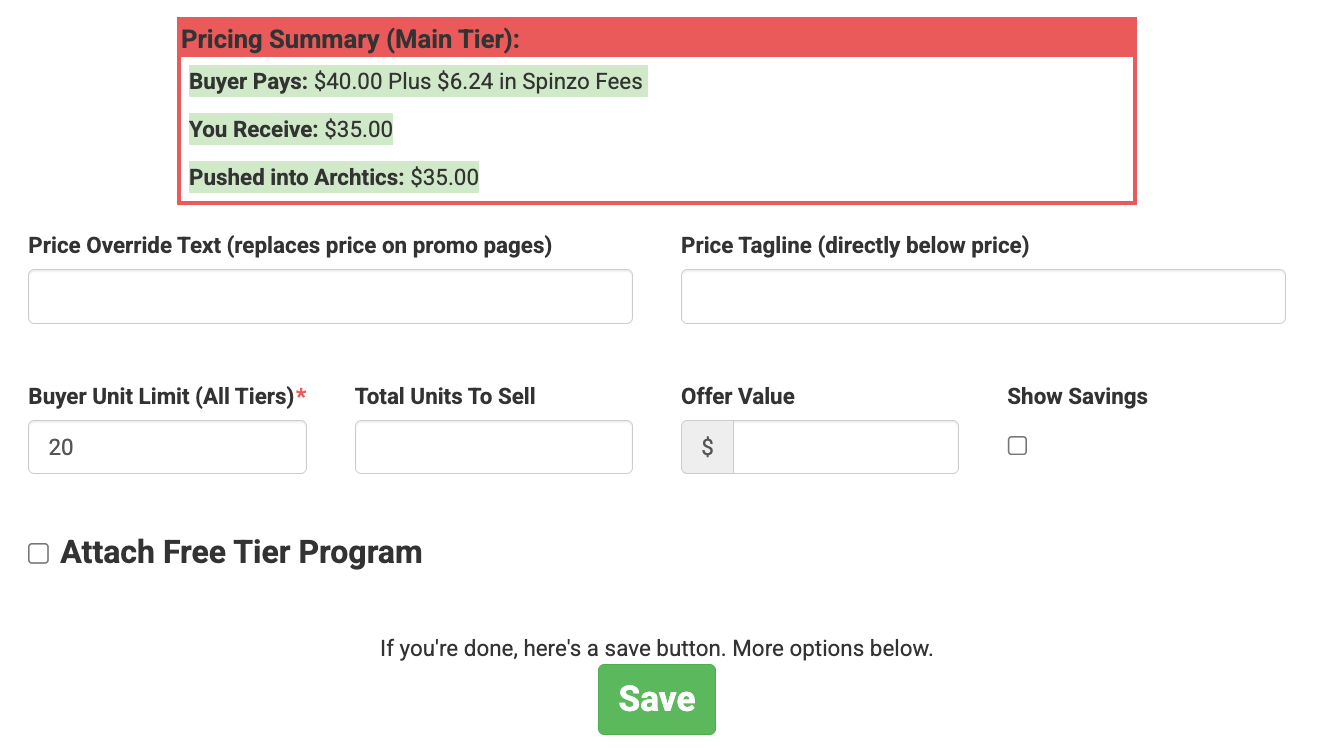
Step 5: Review the red "Price Summary" box to confirm accuracy, then click "Save."
Step 6: Repeat for additional zones/offers.
Dynamic Price Donation
Step 1: Create a Group and Sales Event, click "Create Offer."
Step 2: Select the ticket class and add price code(s).
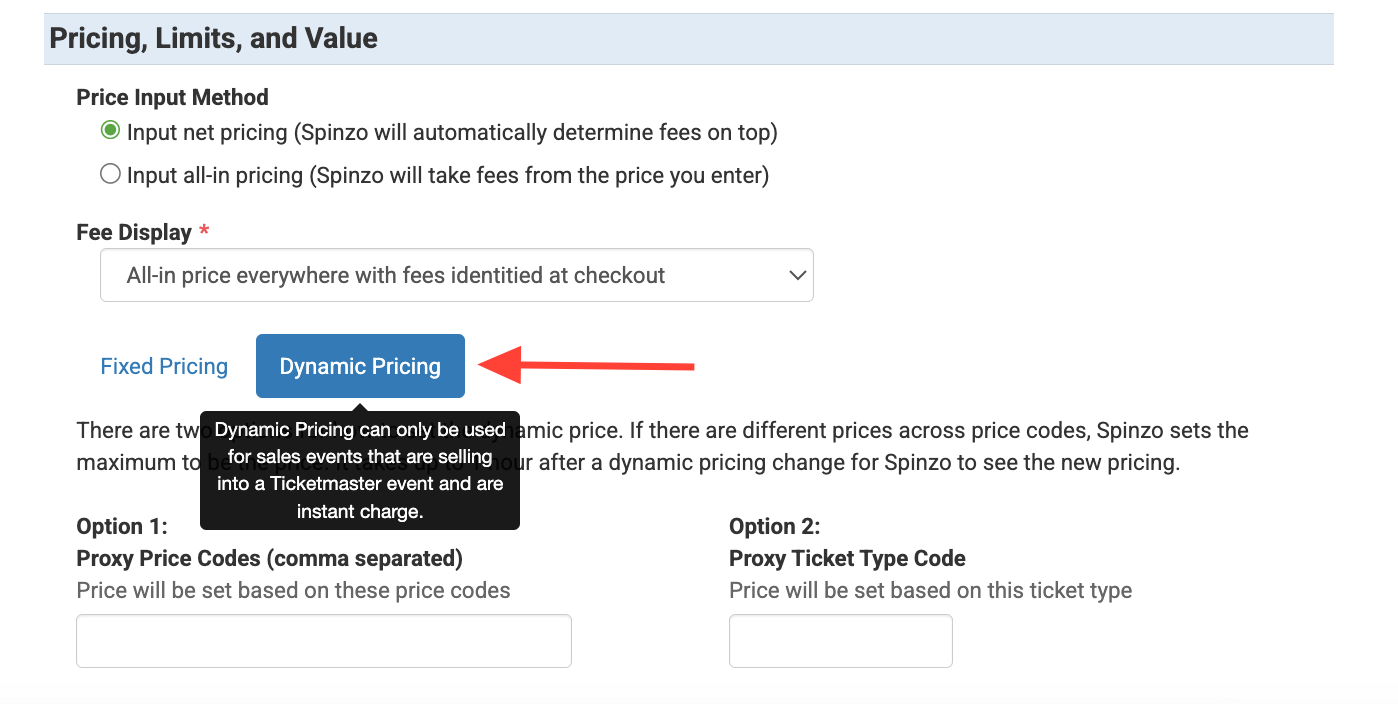
Step 3: Under the "Price, Limits, and Value, locate and click "Dynamic Pricing." It's located below the "Fee Display" drop down.
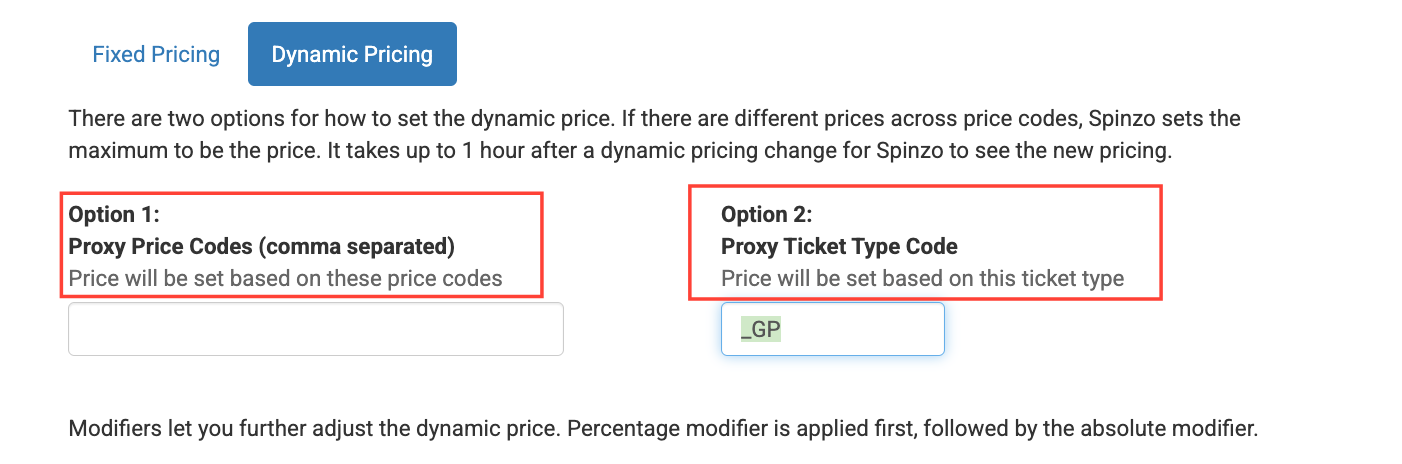
Step 4: Choose Option 1 or Option 2 and enter either the proxy price codes or the proxy ticket type code.
*Note: Pricing will follow Archtics for either the price code or ticket type entered.
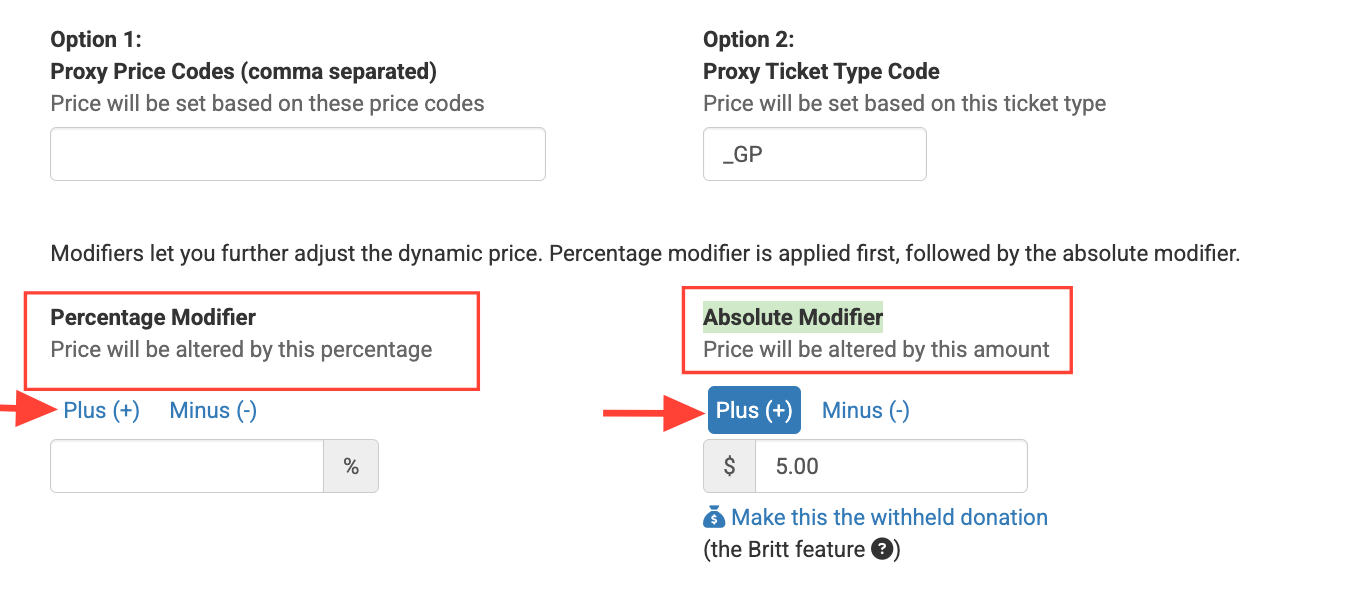
Step 5: Choose "Percentage Modifier" or "Absolute Modifier" for the donation and click "Plus" for which ever will be used. Add either the percentage or total dollar amount for the fundraiser. In the example below, a total of $5.00 will be added to whatever the current price is for this ticket type "_GP."
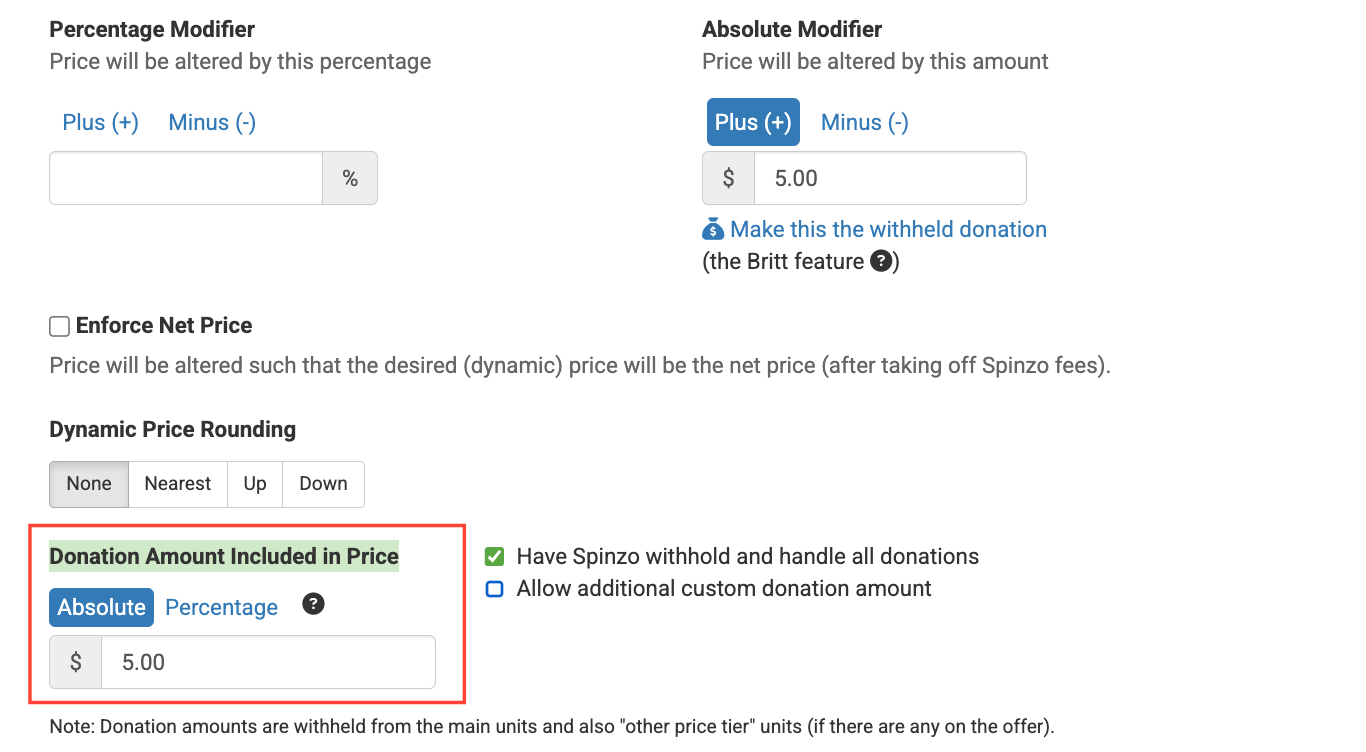
Step 6: Either click "Make this donation the withheld donation" or add the amount to the "Donation Included in Price" box. *Note if "Percentage Modifier is being used, make sure to toggle the "Donation Amount Include in Price" to "Percentage."
Step 7: Review the red "Price Summary" box for accuracy, then click "Save."
Step 8: Repeat for additional zones/offers.
Ticket Donations (Whole or Optional)
This feature allows buyers to donate purchased tickets back to a cause.
Step 1: Create a Group and Sales Event, then click "Create Offer."
Step 2: Select a ticket class, add price code(s), and set the offer price.
Step 3: Scroll down to the "Whole Order Donation" section. It's located below "Lava", but above "Other Options."
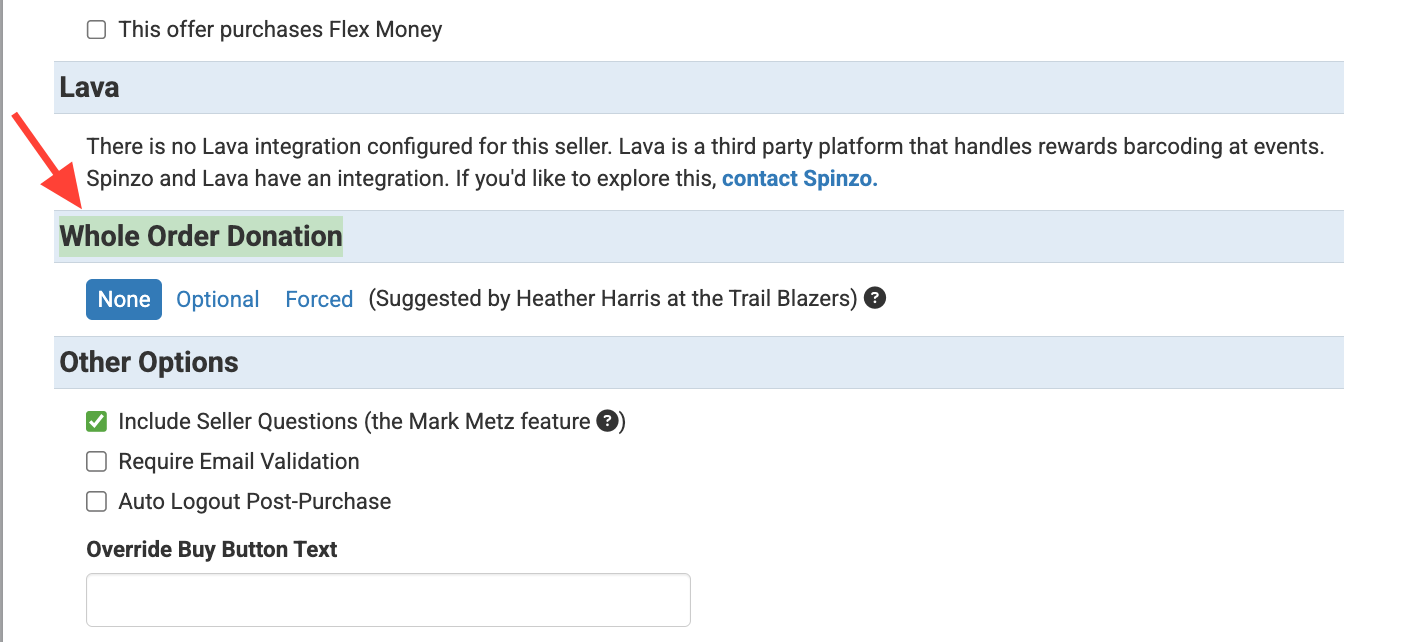
Step 4: Choose "Optional" or "Forced." "Optional" gives fans the option to either keep the tickets or donate them back to the cause. "Forced" forces the buyer to donate the tickets back to the cause.

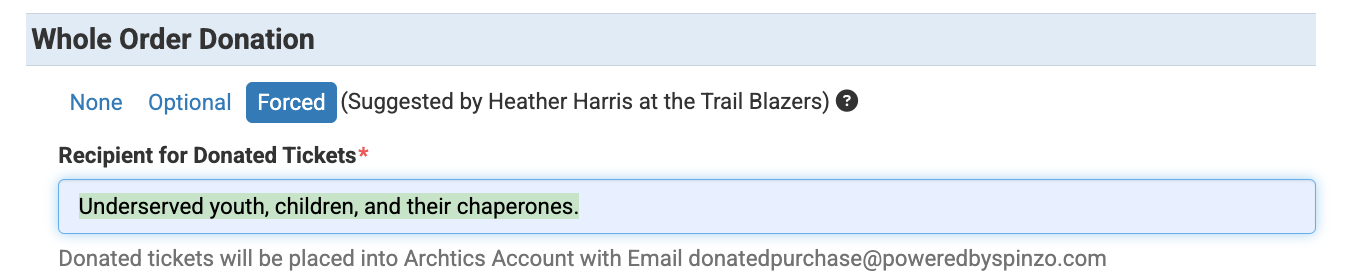
Step 5: Enter the "Recipient for Donated Tickets," then click "Save."
*Note: Any donated tickets will be placed into an Archtics Account tied to donatedpurchase@poweredbyspinzo.com
Step 6: Retrieve tickets from the Archtics account and distribute them to the intended recipients.
Spinzo's fundraising and donation tools are widely used across part, check out Best of Fundraising.