
Updating The Event Cache To Display New Events In The Dropdown Menu
After adding an event in Archtics to the Spinzo item set, you must update the event cache within the Spinzo platform. This ensures that the new event appears in the event dropdown menu when creating a Sales Event in Spinzo.
To "Update Event Cache" please follow the steps below:
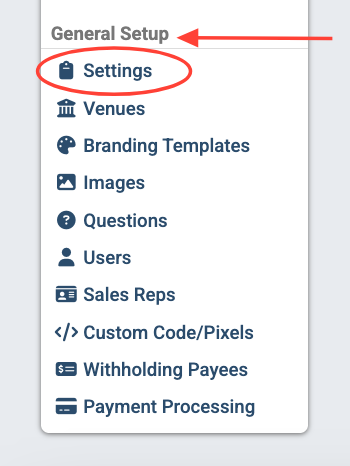
Step 1: Locate and click the "Settings" tab on the left-side menu. It can be found under "General Setup."
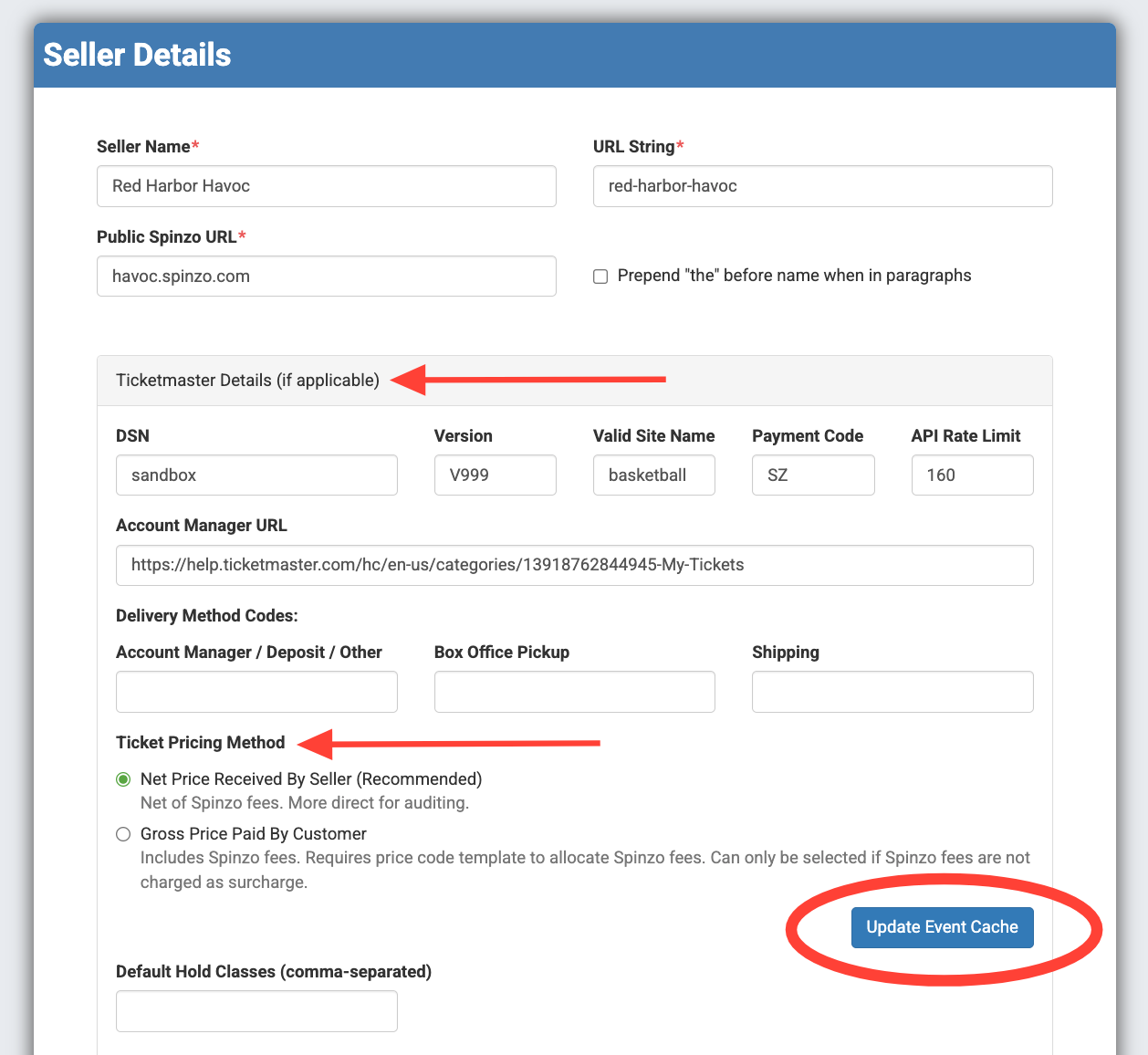
Step 2: On the "Seller Details" page, locate and click on the blue "Update Event Cache" button. It is located within "Ticketmaster Details (if applicable)," below the "Ticket Pricing Method" section.
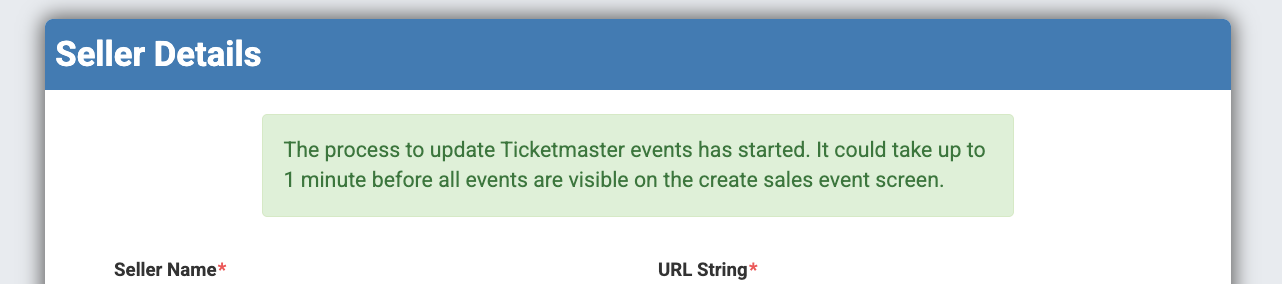
Note: After clicking the button, a confirmation message should appear at the top of the screen indicating that the event cache has been updated successfully.
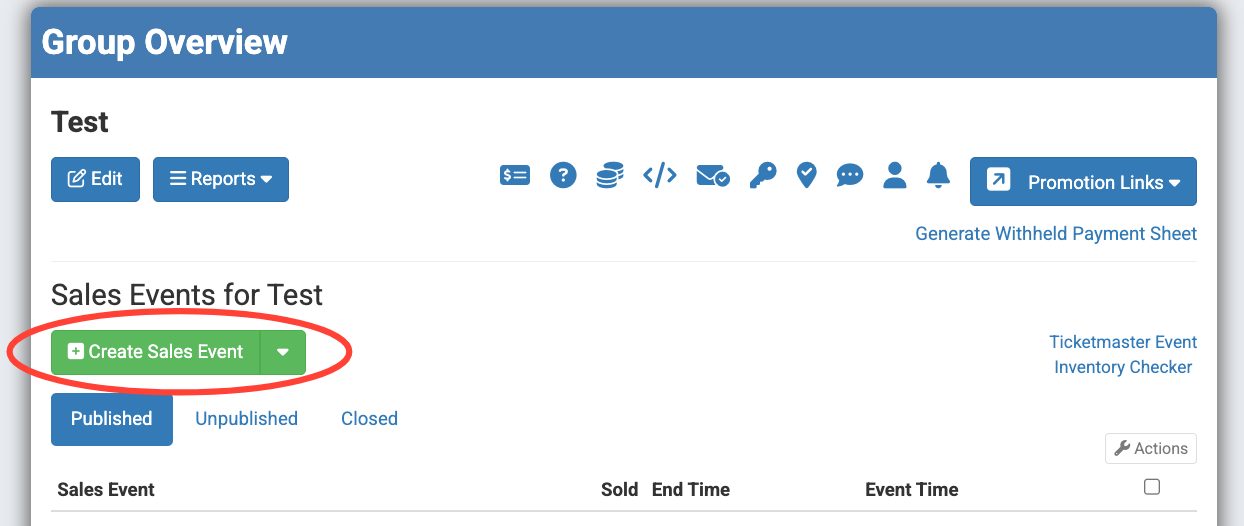
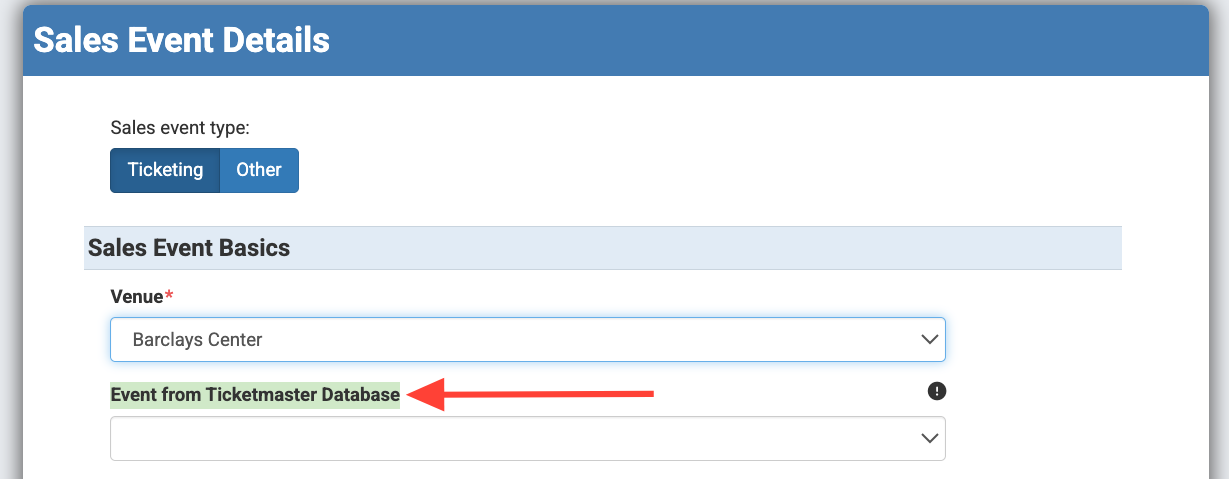
Step 3: To confirm that the event is showing in the system, navigate to an existing group and click "Create Sales Event." Check the "Event from Ticketmaster Database" dropdown to verify that the new event appears in the list.
Troubleshooting: If the event does not appear in the dropdown menu, return to Archtics and confirm that the event has been added to the Spinzo item set. After verifying the setup, run the "Update Event Cache" process again.