
Understanding "Headline Info" Levels in Spinzo
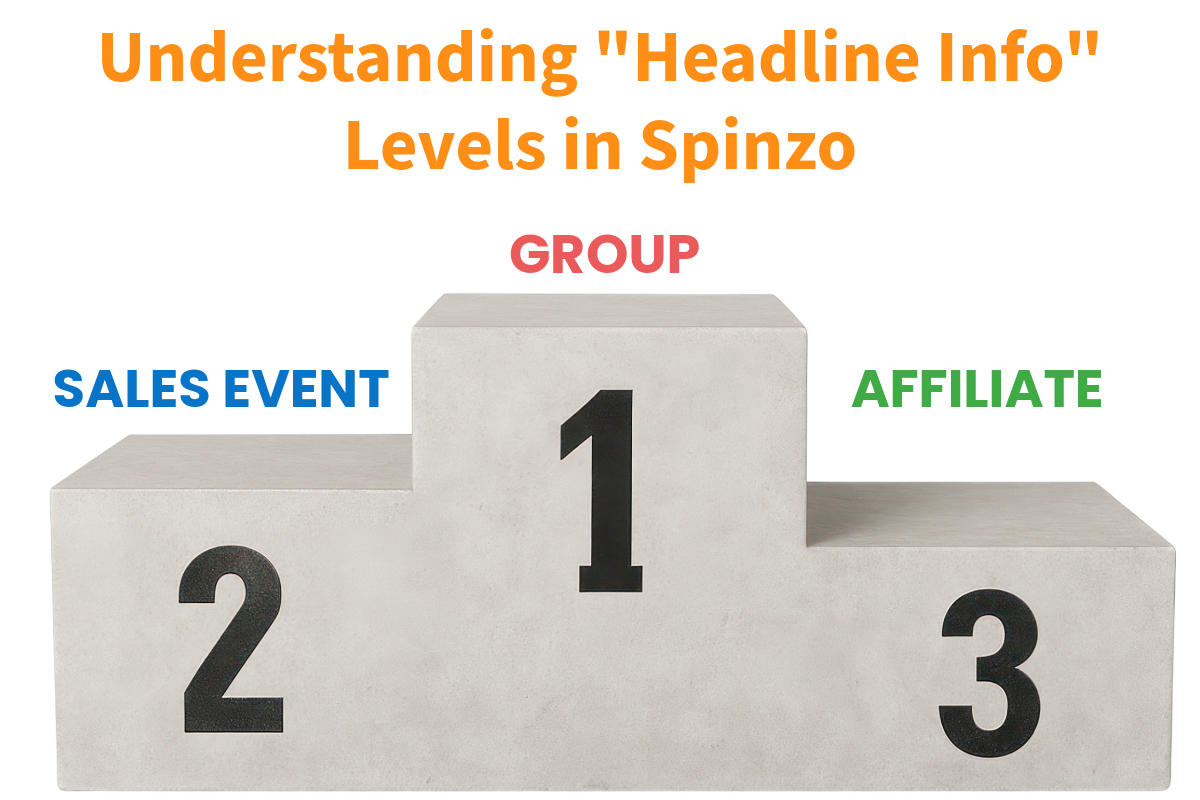
The "Headline Info" section allows you to add a description for a game, promotion, or event. This is where you can include key details, benefits, and important event information for customers. In Spinzo, there are three main places where "Headline Info" can be added. Each location impacts where the details show up on the promotional page. Sometimes it's wise to add it at the group level, where it will appear on multiple pages, and other times it's best to have it show at just the sales event or affiliate level.
Group Level
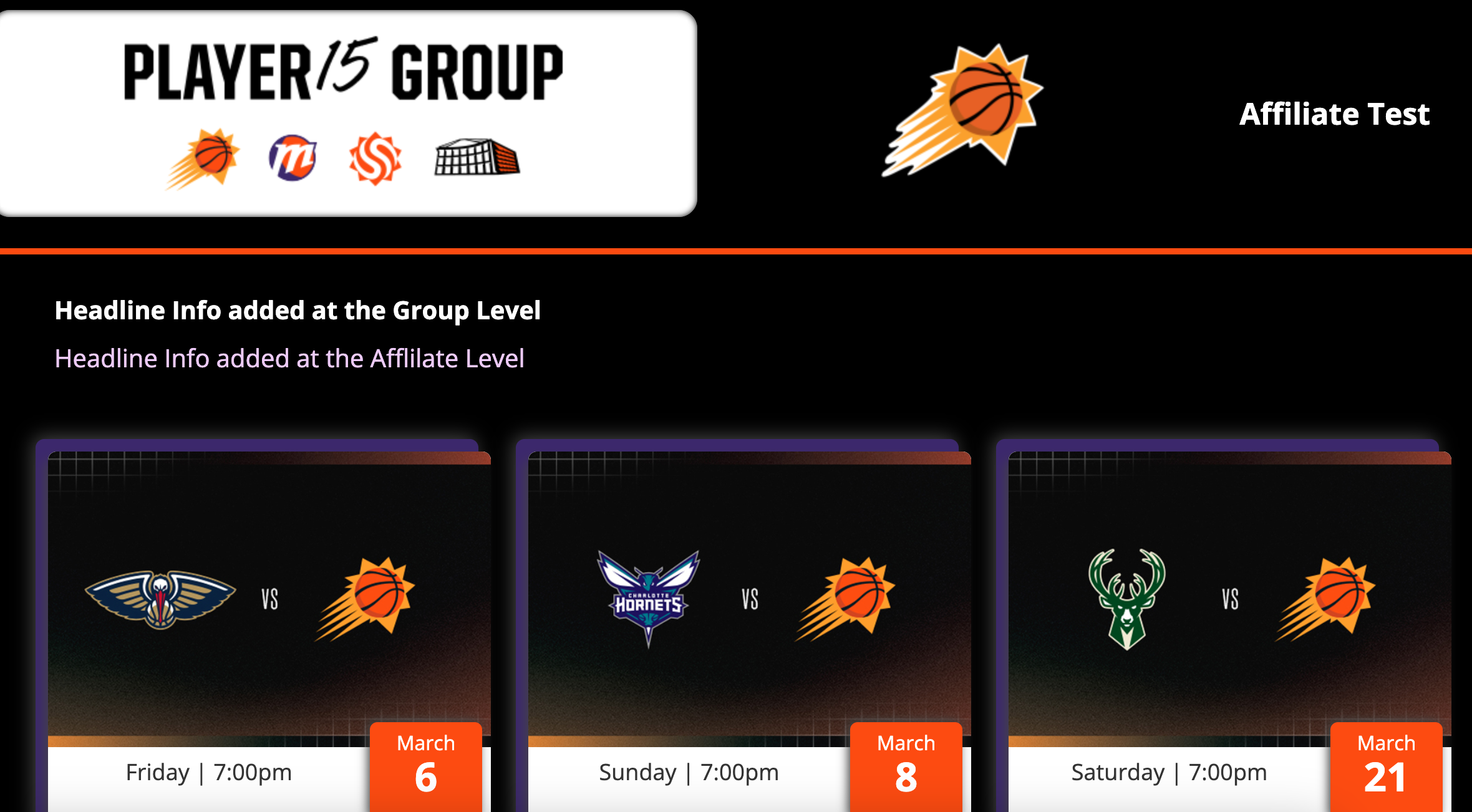
When adding "Headline Info" at the group level, it's important to note that this information will show up at all levels. It will show on the group link, sales event specific links, and an affiliate link.
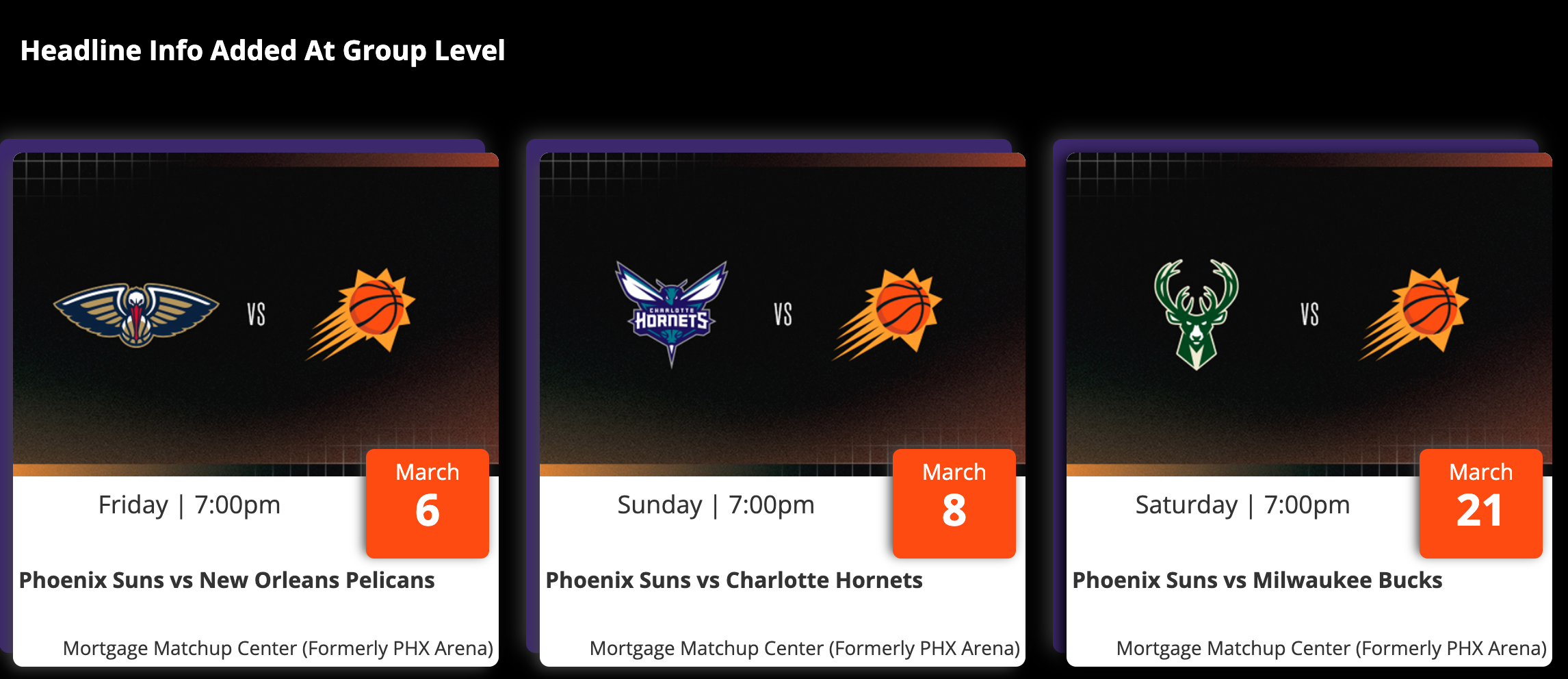

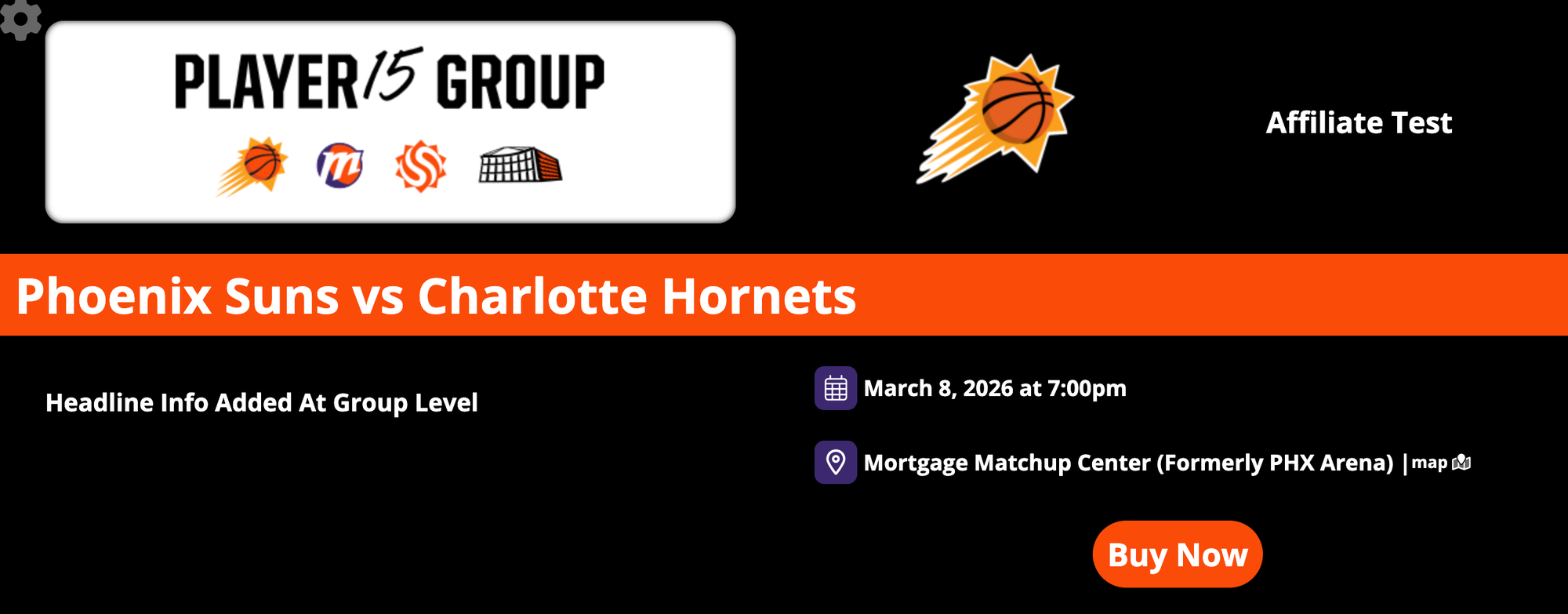
How to Add Group-Level Headline Info
Step 1: Select "Create New Group" or choose an existing group and click "Edit."
Step 2: Navigate towards the bottom of the "Group Details" page and locate the "Headline Info" box (below "Support Contact Info" and above "More Info").
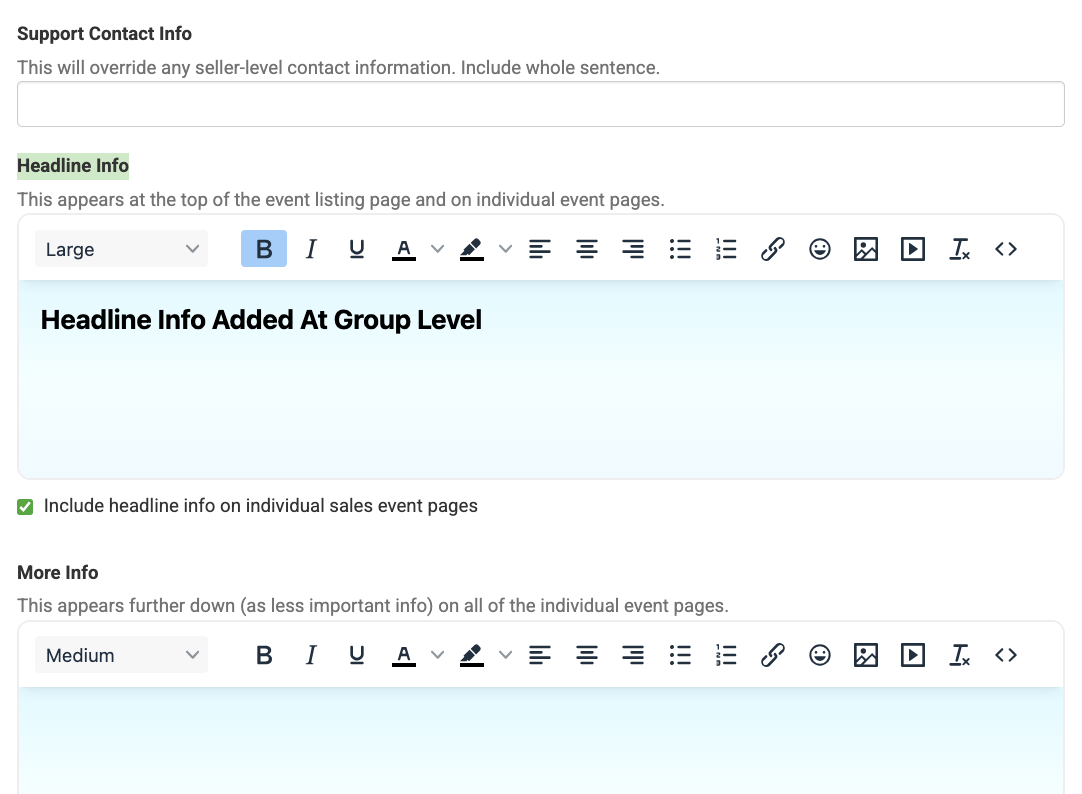
Step 3: Add your content and click Save.
Sales Event Level
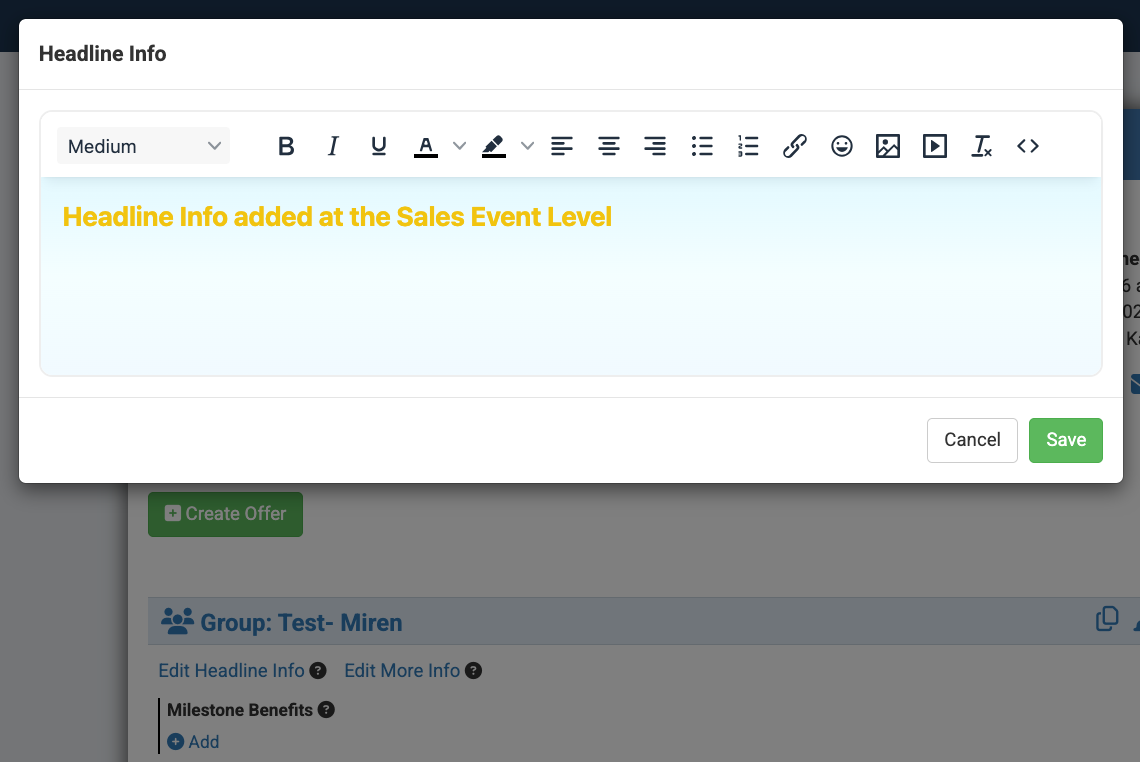
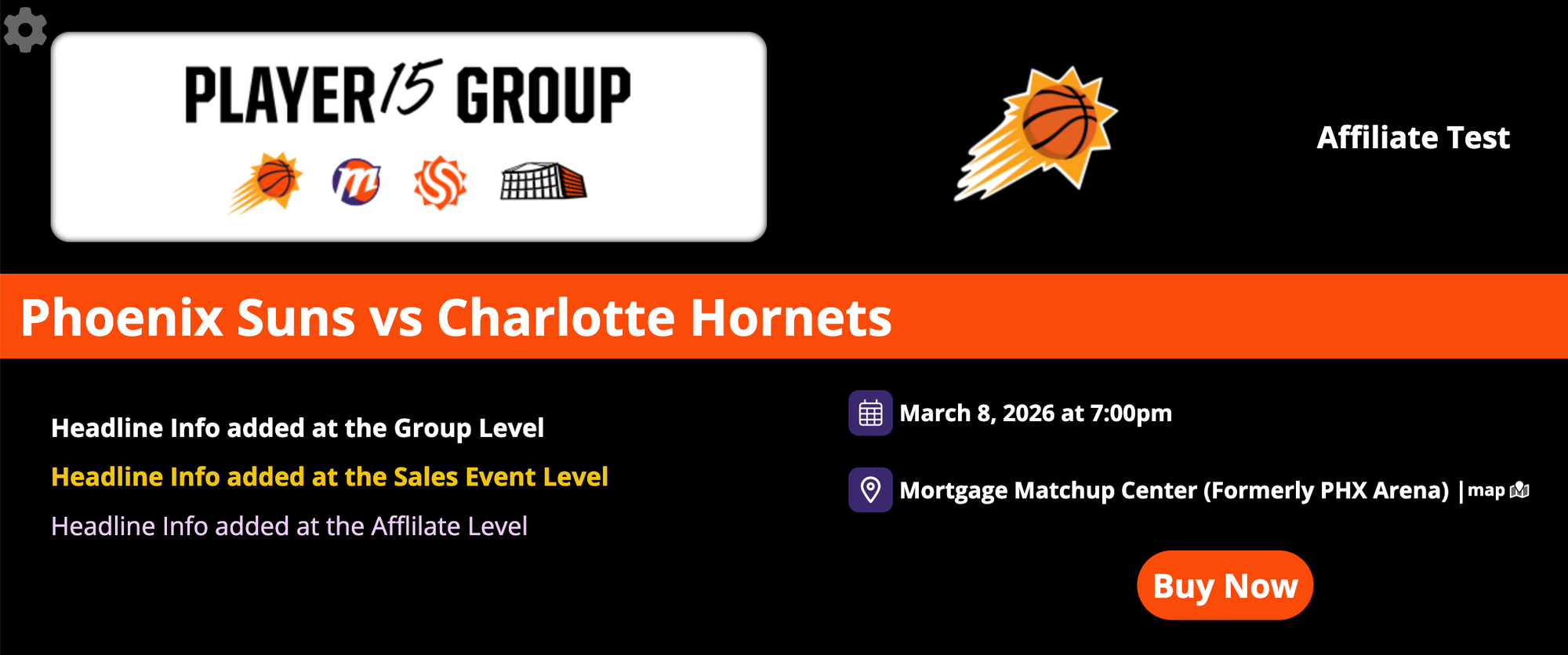
Adding "Headline Info" at the sales event level will apply it to a specific game or event date page and will also add it to the affiliate page for that sales event. It's important to note that if headline information has been added at the group level, this content will appear below that information. If there is no "Headline Info" at the group level, then this information will be the main description of the page.


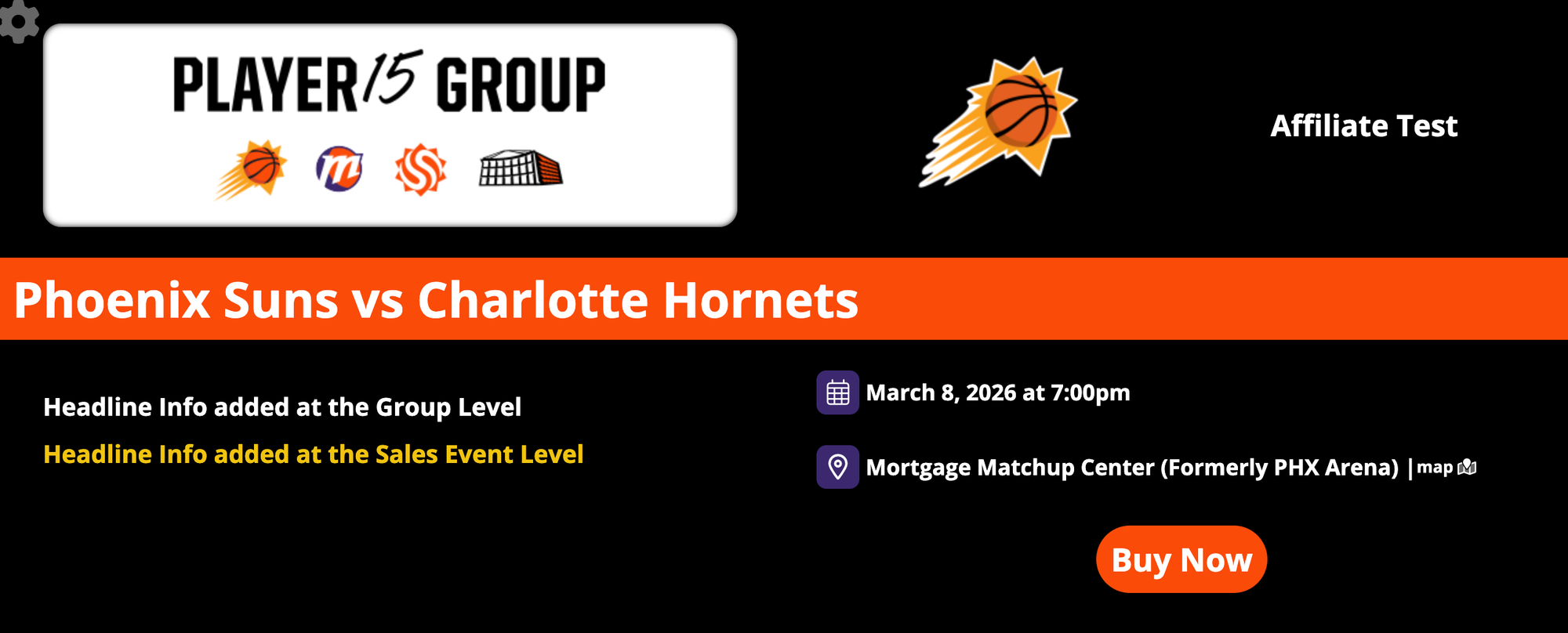
How to Add Sales Event Level Headline Info
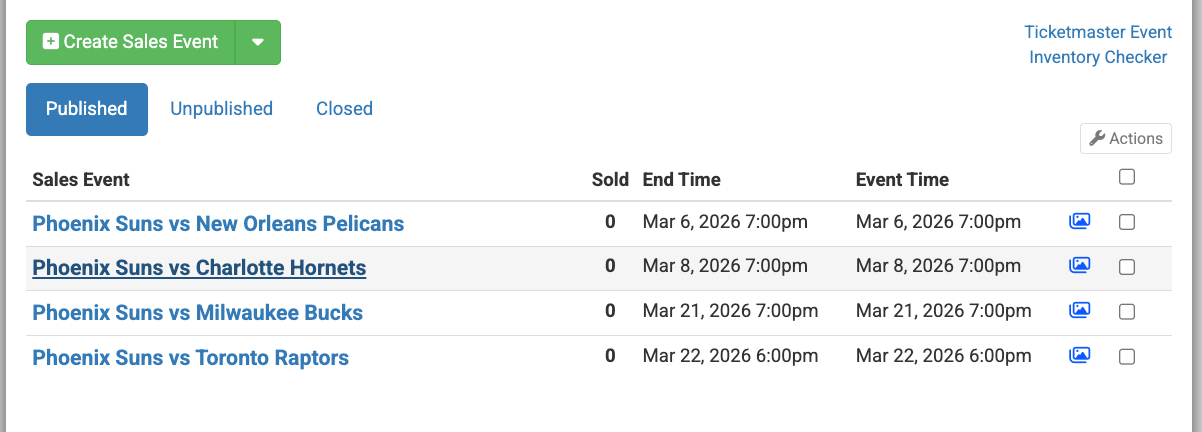
Step 1: Select the appropriate group and choose the specific event date you want to update.
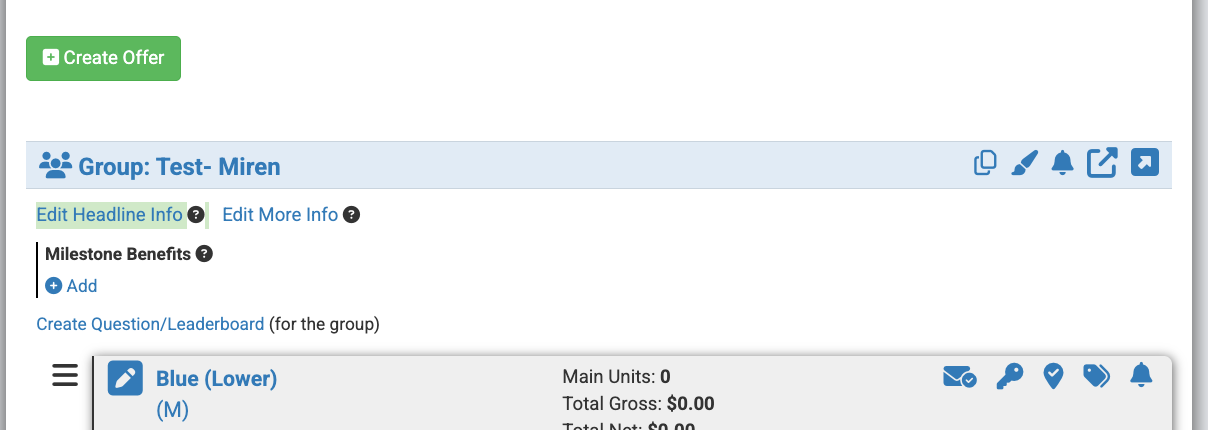
Step 2: Click "Edit Headline Info" (located below "Create Offer" and above "Milestone Benefits").
Step 3: Add your event-specific details and click Save.
Affiliate Level
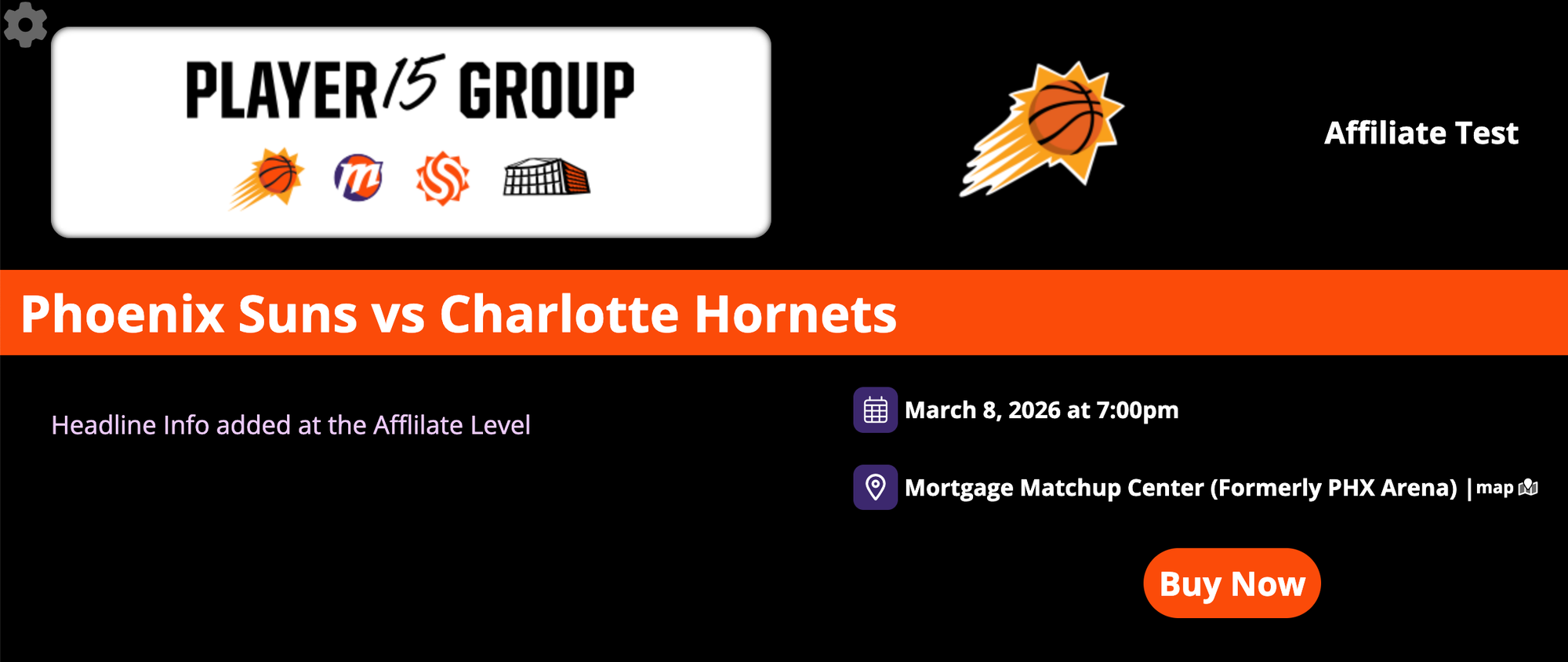
Adding "Headline Info" at the affiliate level will add it to the specific affiliate link. It's important to note that if headline information has been added at the group level and at the sales event level, the information added at the affiliate level will show below that information. If there is no "Headline Info" at the group level or sales event level, then this information will be the main description of the page.
How to Add Affiliate Level Headline Info
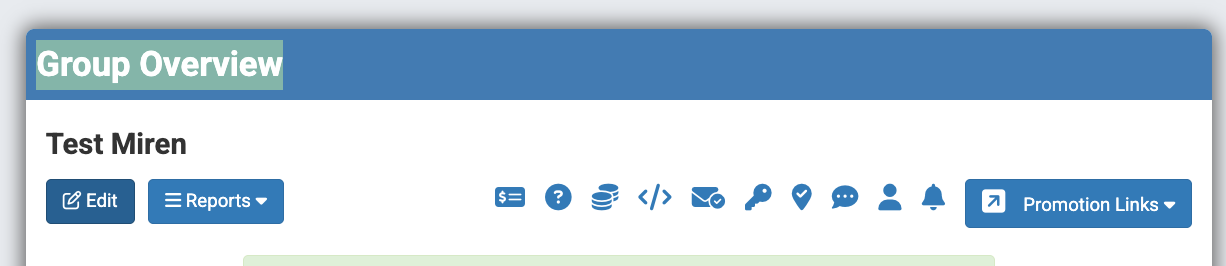
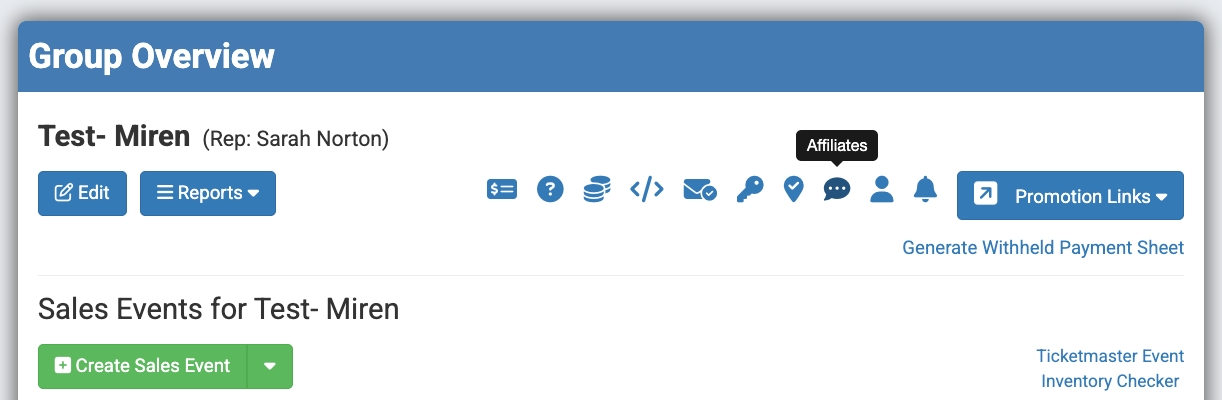
Step 1: Select the appropriate group and click on the chat bubble icon (located near the top-right of the page, three icons over from "Promotional Links").
Step 2: Create a new affiliate or select existing one.
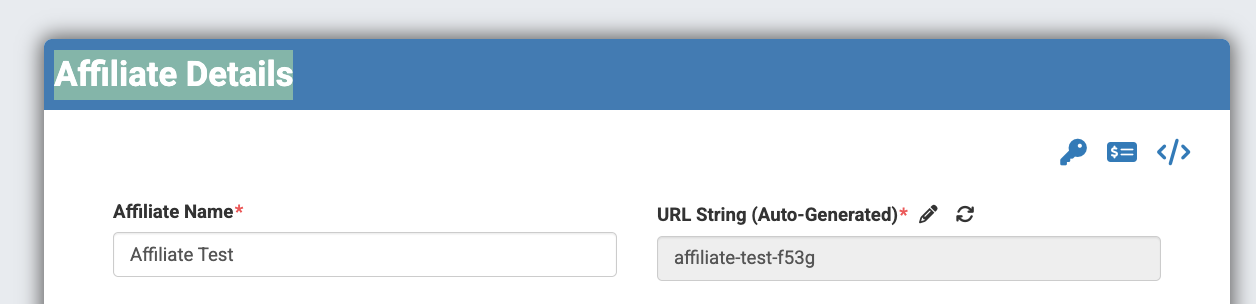
Step 3: On the "Affiliate Details" page, scroll towards the bottom.
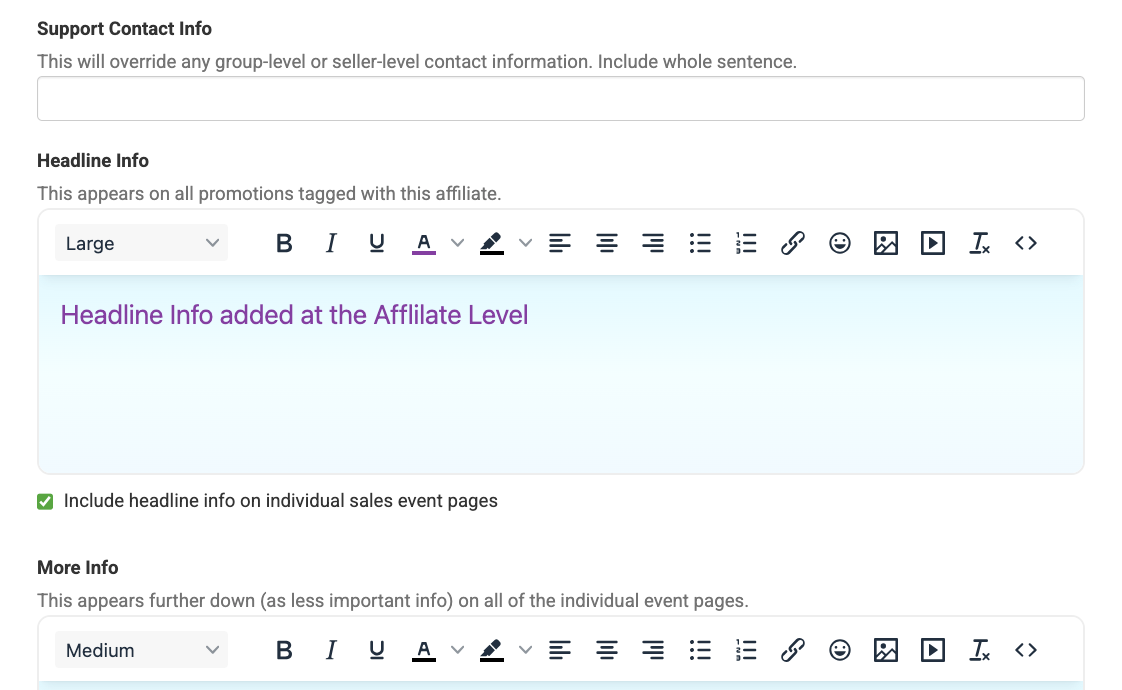
Step 4: Locate the "Headline Info" box (below "Support Contact Info" and above "More Info"). Add the content and click Save.
Best Practice
It's important to be intentional about where "Headline Info" is being added for a promotion. Understanding these levels for "Headline Info" will also help with understanding the levels for "More Info."