
Spinzo's Fee Display Options
Spinzo offers multiple ways for teams to display fees. These options are typically set at the "Seller" level but can be overridden at the "Offer" level. Each display option presents pricing to buyers in a different way. Most options can be used at for any offer at any time, with one option reserved exclusively for merchandise or non-ticketing experiences.
Below are the different fee display options and how they appear when selected.
Disclosed Everywhere
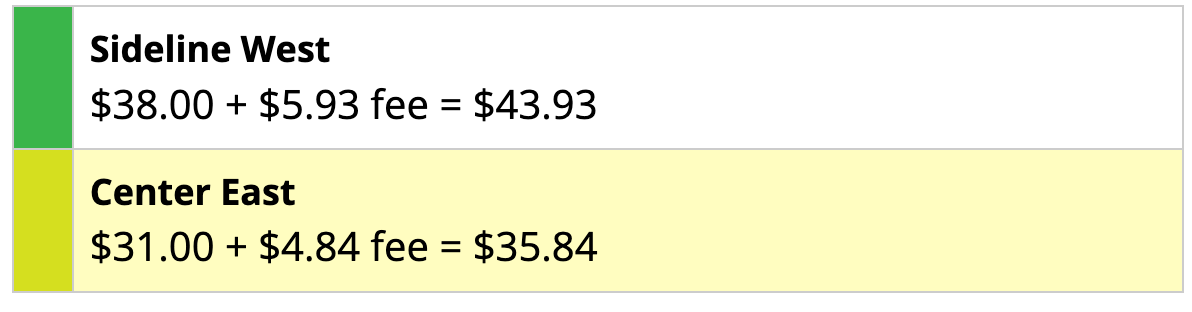
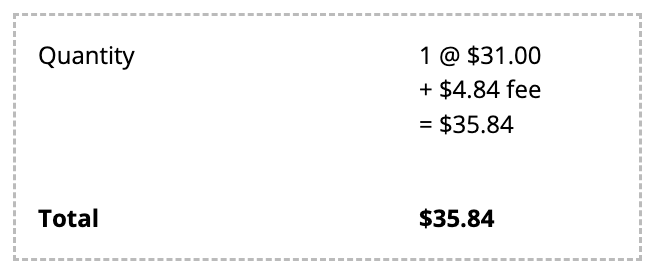
This is a great option if you want to clearly disclose the breakdown of fees to buyers. This display shows the ticket price + fees = total amount. Below are examples of how this display appears on the buying options page, followed by the seat selection page and checkout page.

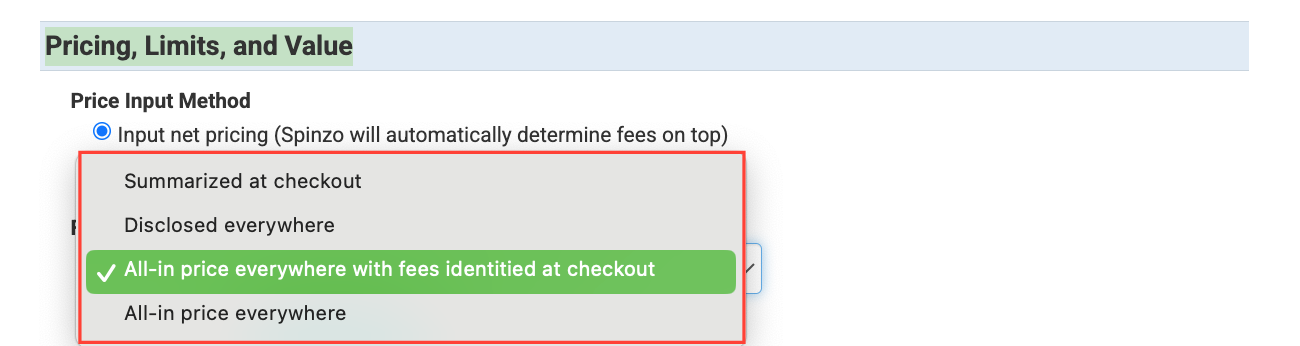
All-in Price Everywhere With Fees Identified at Checkout
This is a great option when you want the all-in pricing to be displayed throughout the the buying process while only breaking out the fees during checkout. Below are examples of how this display appears on the buying options page, followed by the seat selection page and checkout page.

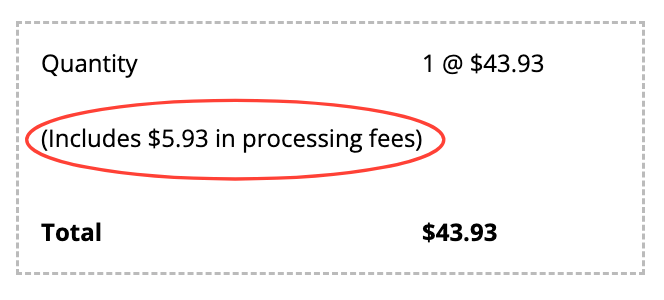
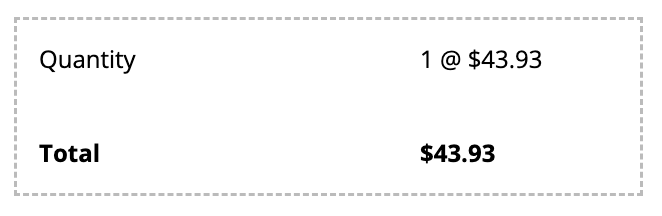
All-in Price Everywhere
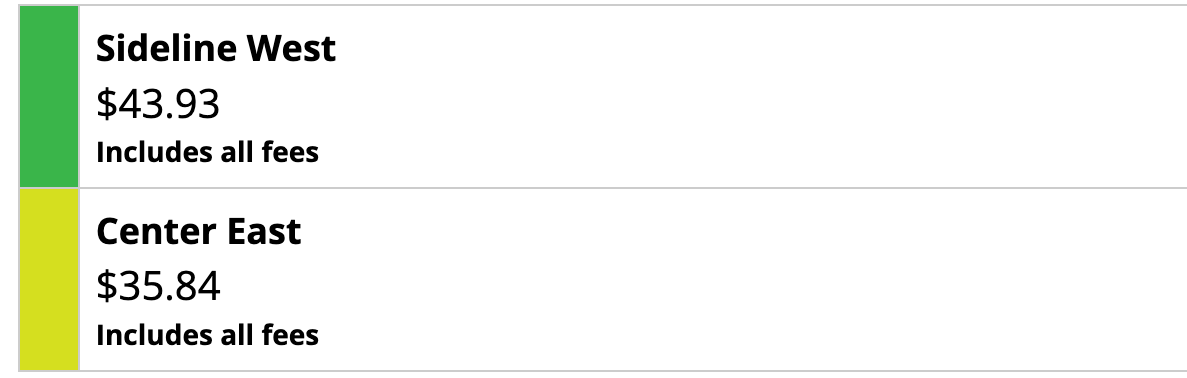
This is a great option for when you want all-in pricing to be displayed throughout the entire buying process. Buyers will not see a fee breakdown at any point. Below are the images for how the display appears on buying options page, followed by the seat selection page and checkout page.
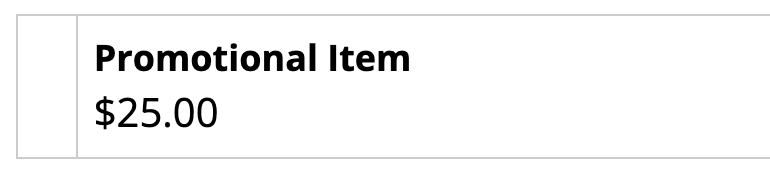
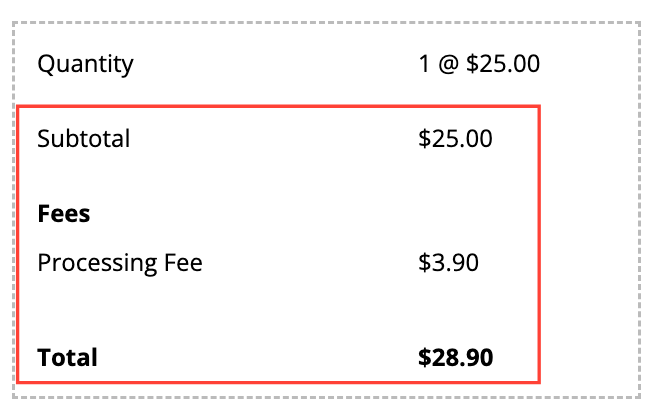
Summarized at Checkout (Merchandise OR Non-Ticketed Options ONLY)
Due to federal fee disclosure laws, the "Summarized at Checkout" option should only be used for non ticketed items or for merchandise-specific pages.

Instructions for Updating Fee Display
It may be beneficial to override the fee display for a particular promotion. When appropriate, follow the steps below:
*Note: You must be a "Seller Admin" user in order to update the fee display.
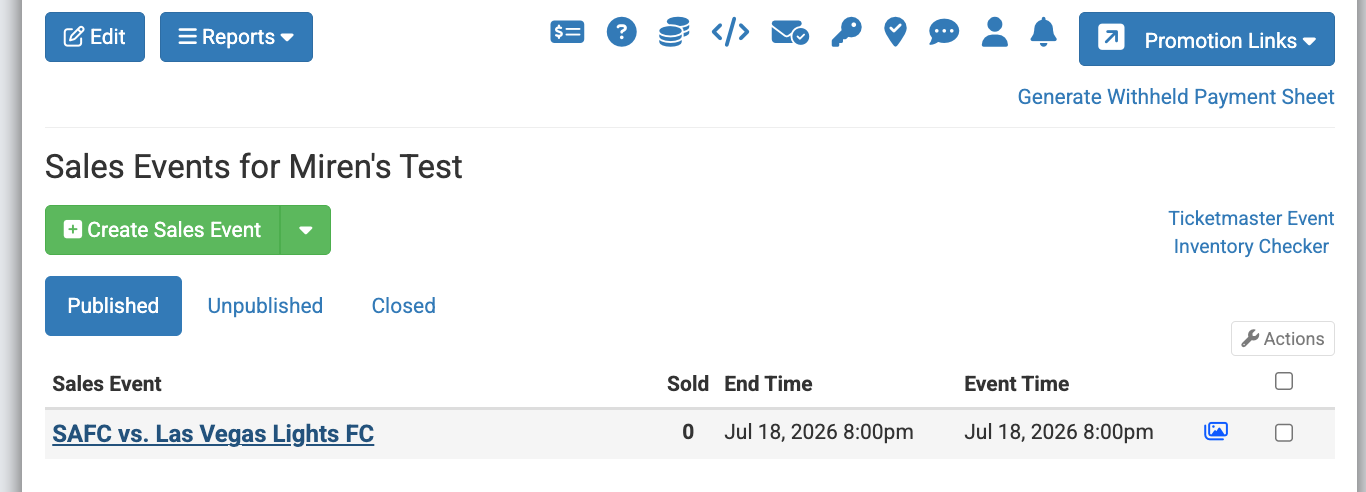
Step 1: Locate the group and click on the sales event where the fee display needs to be updated.
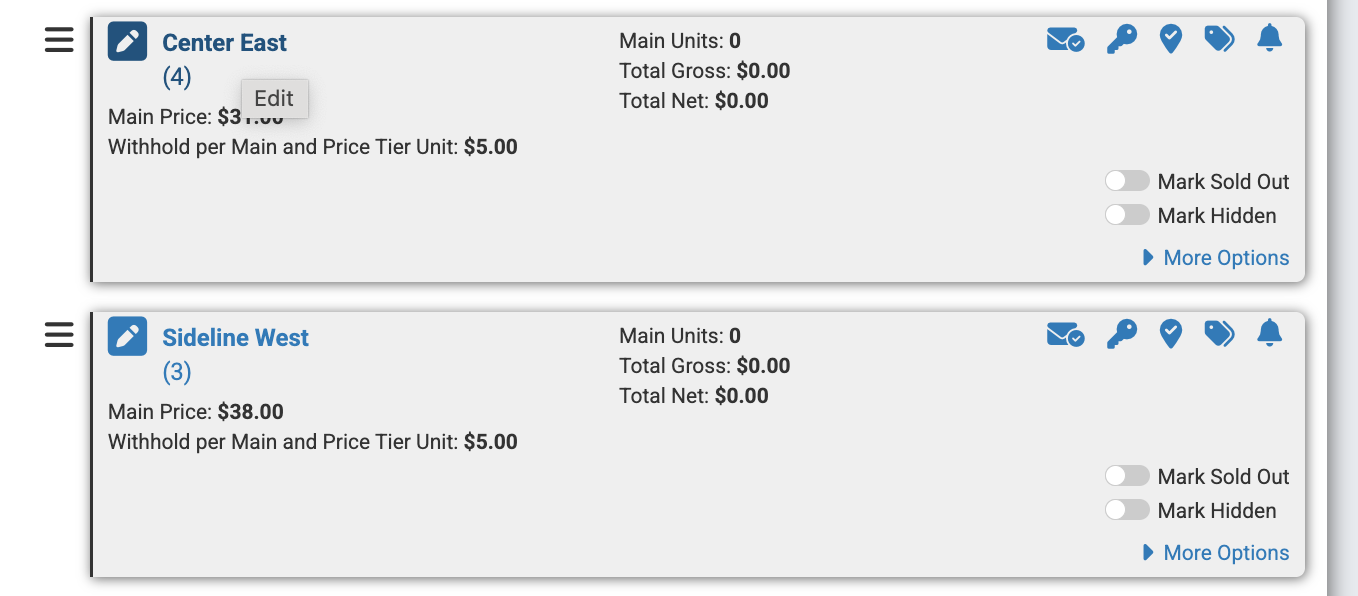
Step 2: Within the sales event, select the offer or seating zone that needs to be updated.
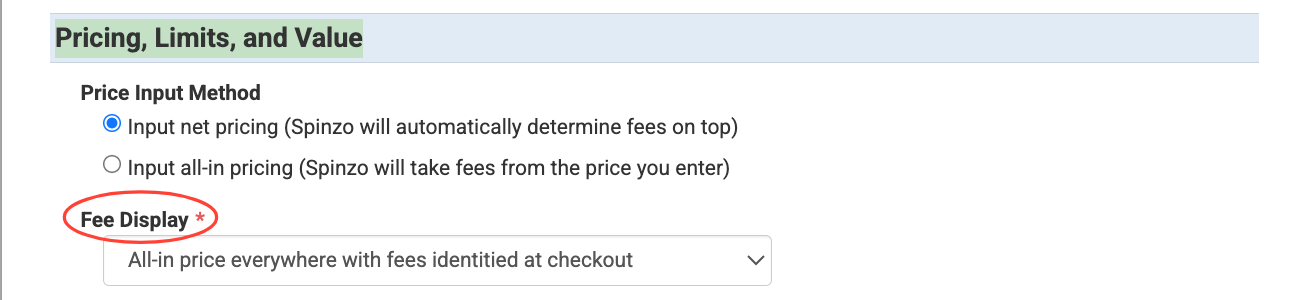
Step 3: Under "Pricing, Limits, and Value" find the "Fee Display" drop-down menu and select the fee display that best fits the promotion.
Step 4: Click "Save." Review the promotion to confirm the fee display appears as expected.
Step 5: Repeat steps 2-4 for any additional offers or seating zones that need to be updated.
Instructions for Bulk Update Fee Display
For pages with multiple offers or sales events that all need to be updated, follow the steps below:
*Note: You must be a "Seller Admin" user in order to update the fee display.
Step 1: Locate the group and check the box next to each sales event that needs to be updated.

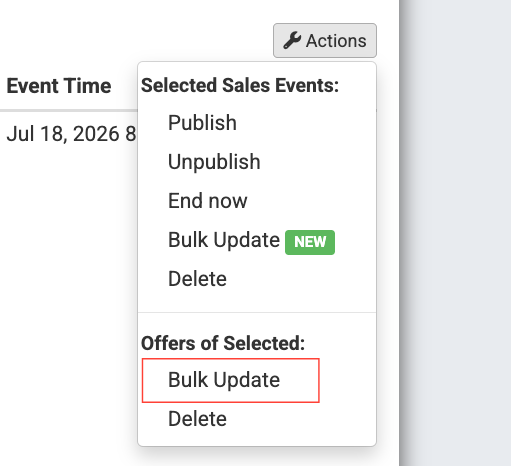
Step 2: Select "Actions," then schoose "Bulk Update" under "Offers of Selected."
Step 3: In the drop-down menu, locate and select "Fee Display." It is located under the "Pricing" section.
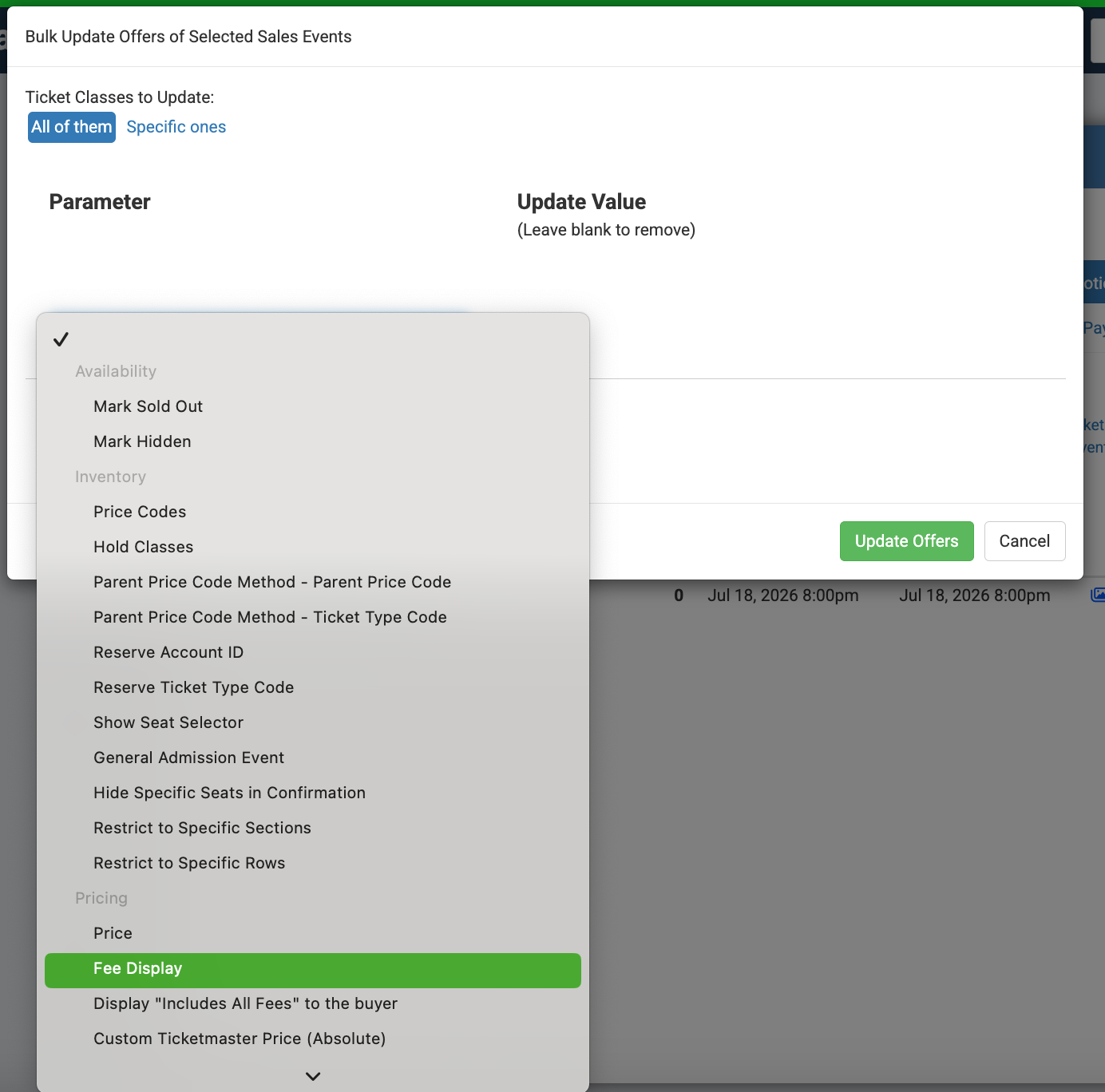
Step 4: Under the "Update Value" drop-down menu, select the fee display you want to apply to all selected offers and seating zones.
Step 5: Click "Update Offers." Review the promotion to confirm the fee display appears as expected.
Selecting the appropriate fee display helps create a transparent purchasing experience while ensuring your promotion aligns with your organization's pricing strategy and fee disclosure requirements. Before publishing or updating a promotion, always review the buyer experience to confirm the fee display appears as intended throughout the purchase process.