How To Update The "Buying Options" Button
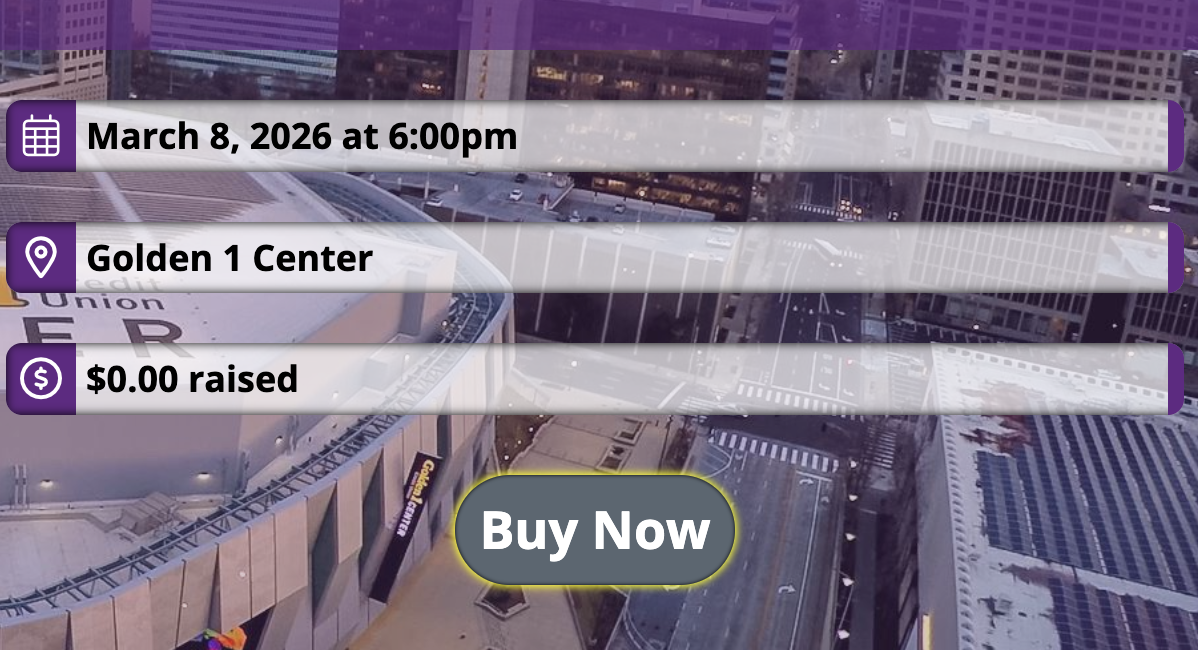
The "Buying Options" button shows by default on every page that has offers, but did you know that the "Buying Options" button can be changed to whatever you want or to whatever makes sense for your page? From "Buy Now" and "Buy Tickets" to "Register", "Purchase" and "Redeem Here" there is a true flexibility when updating this element of the page.
To change the button, follow the steps below.
Step 1: Search for the group that needs to be updated and select the specific sales event.
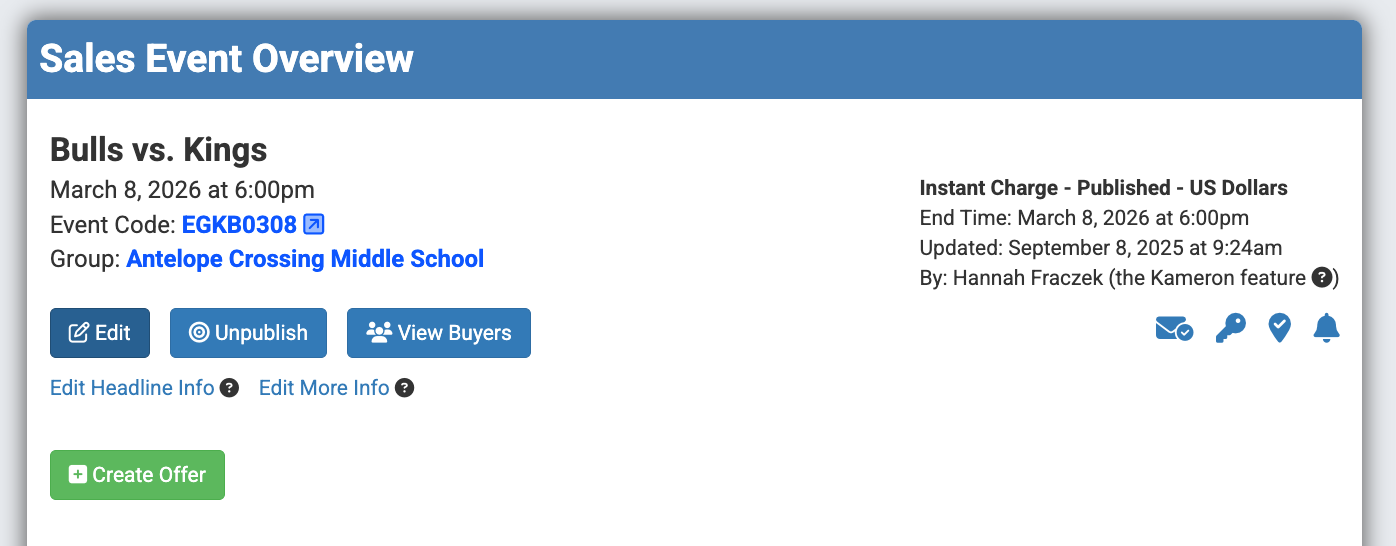
Step 2: Click "Edit" just below the group name on the Sales Event Overview Page.
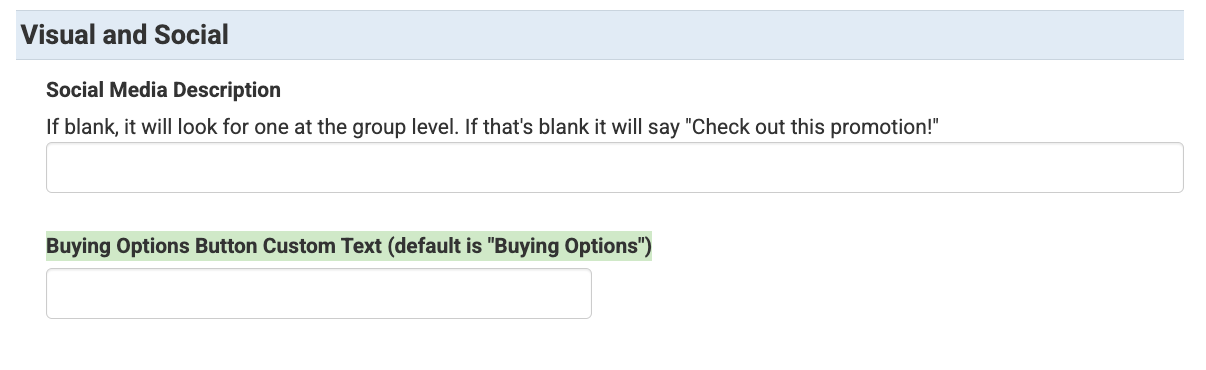
Step 3: Once on the "Sales Event Details" page, scroll down towards the bottom of the page where it reads "Visual and Social". This is located just below the "Additional Redemption Instructions" box.
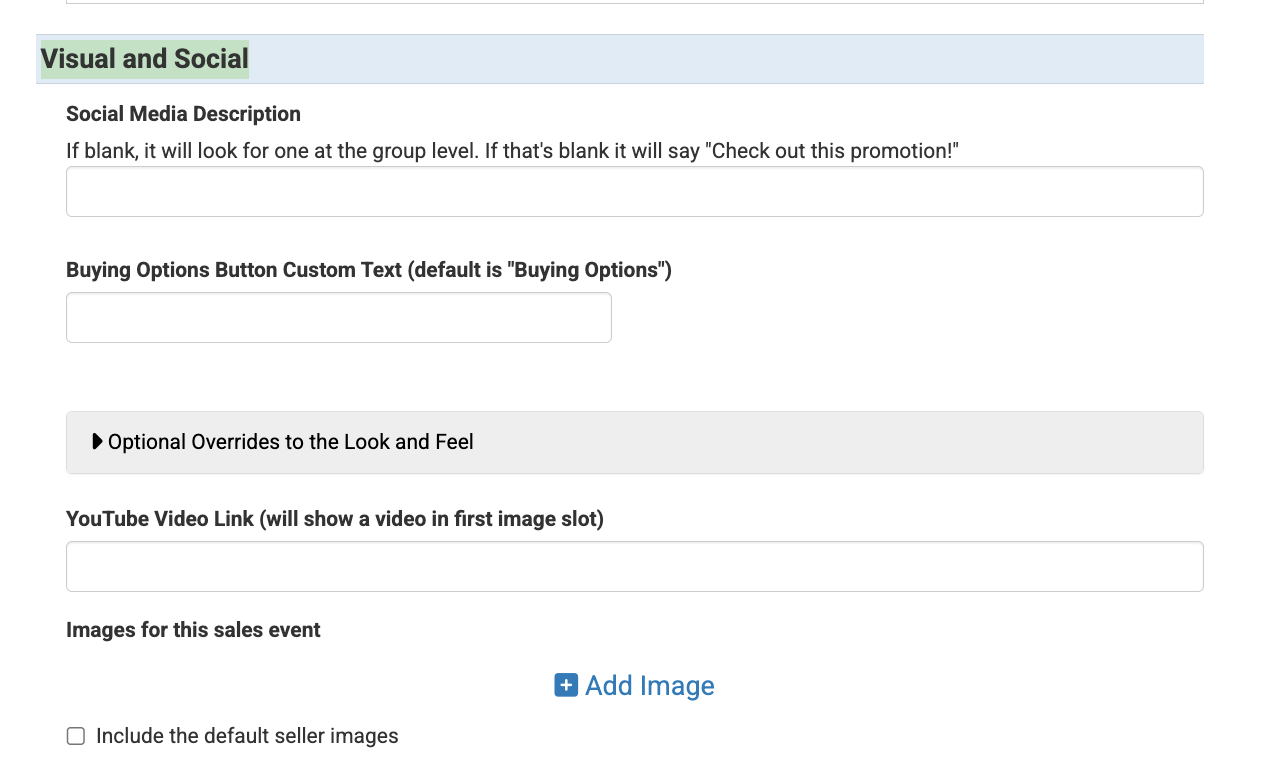
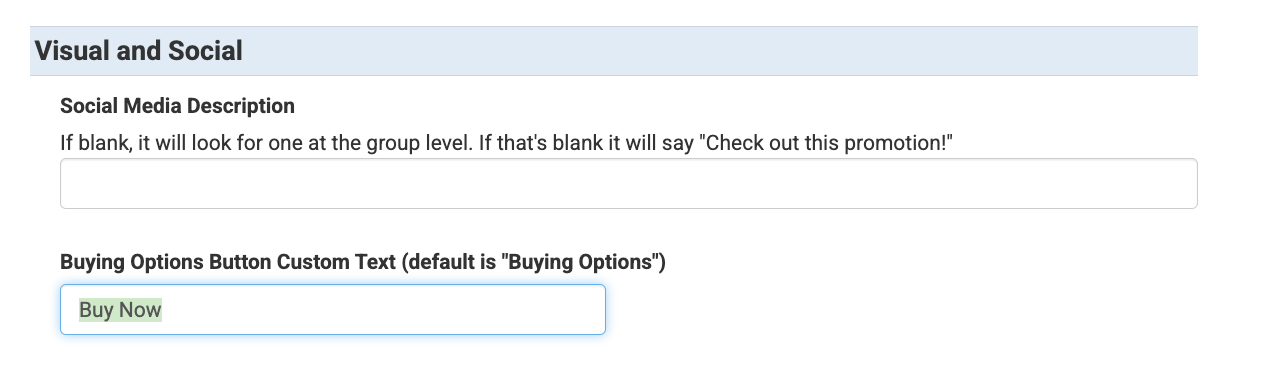
Step 4: Find the "Buying Options Button Custom Text" box within the "Visual and Social" section and write whatever you want the button to show as. In the example below, the button is updated to "Buy Now".
Step 5: Click "Save" to update the button and check the page to make sure it is showing correctly.
Seller Level Buy Button Override
Additionally, Spinzo offers the ability to override the Buying Options button at the seller level, setting a default for all promotions moving forward. With this in place, the option and process of overriding the button text on a promotion by promotion basis still exists.
To update the button at the seller level, choose the Settings tab.
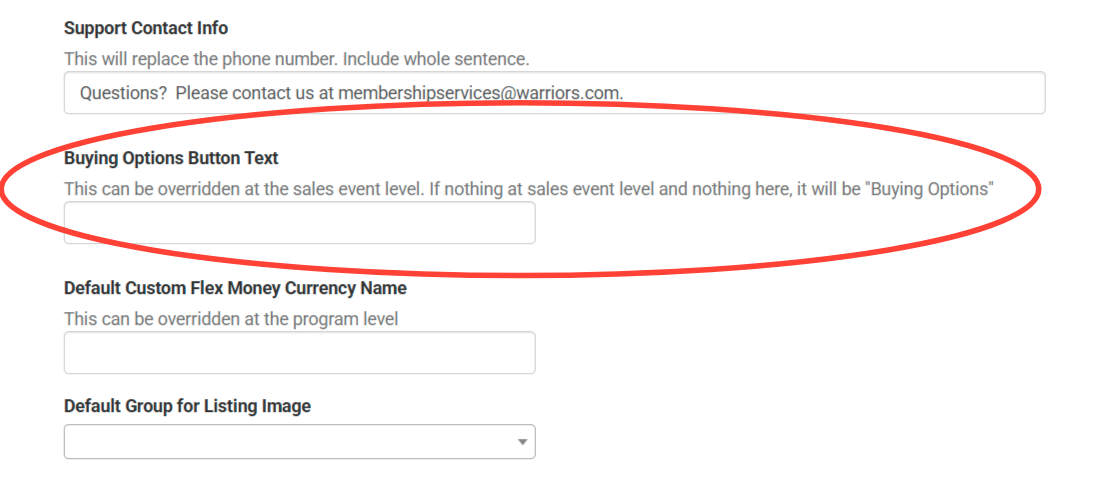
Scroll halfway down the page below support contact info and enter the desired button text into "Buying Options Button Text".