
How To Receive Notifications In Spinzo
Spinzo offers a few options for notifications at multiple levels. The notifications include "Purchase Notifications," "Question Notifications," and "Refund Notifications." Each notification provides different information and can be opted into individually by a Spinzo user.
Purchase Notifications
Purchase notifications can be enabled at four levels: seller, group, sales event and offer. This means clients can choose to receive notifications for every order or just for a group, sales event, or offer/zone. To receive "Purchase Notifications," follow the steps below.
Purchase Notifications at the Seller Level
Step 1: Go to "Settings" located on the left-side menu under "General Setup."
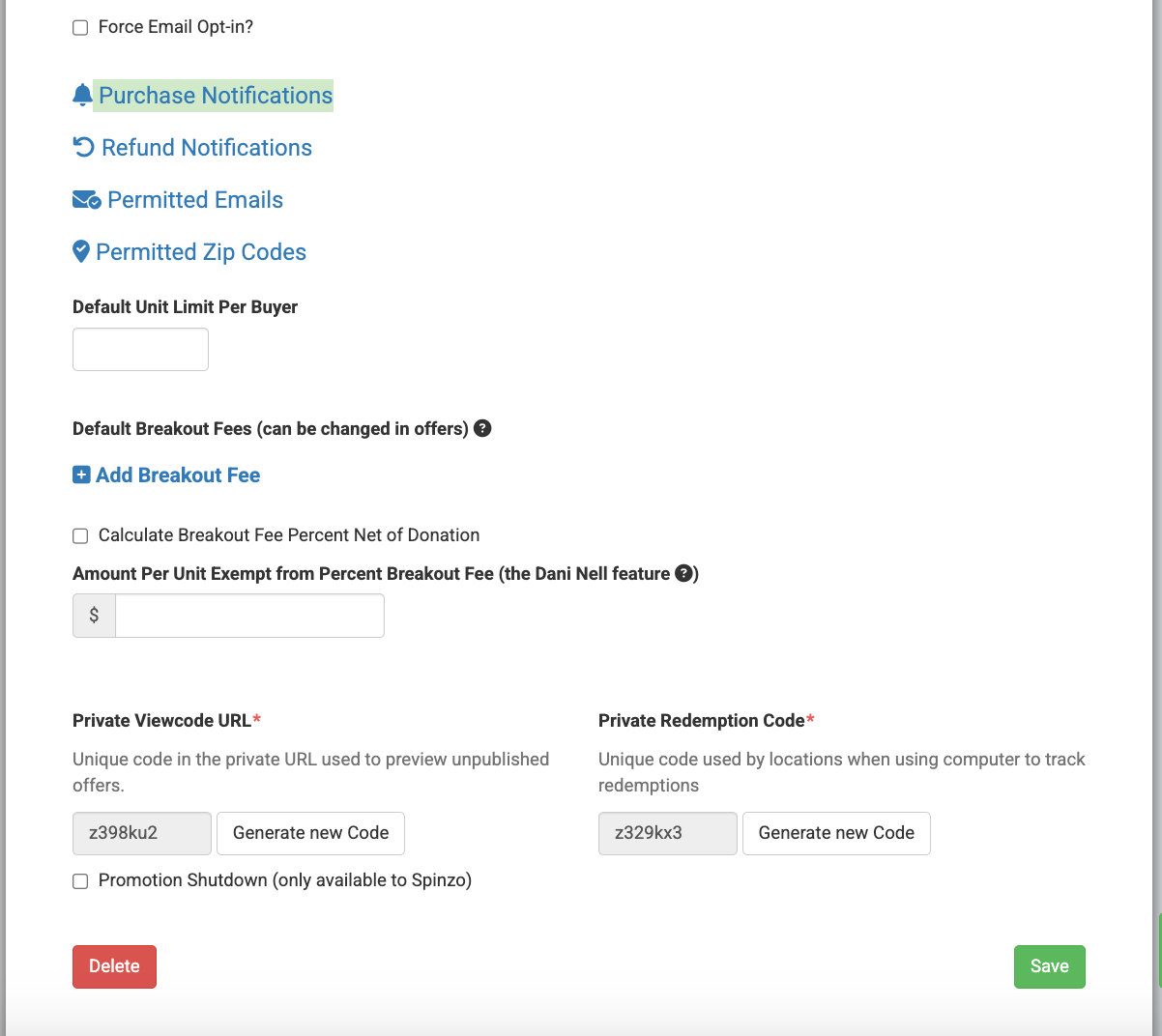
Step 2: Scroll to the bottom of the page and locate "Purchase Notifications." Click on "Purchase Notifications."
Step 3: Check "Receive Notifications?" and click "Update."
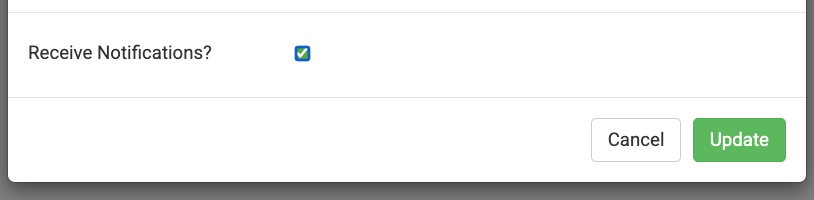
*Note: Checking this box means that notifications will be sent for every single order that comes through via the platform.
Purchase Notifications at the Group Level
Step 1: Select a group.
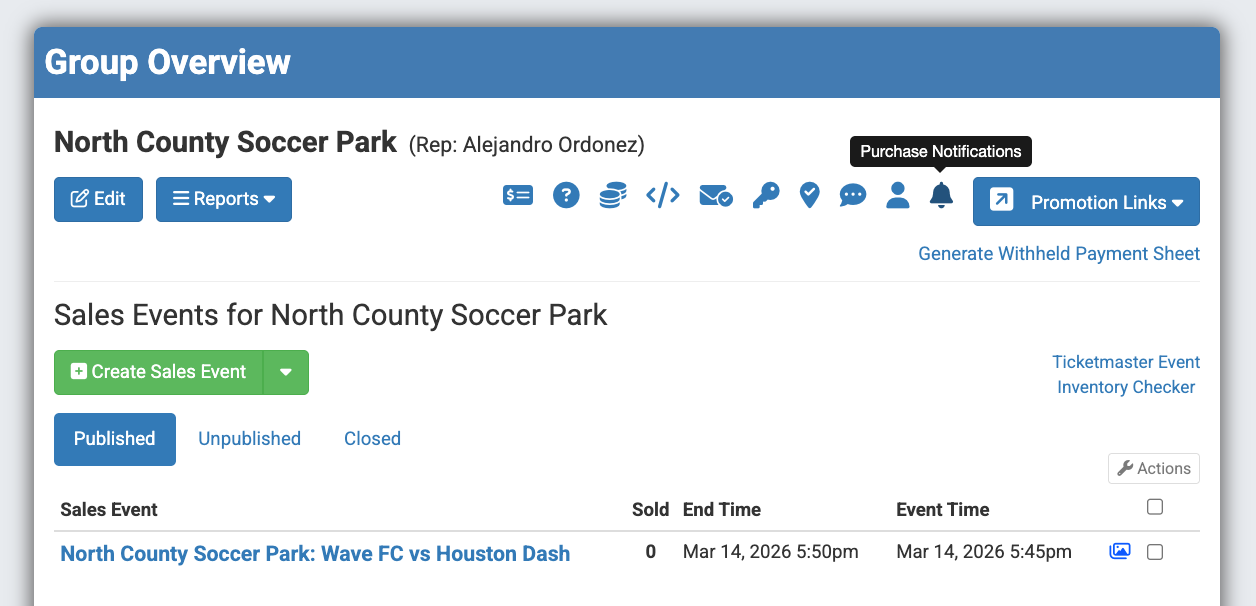
Step 2: Locate and click on the bell icon. It can be found toward the top of the "Group Overview" page right next to the "Promotions Links" button.
Step 3: Check "Receive Notifications?" and click "Update."
*Note: This will provide notifications for any orders that come through for the group and will include all sales events.
Purchase Notifications at the Sales Event Level
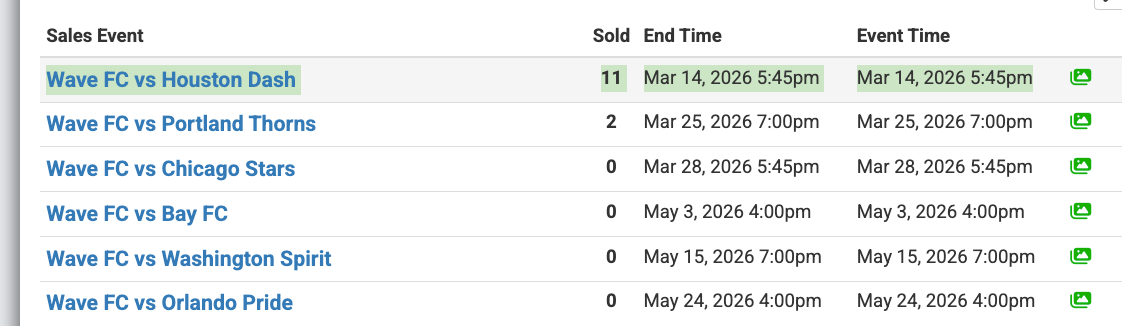
Step 1: Select a group then select a sales event within the group.
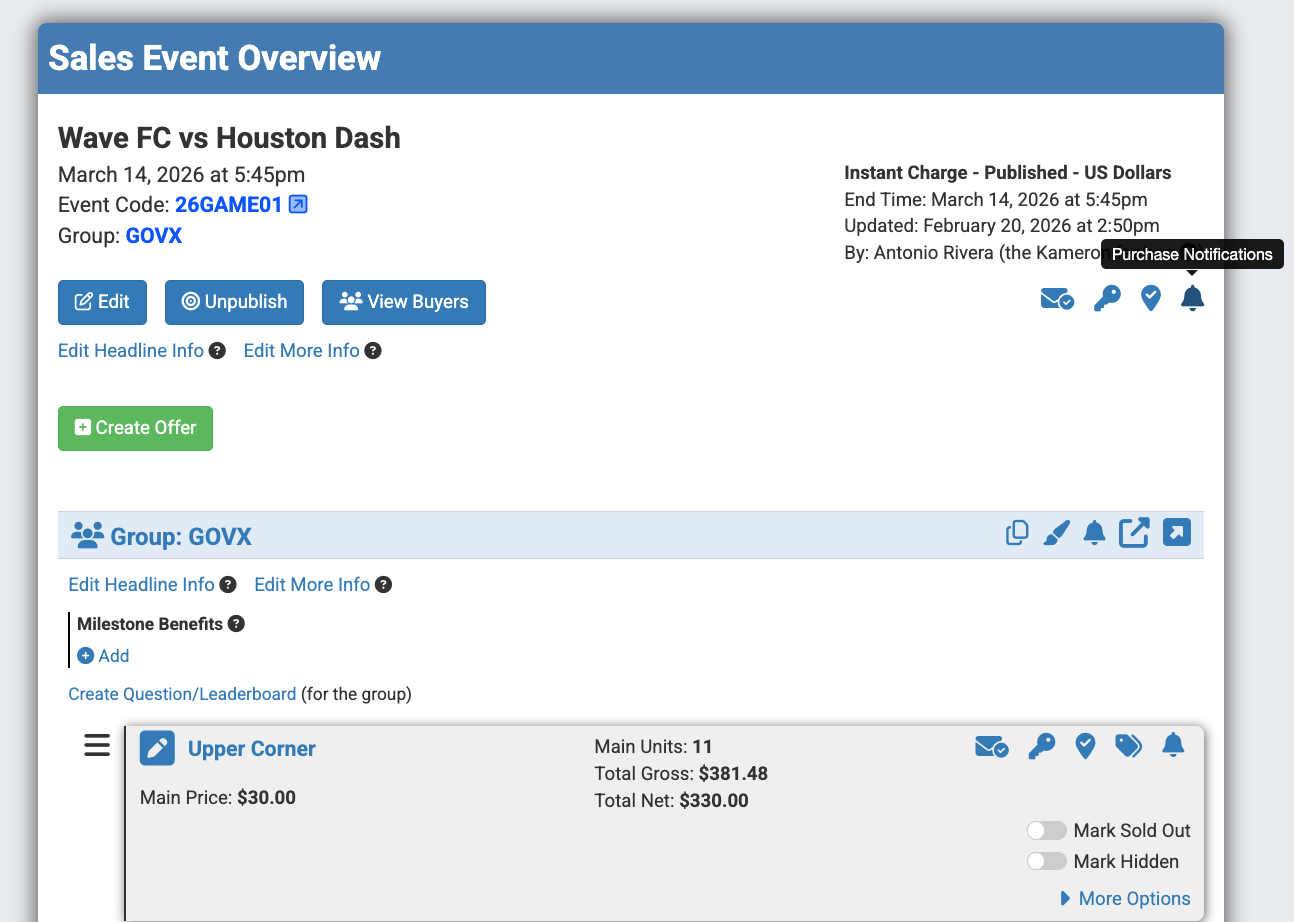
Step 2: Locate the bell icon. It is located towards the top right-side of the "Sales Overview Page."
Step 3: Check "Receive Notifications?" and click "Update."
*Note: This will provide notifications for the specific game date, but not for multiple sales events within a group.
Purchase Notifications at the Offer Level
Step 1: Select a group, then select one sales event.
Step 2: Once on the "Sales Event Overview" page, locate an offer or seating zone.
Step 3: Within that zone box, locate the bell icon. Within the gray zone box, it can be found on the far right-side.

Step 4: Check "Receive Notifications?" and click "Update."
*Note: This will provide notifications for only a specific seating zone.
Question Notifications
Notifications regarding responses to questions can be a great way to receive warm leads. Notifications for a specific response to a question can be turned on at the seller level. To receive notifications for a question, follow the steps below.
Step 1: Go to the "Questions" tab. It is located toward the bottom of the left-side menu under "General Setup."
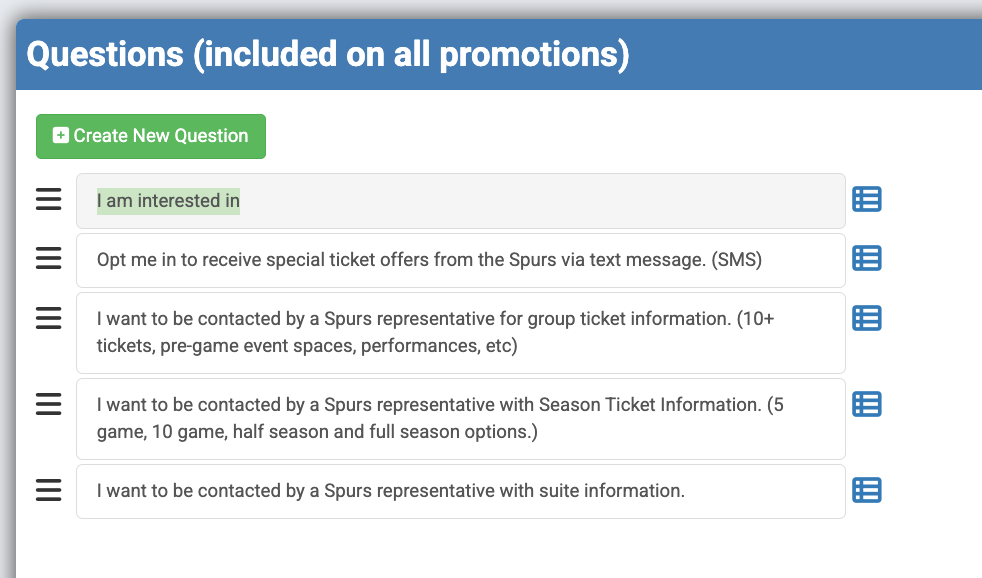
Step 2: Select the question that you would like to receive notifications for.
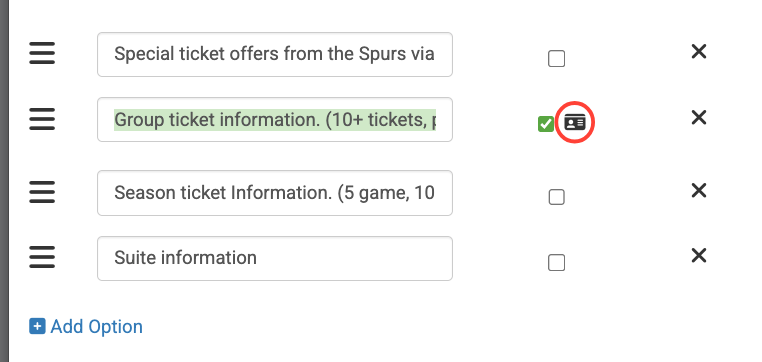
Step 3: Put a checkmark next to the response that you want to receive notifications for. This will make a small card icon appear.
Step 4: After selecting the card icon, a drop-down box will appear. Find your name in the drop-down box and click "Save".
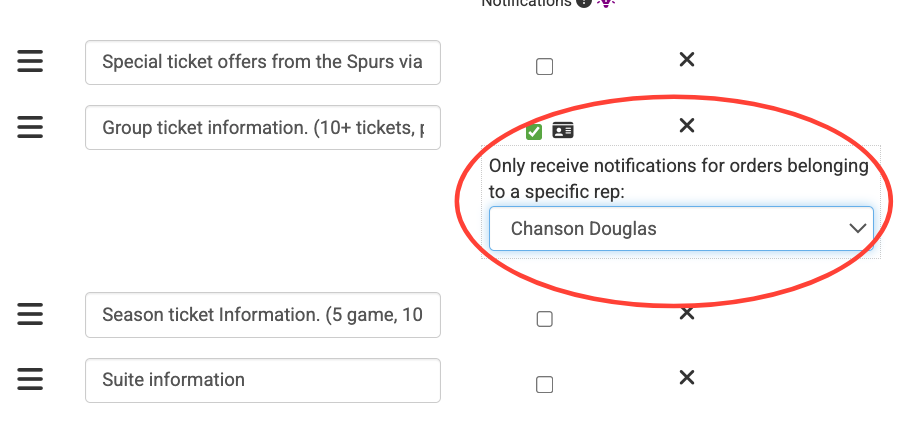
*Note: This will provide notifications to this specific representative for any customers that select this response on a page that is tied to the specific representive's name.
**Best Practice: Spinzo highly recommends that each representative sign up for these response notifications.
Refund Notifications
Refund notifications help track what is being refunded and when refunds occur. They can also help provide information on credit that may need to be cleared in the Archtics database. They can be turned on at the seller level. To receive refund notifications, follow the steps below.
Step 1: Go to "Settings" located on the left-side menu under "General Setup."
Step 2: Scroll to the bottom of the page and locate "Refund Notifications." Click on "Refund Notifications." It's located right below "Purchase Notifications."
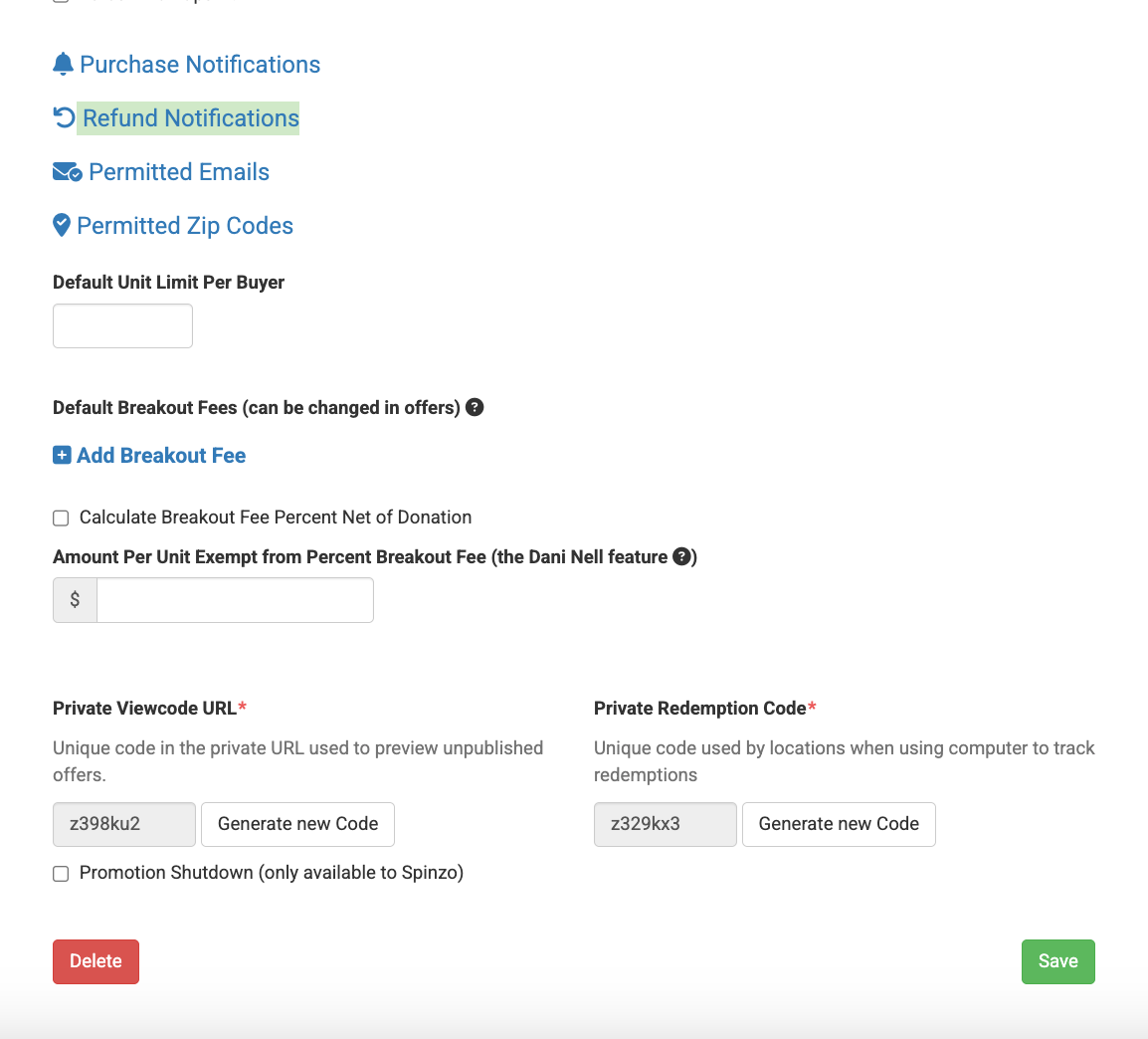
Step 3: Check "Receive Notifications?" and click "Update."
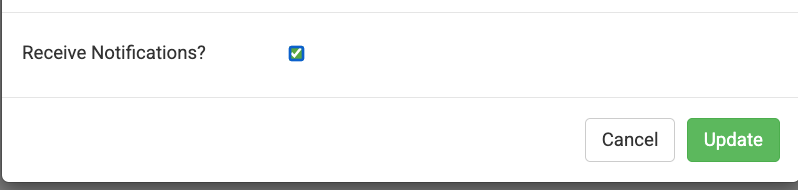
*Note: This notification could be helpful for managers or ticket operations staff who would like to be notified when a refund is processed in the system.