
How To Run Question Reports
Collecting data and information is a big part of what makes Spinzo such a useful tool. Questions can be a great way to collect information about fans' interests and behaviors. The "Questions" feature in Spinzo can be used on all levels of the platform, meaning that some questions can show up on all pages, while others may only show up for one group or one sales event. After information is collected through questions, it might be time to pull a report.
Question reports can be pulled at each level and per question. To pull question reports, follow the steps below.
Seller Level: Included on All Promotions
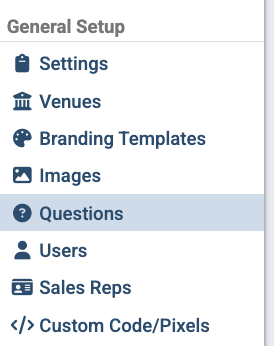
Step 1: Go to the "Questions" tab on the left-hand side menu. It is located toward the bottom under "General Setup".
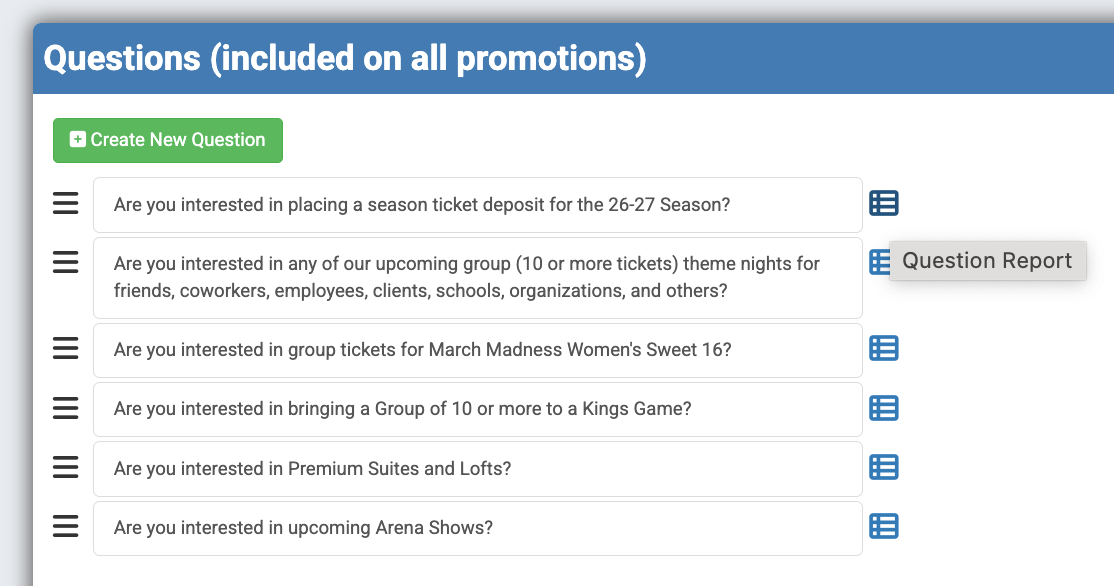
Step 2: Find the question you want to pull a report for and click on the blue box with bullet points and lines on the right side of the question. When hovering over any of the blue boxes, it will say "Question Report."
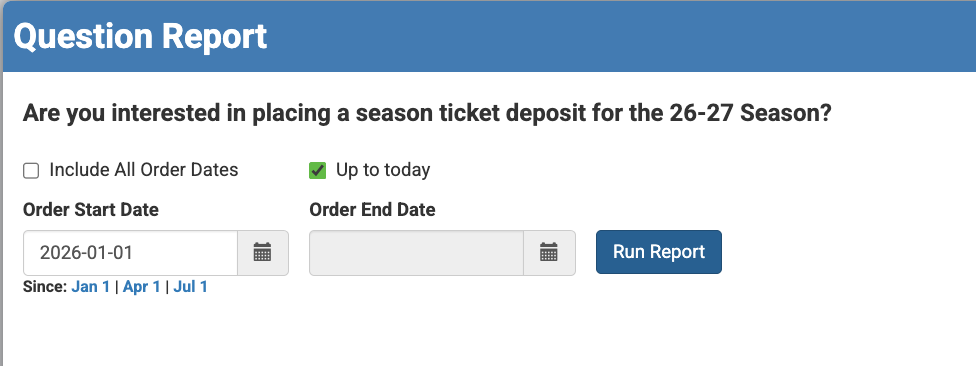
Step 3: Choose a date range for the report and click "Run Report."
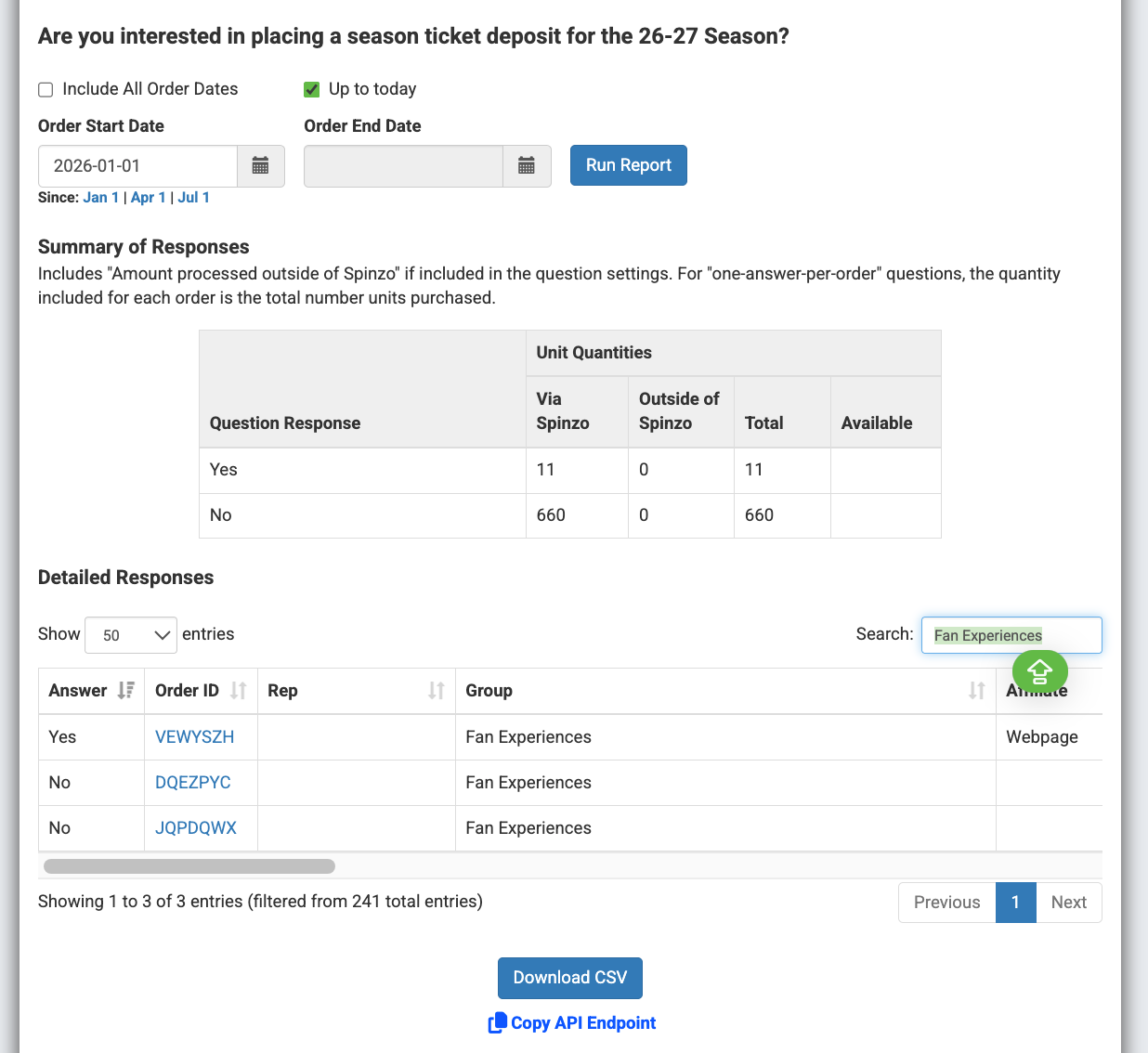
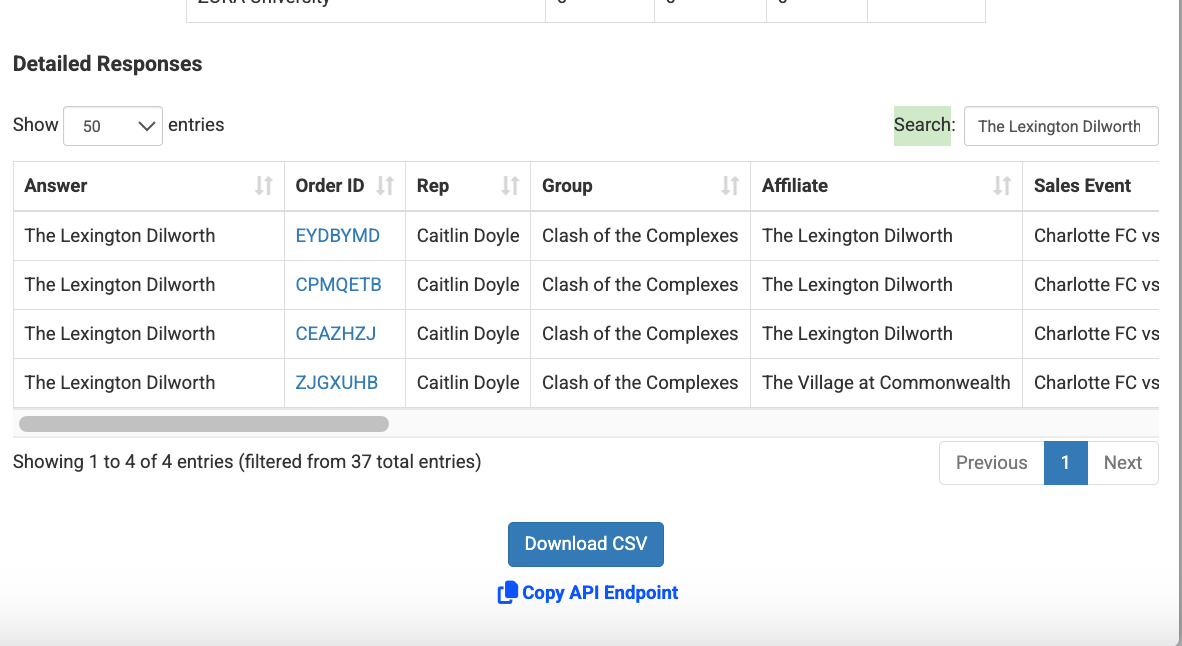
Step 4: Once the report loads, there are options to download it or apply filters right on the page. There is also a search box that can be used to look up group names, representatives' names, or answers to the questions.
Group Level: Included on a Specific Group Promotion
Step 1: Search for and select the group that contains the questions.
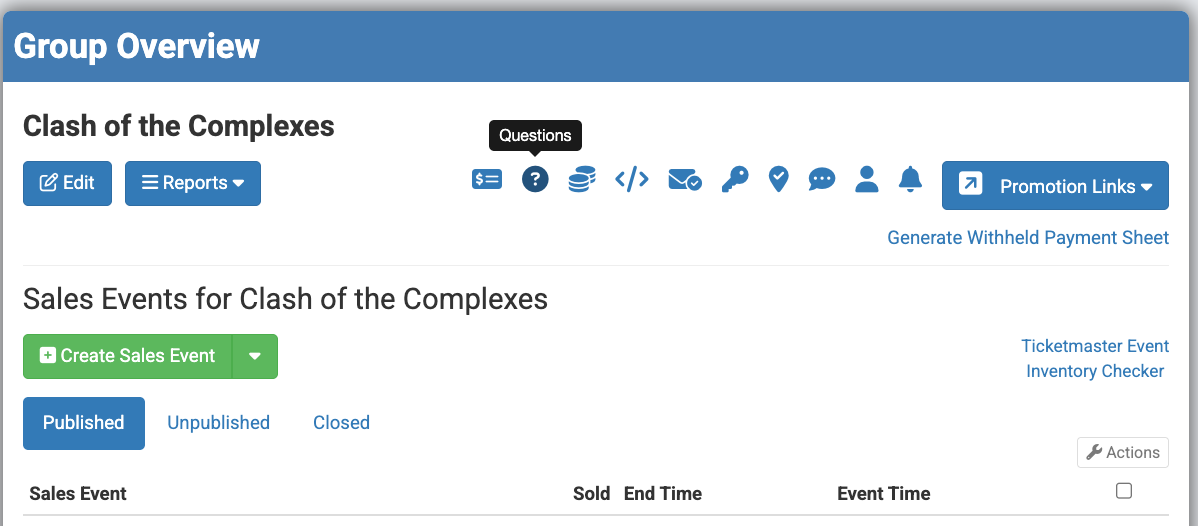
Step 2: Find and click on the question icon that looks like a question mark within a blue circle. It's located toward the top of the page, to the right of the "Edit" and "Report" buttons. If you hover over it, it says "Questions."
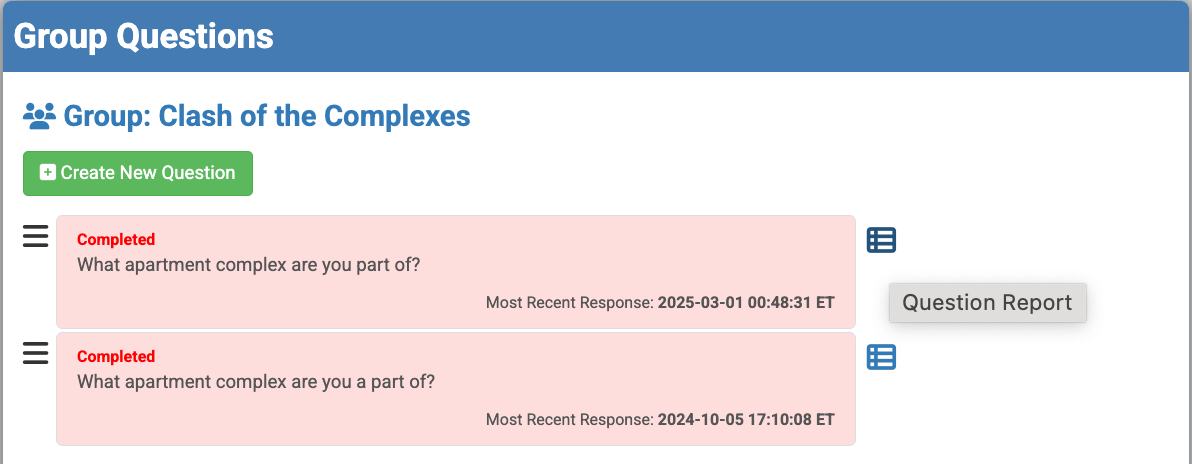
Step 3: Find the question that you want to pull a report for and click on the blue box with bullet points and lines on the right side of the question. When hovering over any of the blue boxes, it will say "Question Report."
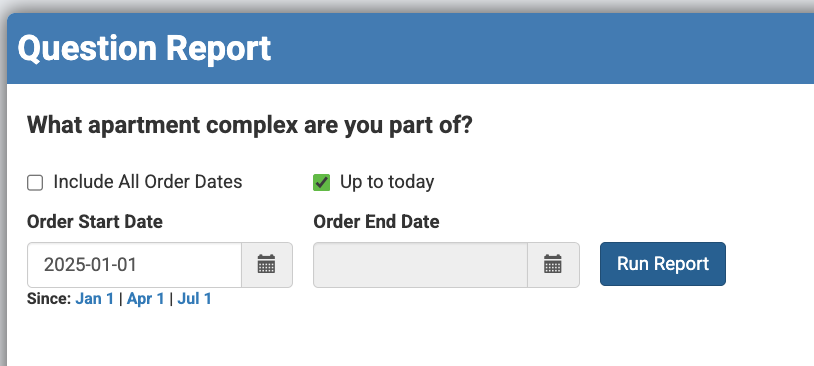
Step 4: Choose a date range for the report and click "Run Report."
Step 5: Once the report loads, there are options to download or apply filters right on the page. There is also a search box that can be used to look up group names, representatives' names, or answers to the questions.
Sales Event Level: Included in a Group Under a Specific Event.
Step 1: Search for and select the group, and then select the sales event that includes the questions.
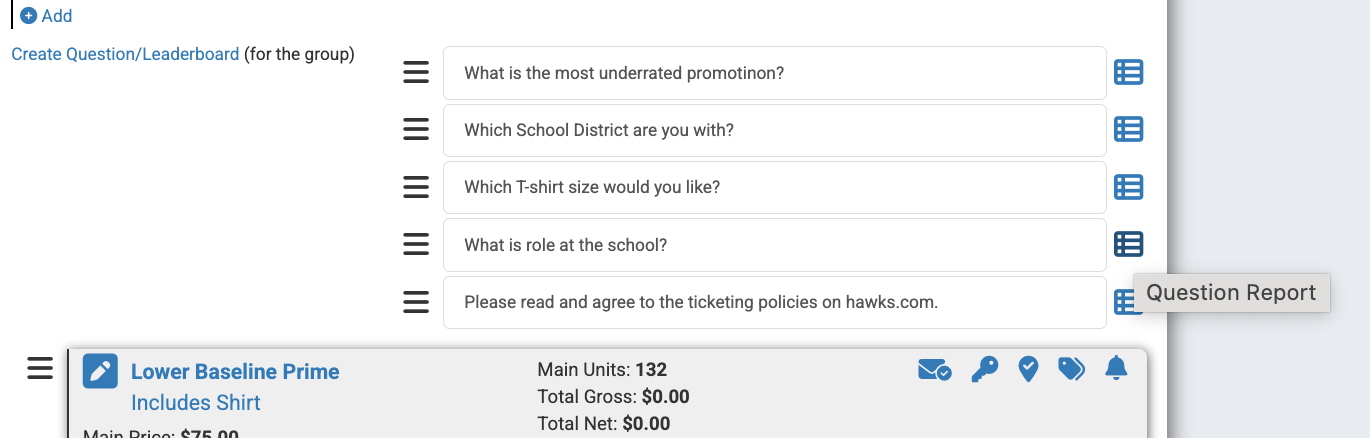
Step 2: Once on the "Sales Event Overview" page, find the questions that you want to pull a report for and click on the blue box with bullet points and lines on the right side of the question. When hovering over any of the blue boxes, it will say "Question Report."
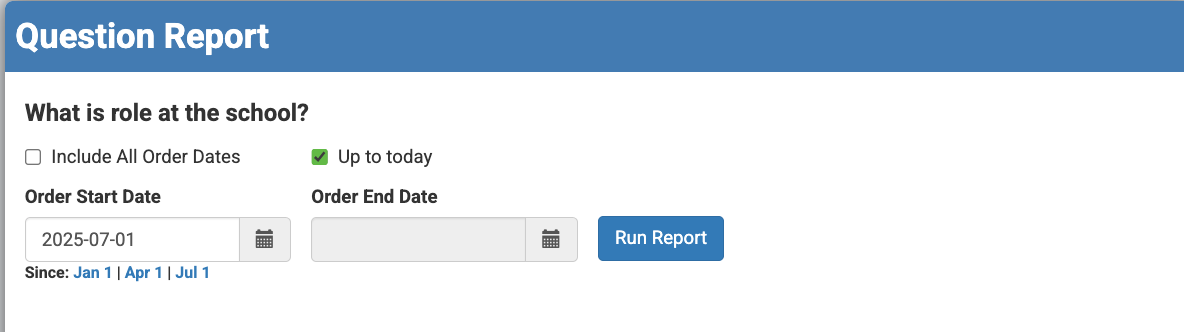
Step 3: Choose a date range for the report and click "Run Report."
Step 4: Once the report loads, there are options to download or apply filters right on the page. There is also a search box that can be used to look up group names, representatives' names, or answers to the questions.
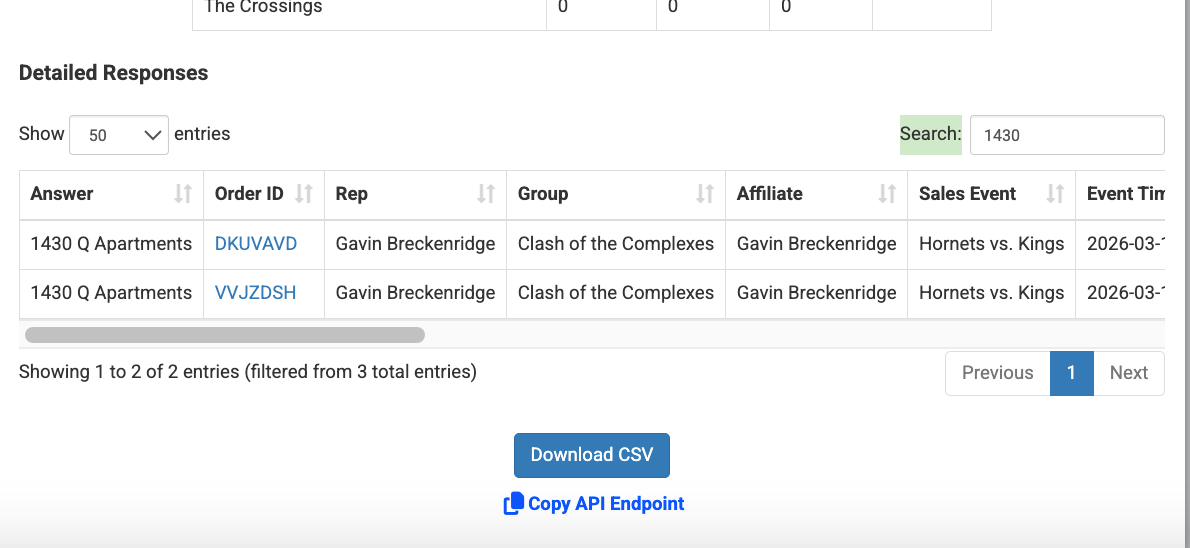
All reports pulled in Spinzo can be downloaded as CSV files. These downloaded reports can be filtered as needed and re-saved to include only the necessary or desired information. For questions about customer reports, please reach out to the Spinzo team.