
How to Enable Email Validation

Spinzo provides an option within the build process enable email validation. This feature helps confirm that a customer is the owner of the email address they are using and can help identify incorrectly entered email addresses before an order is completed.
Below are the steps to add "Email Validation".
Step 1: After creating a group and adding a sales event, click "Create Offer" or select a pre-existing offer.
Step 2: Enter the necessary information required for the offer, then scroll toward the bottom of the page and locate "Other Options".
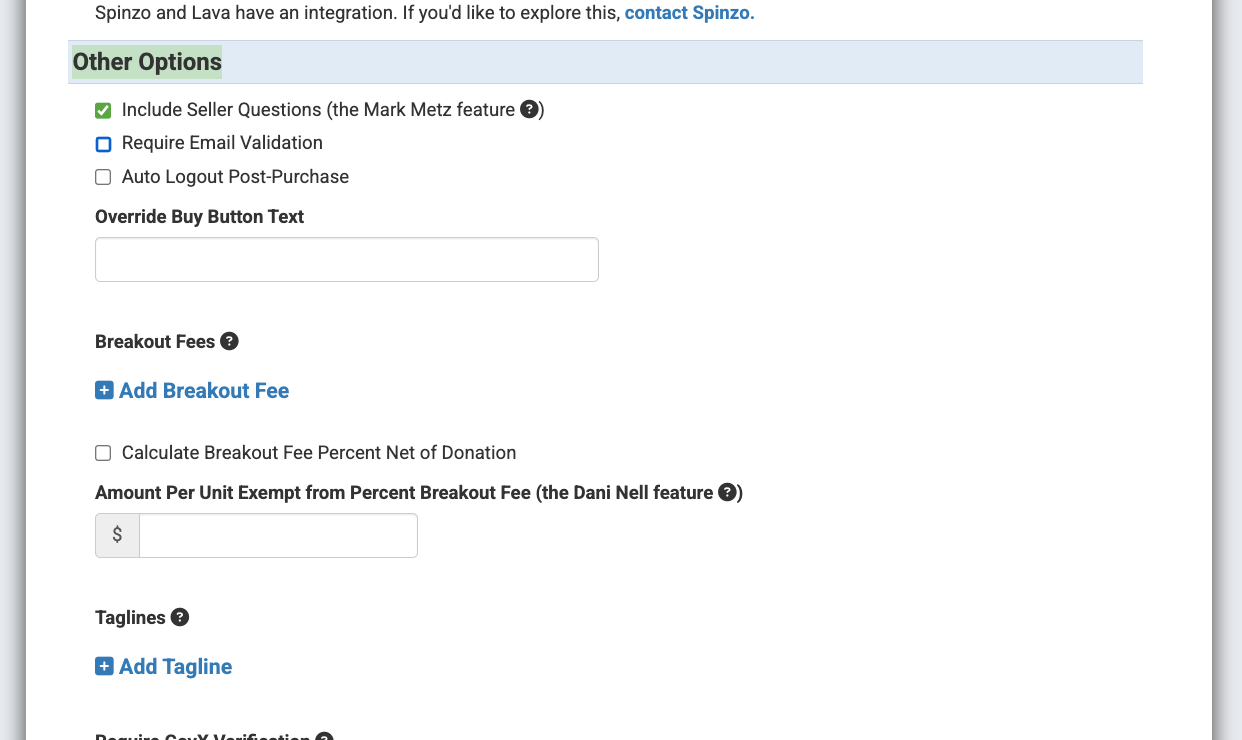
Step 3: Locate the second checkbox below "Include Seller Questions". The second checkbox is labeled "Require Email Validation". Select this option to enable email validation.
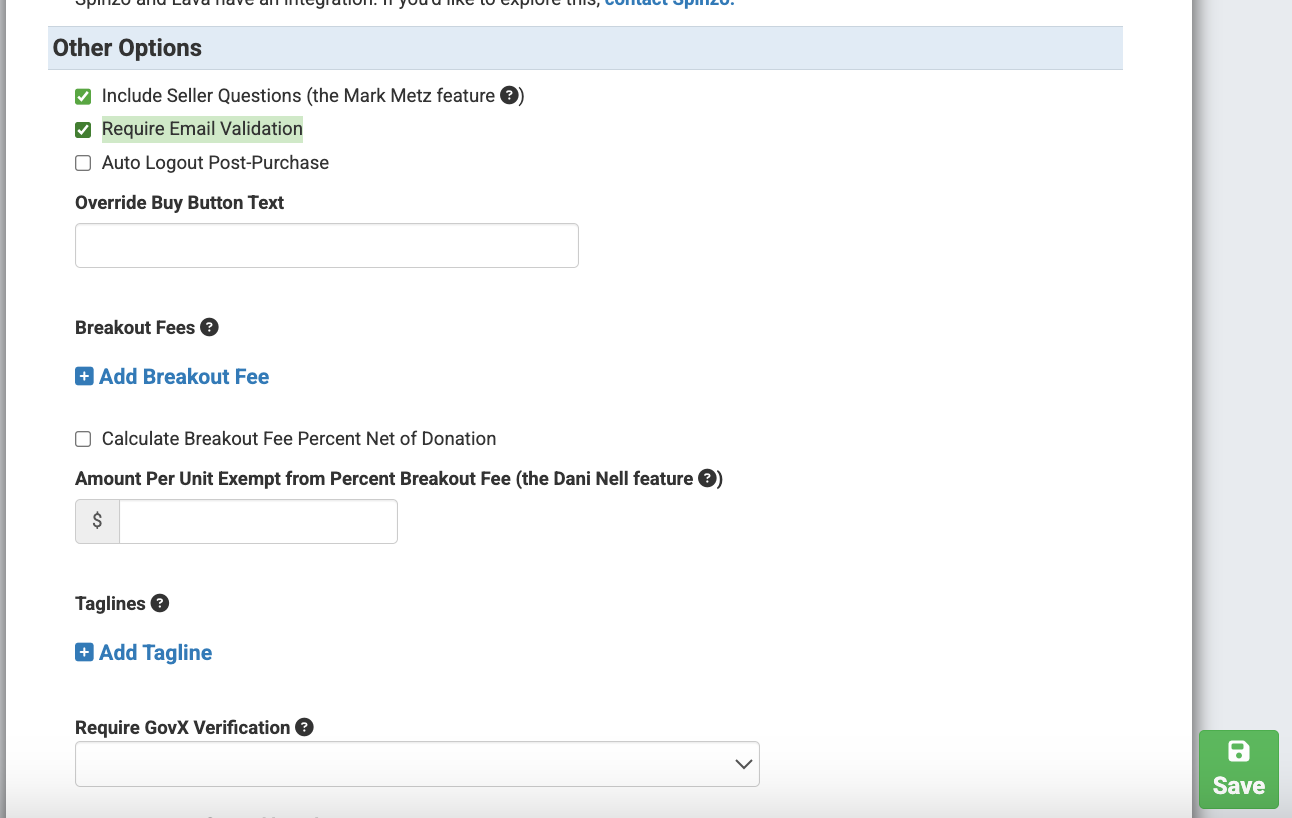
Step 4: Click "Save" .
*Note: Be sure to enable this option for any offers or seating zones that would require email validation. If needed, the Bulk Update tool can also be used to apply this setting across multiple sales events or offers within the group.
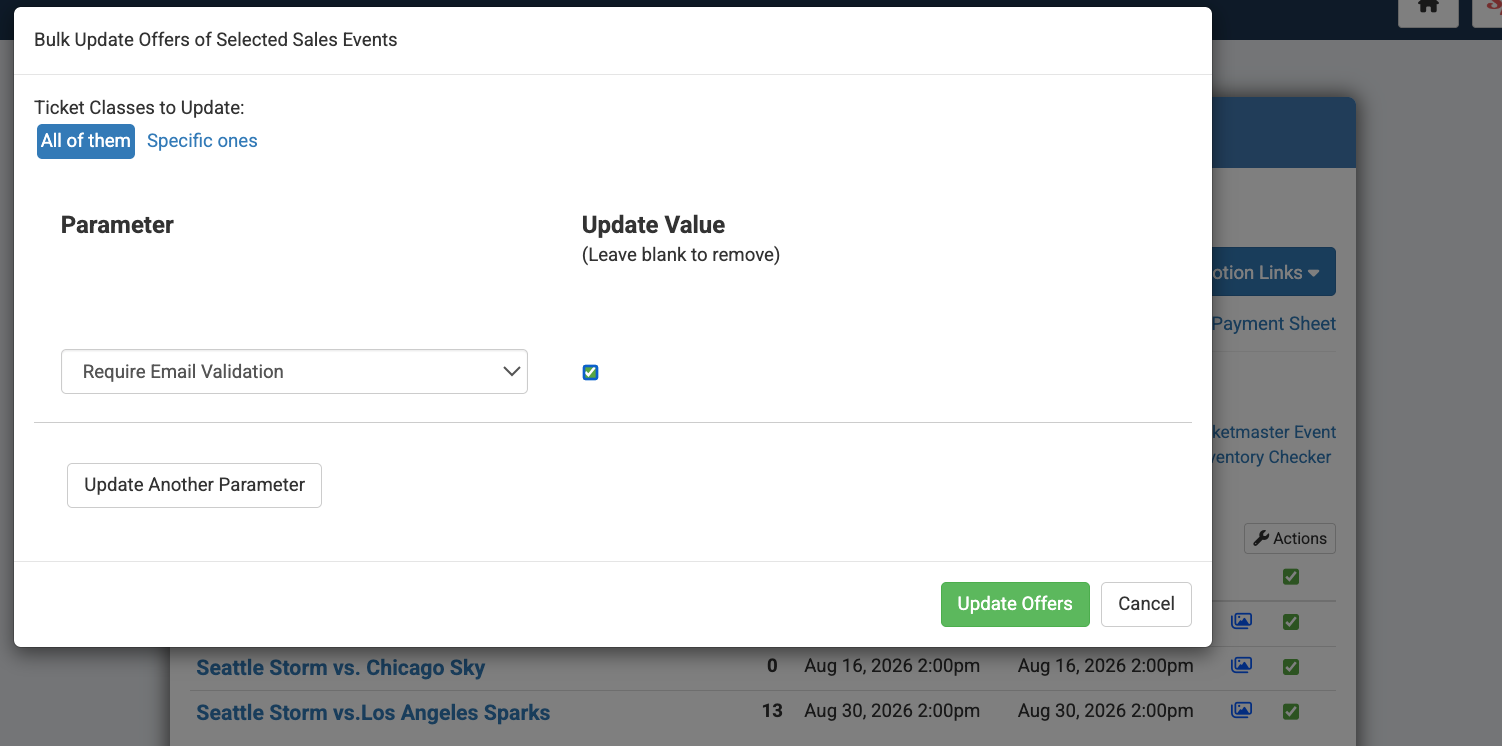
While this adds another step within the purchase process, email validation can help prevent some issues by confirming that an email address belongs to buyer and that they have access to the inbox. It also helps catch typos before the order is processed. Consider adding this option when it makes sense.
Commonly clients will enable this feature for student or college rush programs and various corporate offers.