
How To Apply Branding Templates To A Group, Sales Event, Or Affiliate
Branding templates can be created at the seller level of the platform. It is recommended to create a template if the branding will be applied to multiple pages. Any branding template created at this level can be applied to a Group, Sales Event Or Affiliate.
Branding Template: Group Level
Step 1: Create a group or select a pre-existing group.
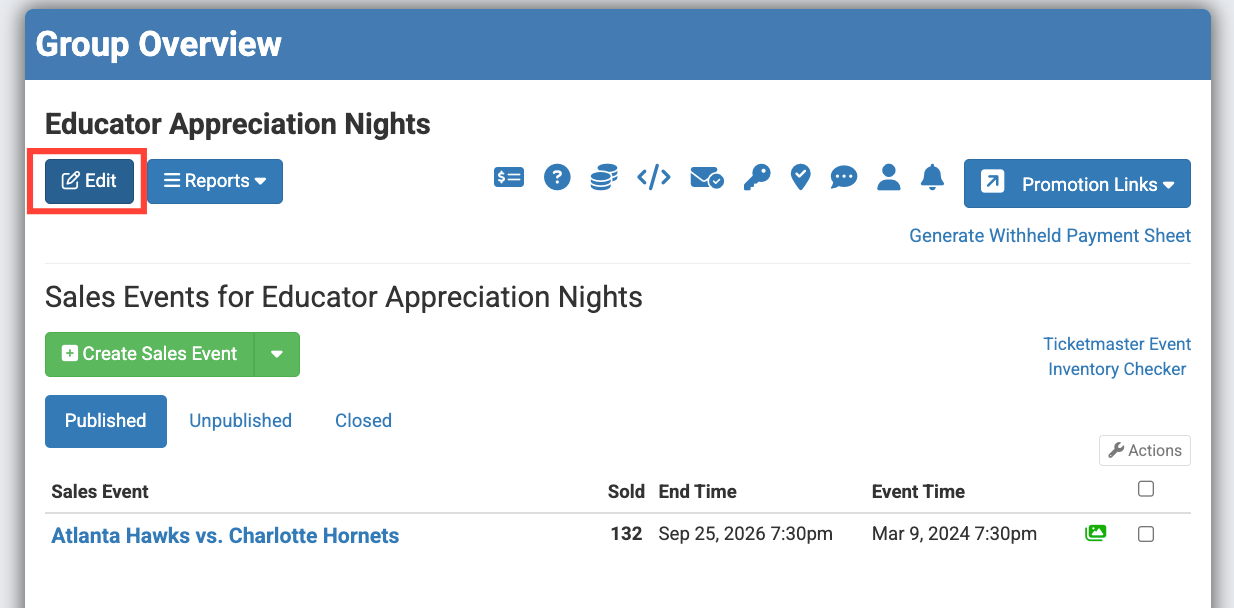
Step 2: Click "Edit" located toward the top of the page, below the group name.
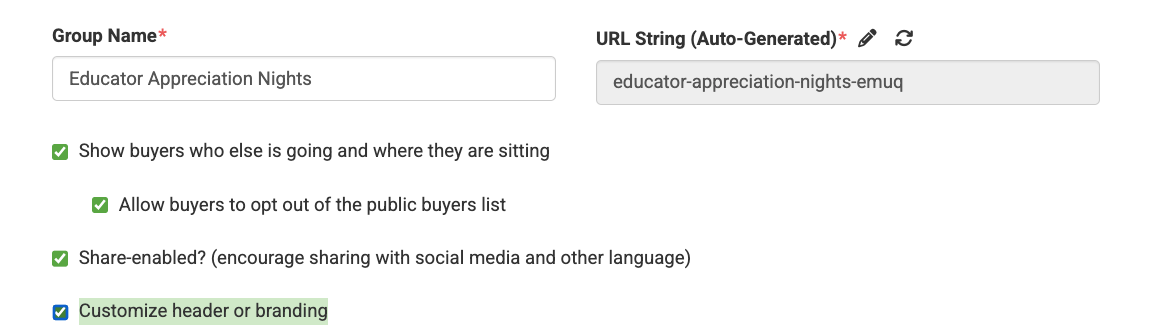
Step 3: Put a checkmark next to "Customize header or branding."
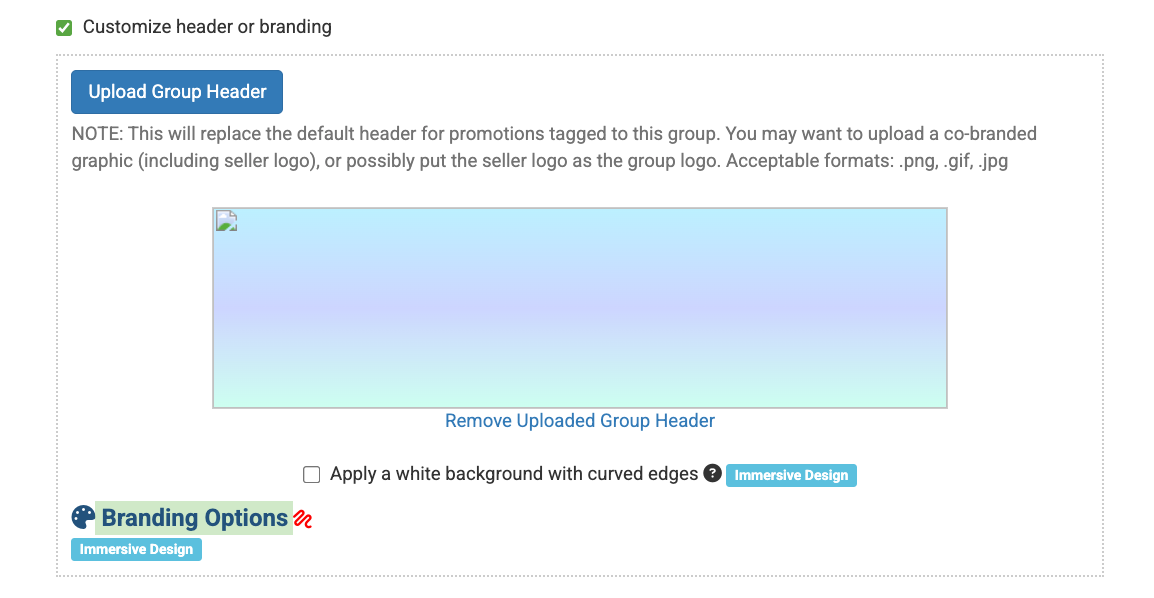
Step 4: Click "Branding Options."
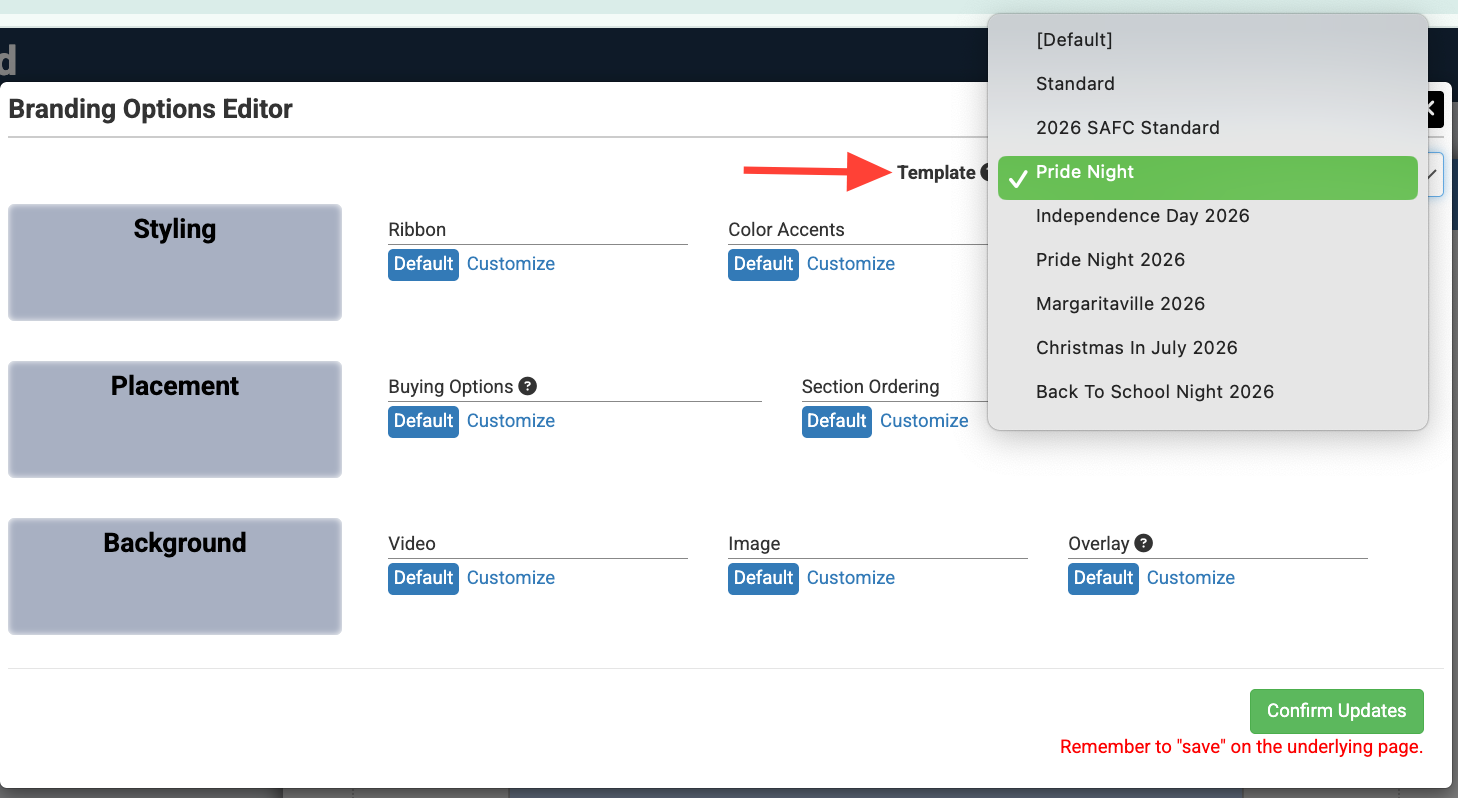
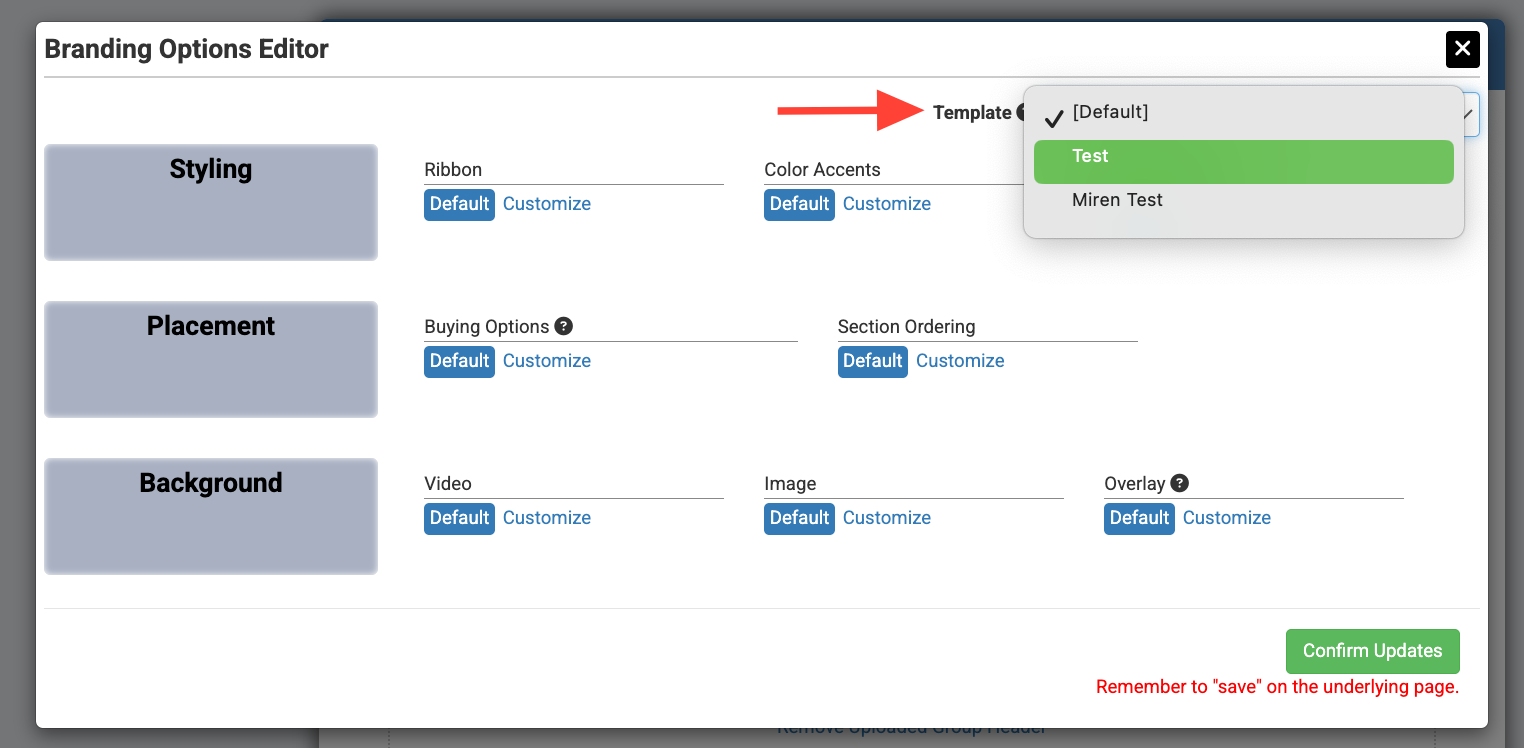
Step 5: In the top right corner, locate "Template" and select a template from the drop down. Click "Confirm Updates."
Step 6: Click "Save."
*Note: Updating the template at the "Group" level will apply it to the Sales Event and Affiliates unless a different template or other branding is set at another level.
Branding Template: Sales Event Level
Step 1: Once in the group, create or select a Sales Event.
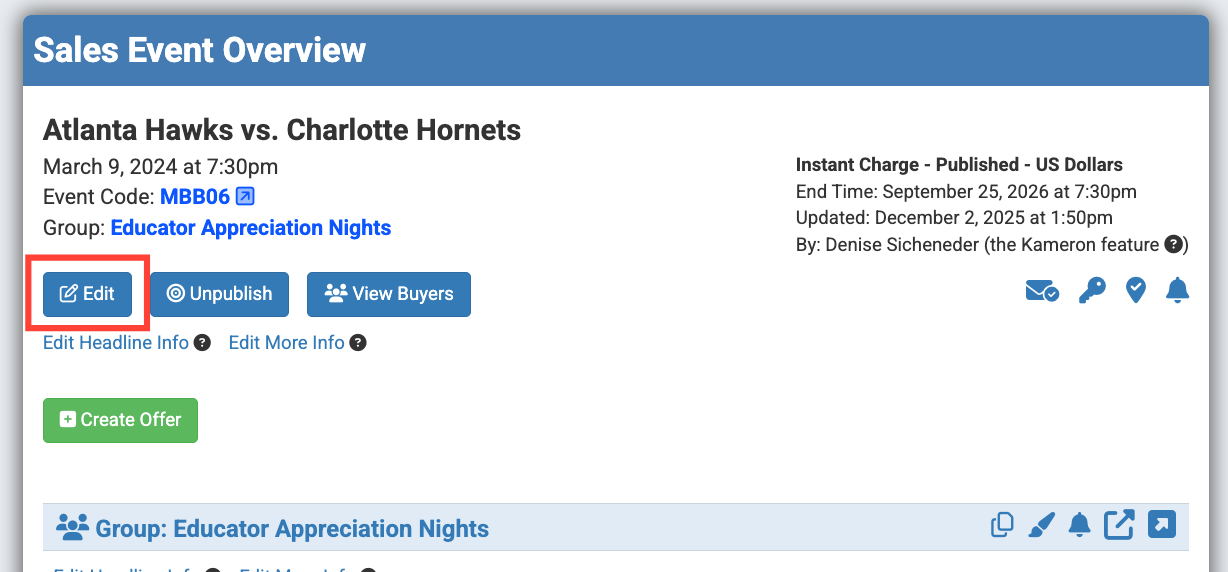
Step 2: In the Sales Event Overview, locate and click on the "Edit" button. It is located toward the top of the page below the group name and next to the "publish" button.
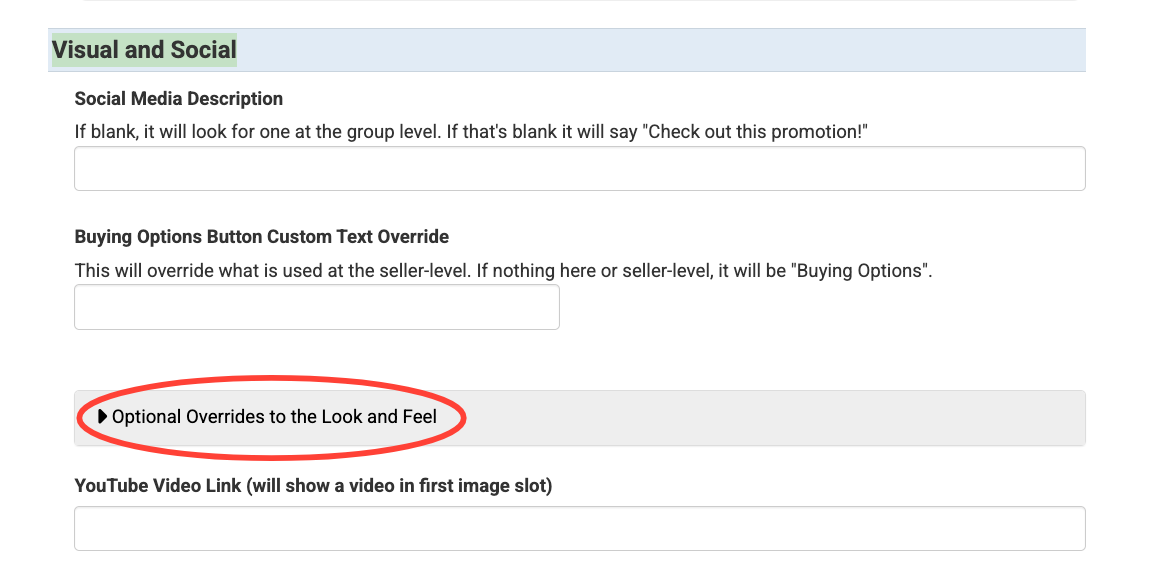
Step 3: Scroll towards the bottom of the page and locate the "Visual and Social" section. Click "Optional Overrides to the Look and Feel."
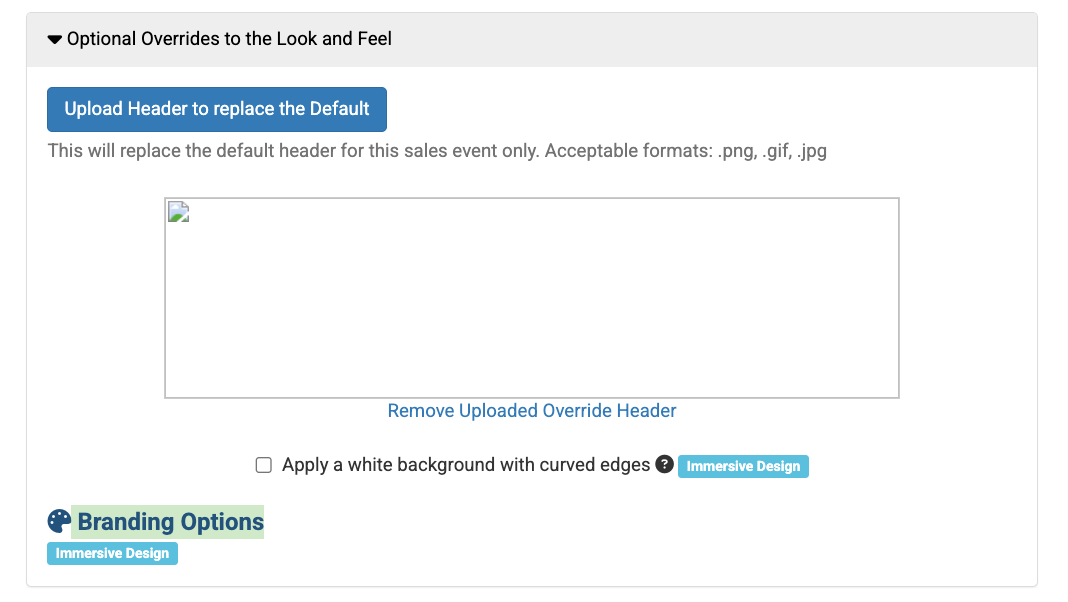
Step 4: Click "Branding Options."
Step 5: In the top right corner, locate "template" and select a template from the drop down. Click "Confirm Updates."
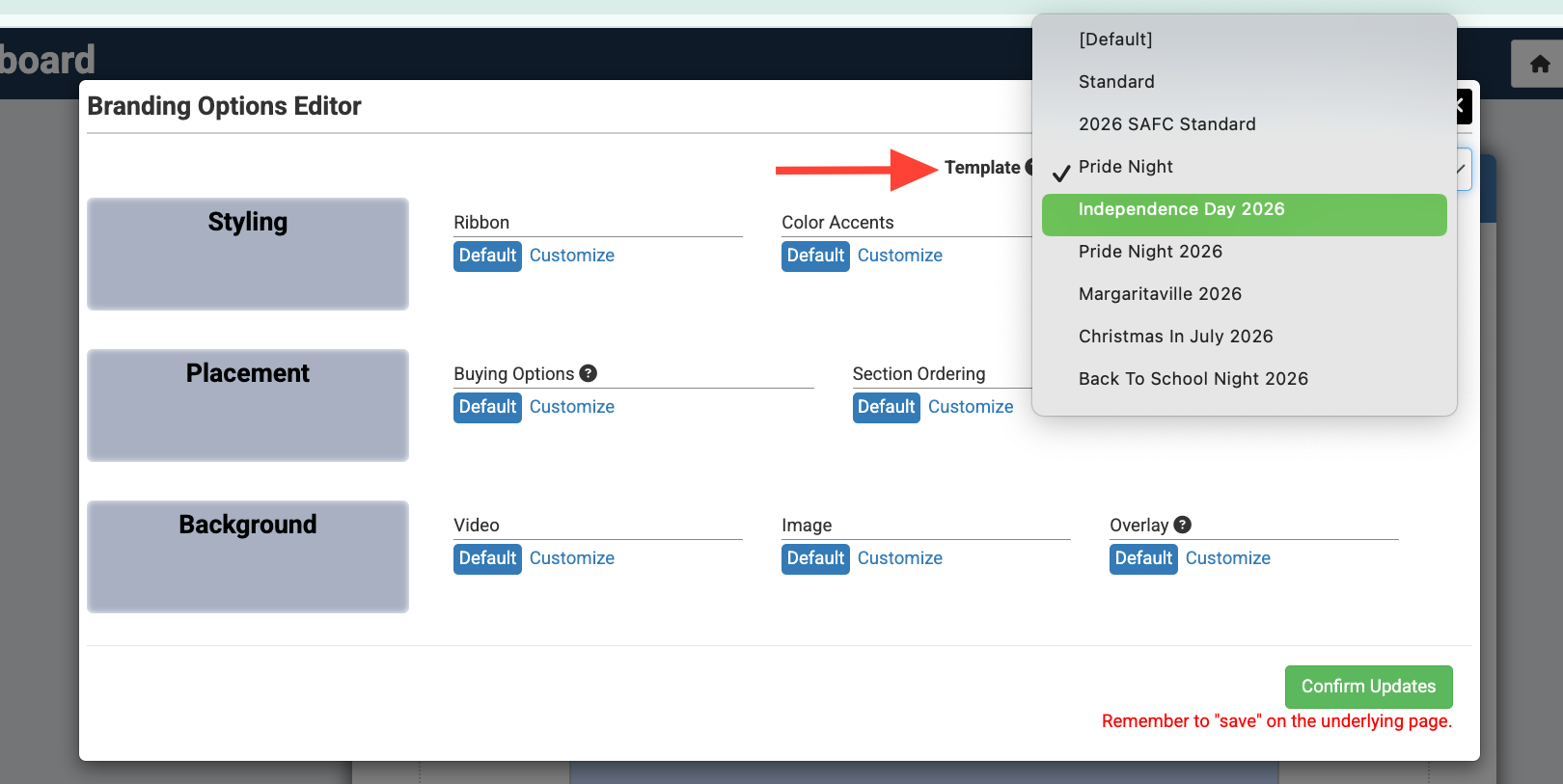
Step 6: Click "Save."
*Note: Updating the branding at this level will only impact the Sales Event link. If an Affiliate is created, the Sales Event portion of the Affiliate will inherit this branding.
Branding Template: Affiliate Level
Step 1: Create a group or select a pre-existing group.
Step 2: Locate and click the affiliate icon. It's located three icons over from the "Promotional Links" button.
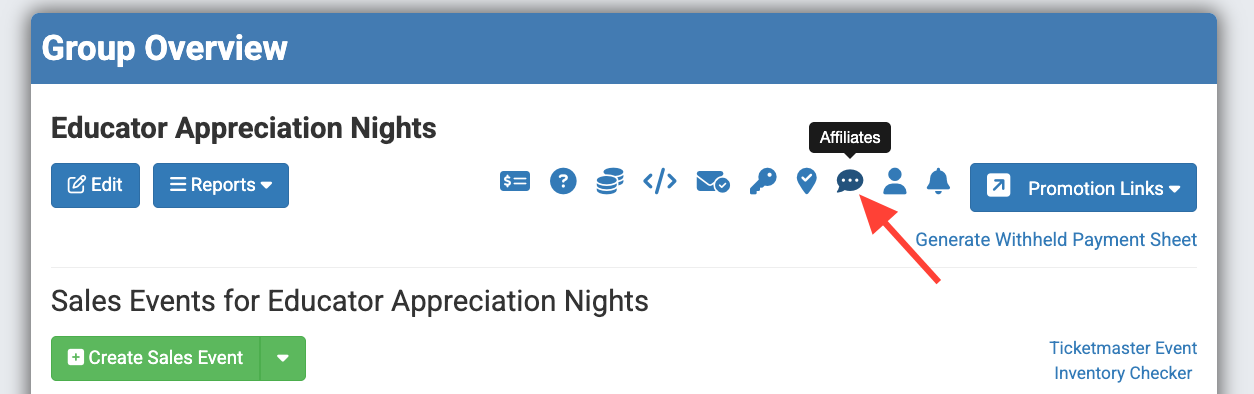
Step 3: Create an Affiliate or select a pre-existing Affiliate.
Step 4: Put a checkmark next to "Customize header branding and color."
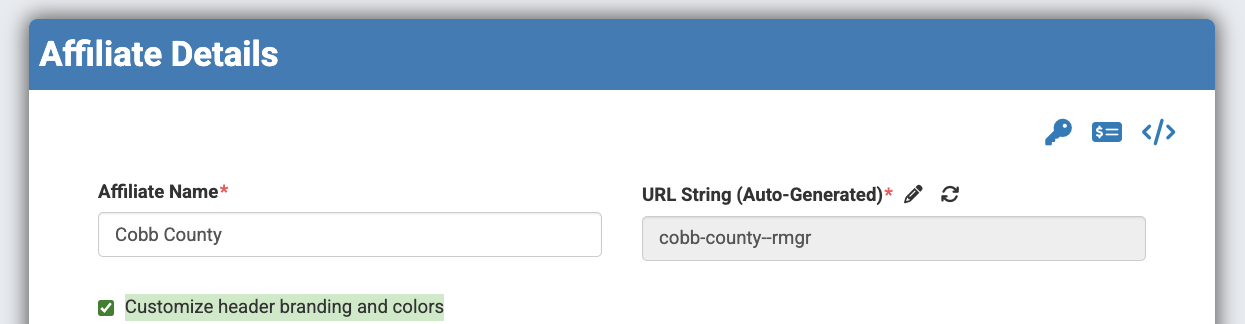
Step 5: Click "Branding Options."
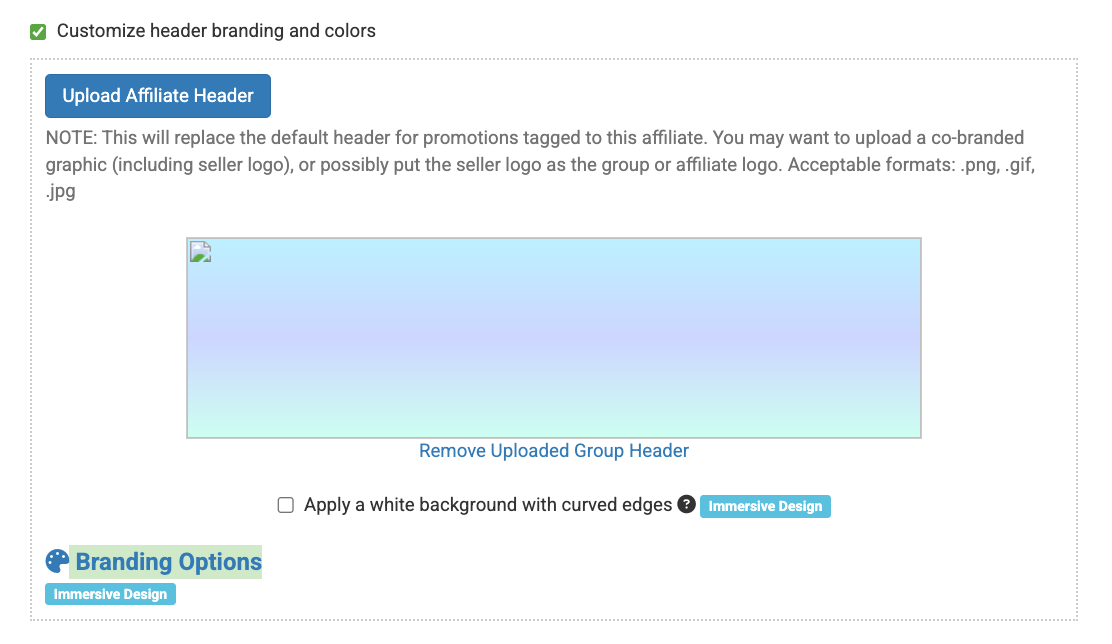
Step 6: In the top-right corner, locate "Template" and select a template from the drop down. Click "Confirm Updates."
Step 7: Click "Save."
*Note: Updating the branding template at the affiliate level will only update that specific affiliate.
Branding templates provide a streamlined and efficient way to maintain consistent branding across Groups, Sales Events and Affiliates within the platform. By creating templates at the seller level and applying them where needed, users can save time while ensuring a cohesive visual experience across multiple pages.