
How To Add Details To Confirmation Emails For Specific Events
Getting all of the correct information to a customer after they purchase helps to eliminate confusion and sets the expectation for the experience. In addition to providing ticket access instructions to customers, Spinzo also has the ability to update standard information or add in additional details so that fans' expectations are set and so they know exactly what to do or where to go prior to their arrival.
To add specific information to the confirmation email for a specific sales event, please follow the steps below:
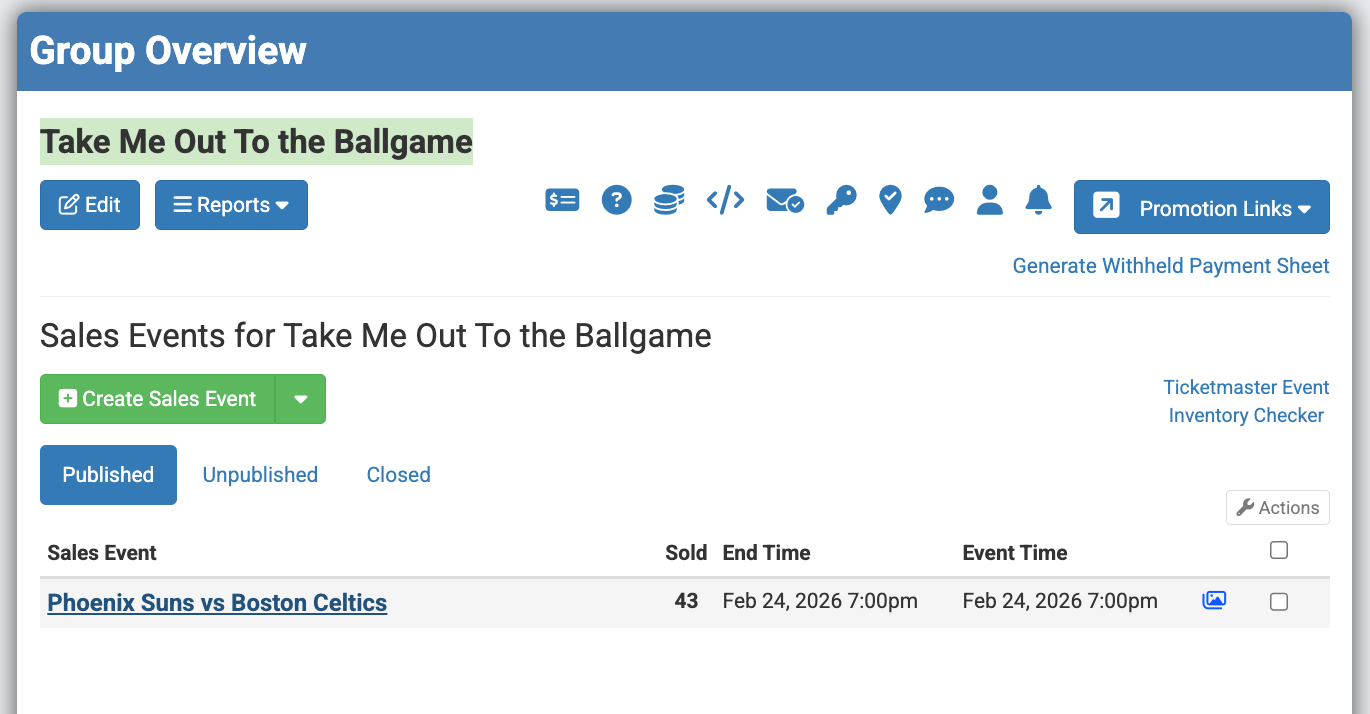
Step 1: Open up the specific group and select the specific sales event that needs to be updated.
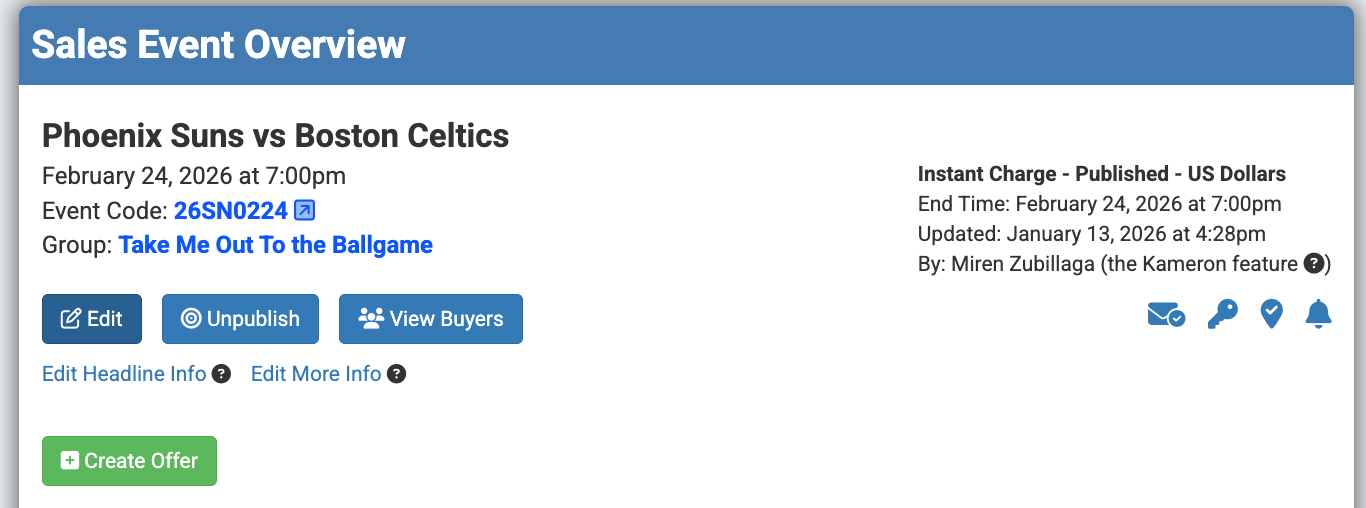
Step 2: Once in the sales event, click "Edit" located just below the group name.
Step 3: Scroll halfway down the page to where it reads "Email Content."
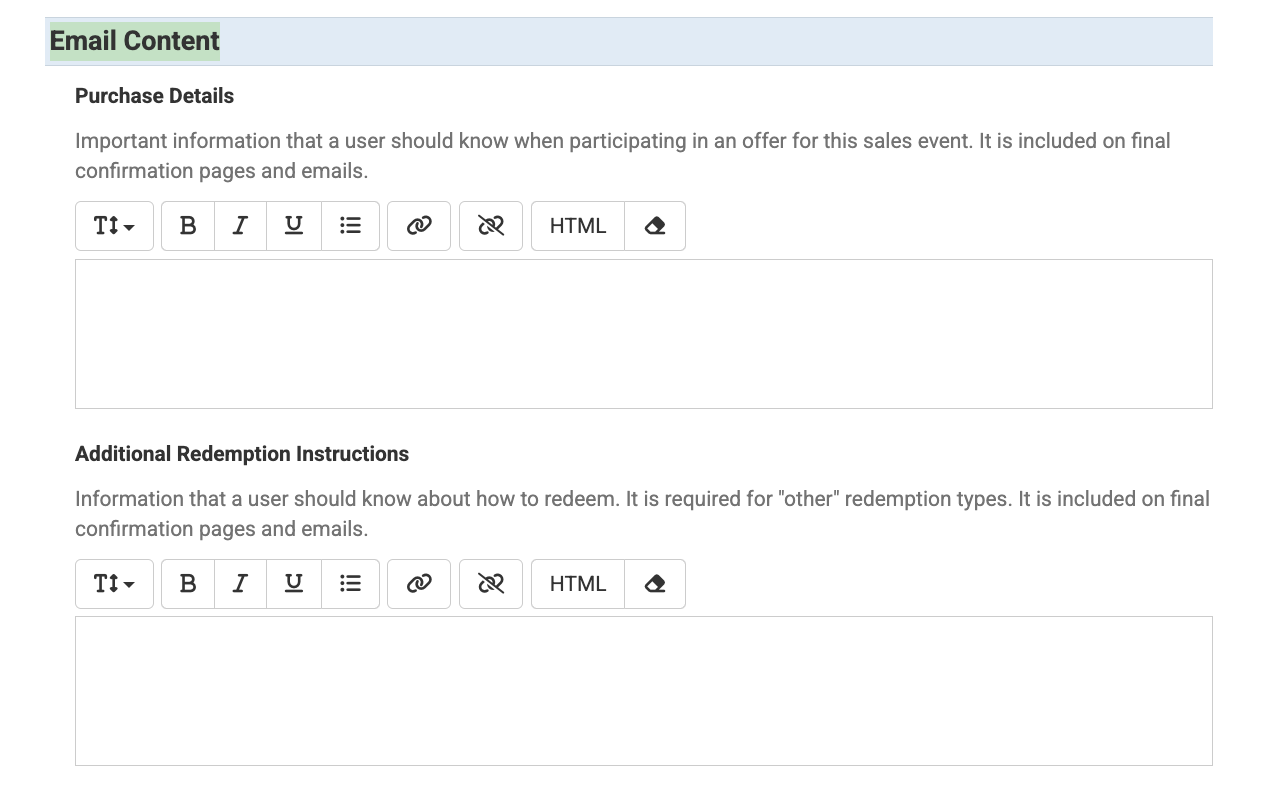
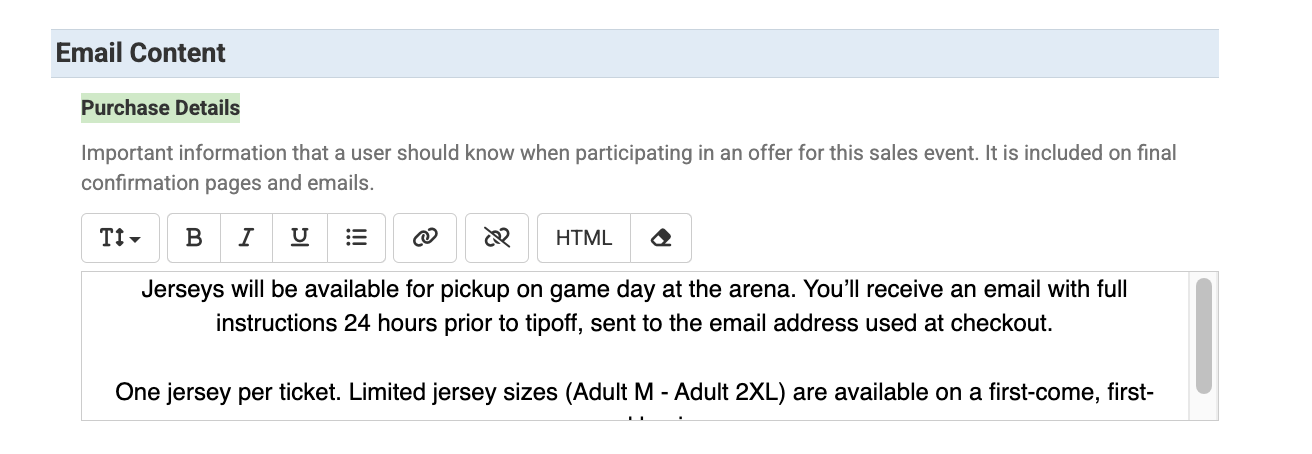
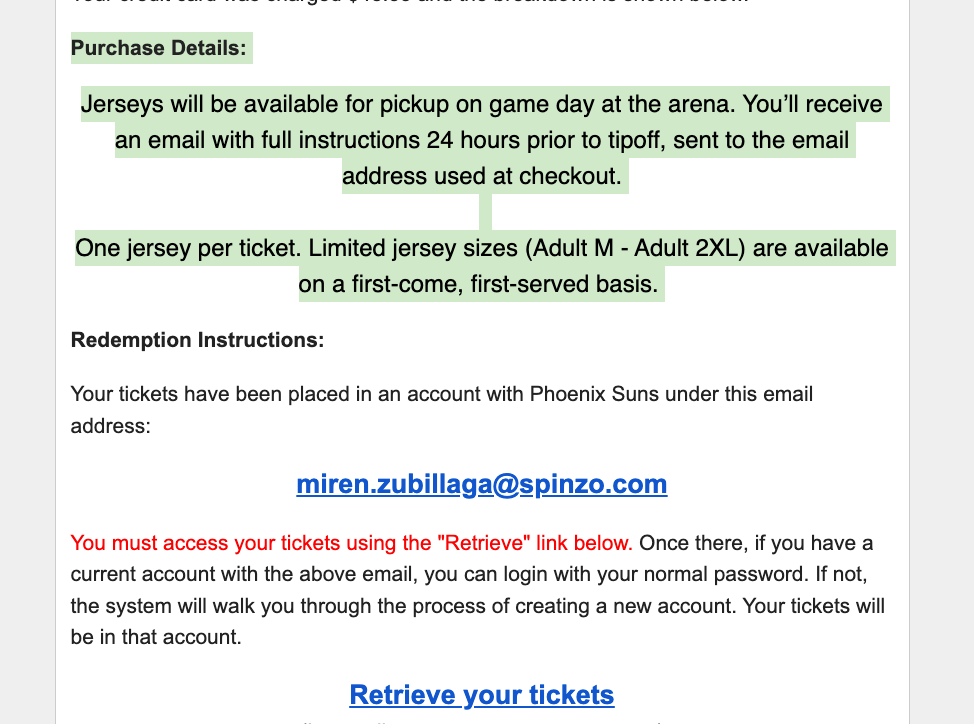
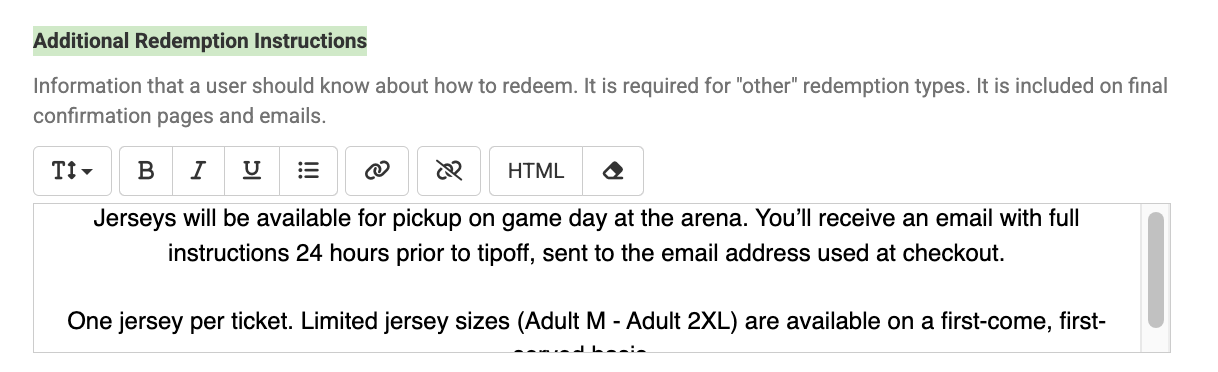
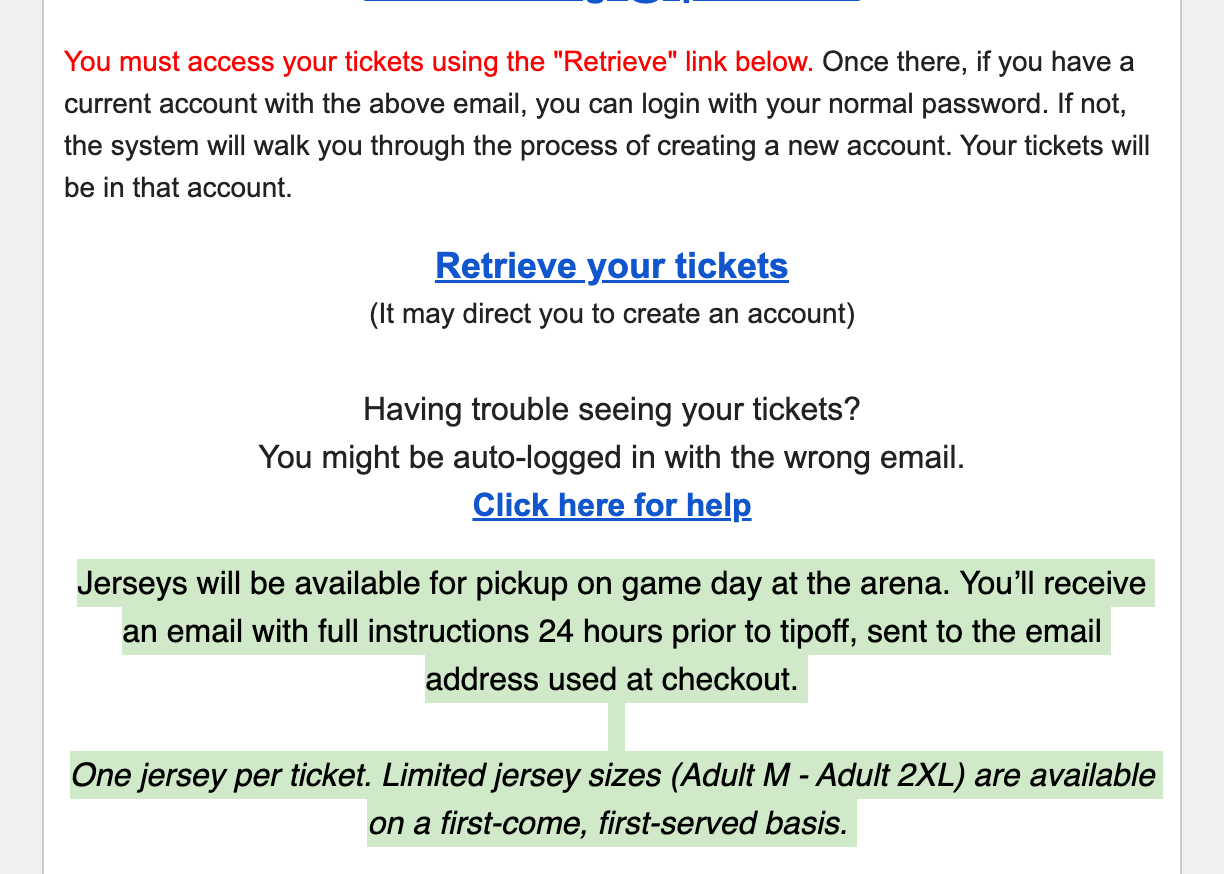
Step 4: Add information or details to either the box that reads "Purchase Details" or to the box that reads "Additional Redemption Instructions". Each box provides the information to the confirmation email but will place it in a different spot depending on where the information is added. See examples below that show where the information is located depending on which box the details are added to:
Purchase Details Example: The information shows above the ticket redemption instructions of the confirmation email.
Additional Redemption Instructions Example: The information shows below the ticket redemption instructions of the confirmation email.
Step 5: Click Save
Once the offer is saved, feel free to do a test order to make sure everything is showing as expected.
Note: There is a way to add information to the confirmation email at the "Seller" level. This should be utilized when information needs to be added to every confirmation email for every group. For assistance in adding information at the "Seller" level, please contact service@spinzo.com.