
Group Level Add-Ons: Add Once, Apply to All Events
Previously, an add-on in Spinzo was typically created at the sales event or offer level, meaning it had to be added individually for each game, offer or event. In addition to creating add-ons at the sales event level, Spinzo now provides the option to create an add-on at the group level. If multiple sales events within the same group require the same add-on, it can be created once and applied across those sales events. *Note: This option will work in most cases but may vary depending on the sales event codes created for add-ons.
Steps to Create an Add-On at the Group Level
Step 1: Locate and select the group where an add-on is required for multiple sales events.
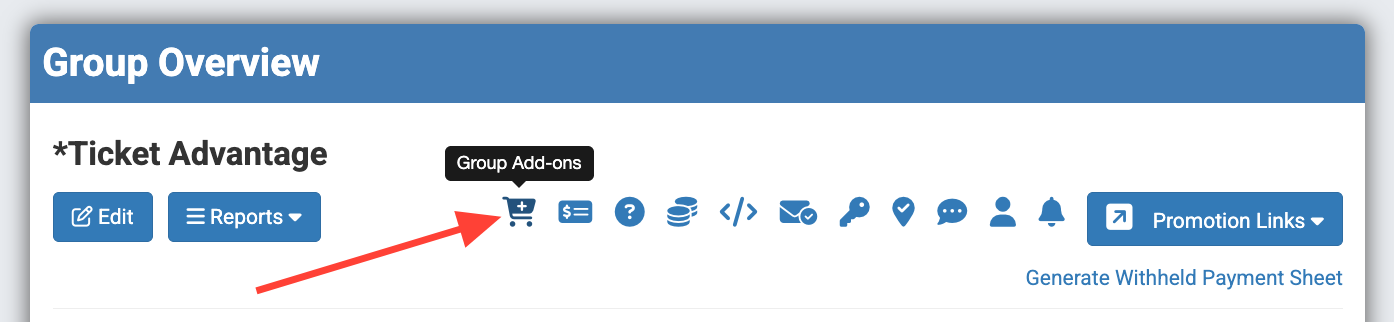
Step 2: Locate the shopping cart icon at the top of the Group Overview page. It is the icon closest to the "Reports" button.
Step 3: Click the green "Create Add-On" button.

Step 4: Name the add-on and add the price.

Step 5 (Optional): Adjust the "Minimum Per Person," "Maximum Per Person," or "Total to Sell" fields if needed.
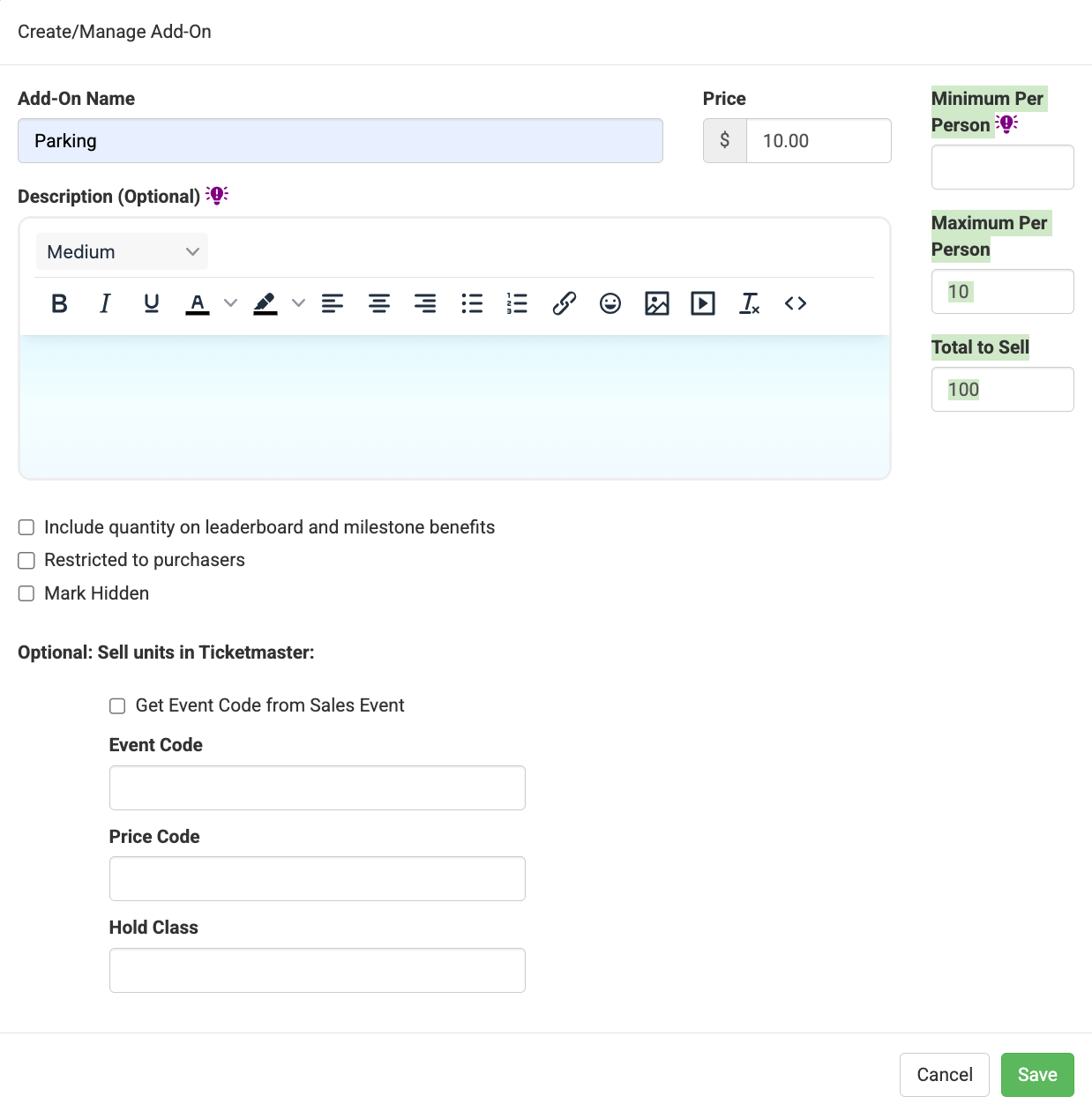
Step 6 (Optional): Add a "Description" if needed. The description field accommodates different size and color of text, pictures and links.
You can also select "Include quantity on leaderboard and milestone benefits" and/or "Restricted to purchasers."
*Note: Select "Mark Hidden" if the add-on should not be visible to buyers yet.
Step 7 (Optional: Sell units in Ticketmaster): Adjust the Ticketmaster information if the add-on will pull from Archtics. There are two options for entering the Ticketmaster information depending on the event codes:
*Option 1: If the event code is the same for all add-ons, enter the full code into the "Event Code" box. Then add the "Price Code" and "Hold Class."
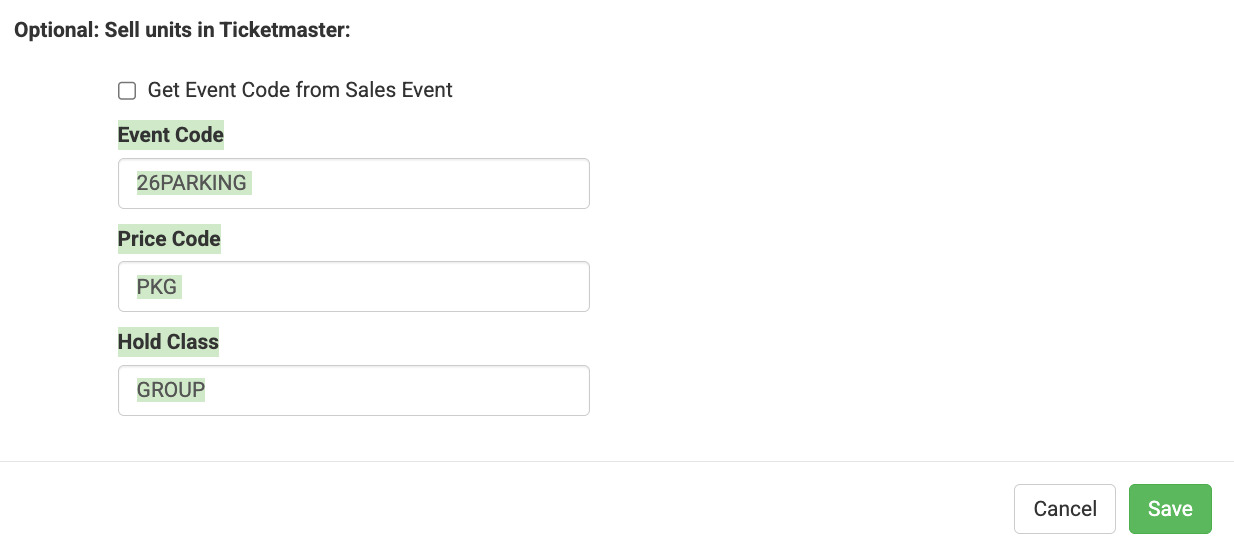
*Option 2: If the event code for each game or event matches the first part of the corresponding add-on event code, with only the final digits or letters being different, select "Get Event Code from Sales Event." Then, enter the final digit(s) or letter(s) that follow that event code in the "Event Code" box.
*For example, if the event codes for the games are in this sequence: 26G1028,26G1112, 26G1130 and the parking is this sequence: 26G1028PK,26G1112PK, 26G1130PK, then "PK" should be added to the "Event Code" box.
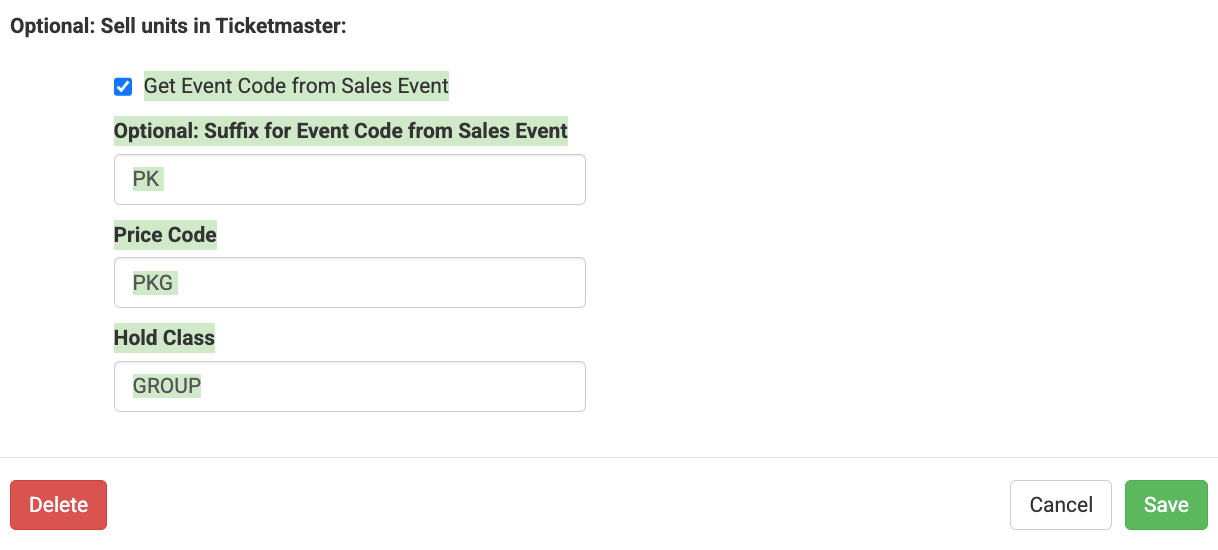
Step 8: Click "Save."
Once saved, check the promotion to confirm that the add-on is displaying as expect across the applicable sales event dates.
Creating add-ons at the group level can help streamline the build process when the same add-on is needed across multiple sales events. Rather than creating the same add-on individually for each event, teams can create it once at the group level and apply it across the promotion.
For more information regarding add-ons and accompanying items, check out this video from Pulse: Accompanying Items vs. Add Ons.