Generating QR Codes For Spinzo Links
Spinzo now offers the option to download and copy QR codes for any promotion built through the platform. QR codes can be created at the group level, sales event level and/or the affiliate level.
How to Generate a QR Code
Step 1: Locate and select the group that requires a QR code.
Step 2: Decide which level the QR code will be tied to.
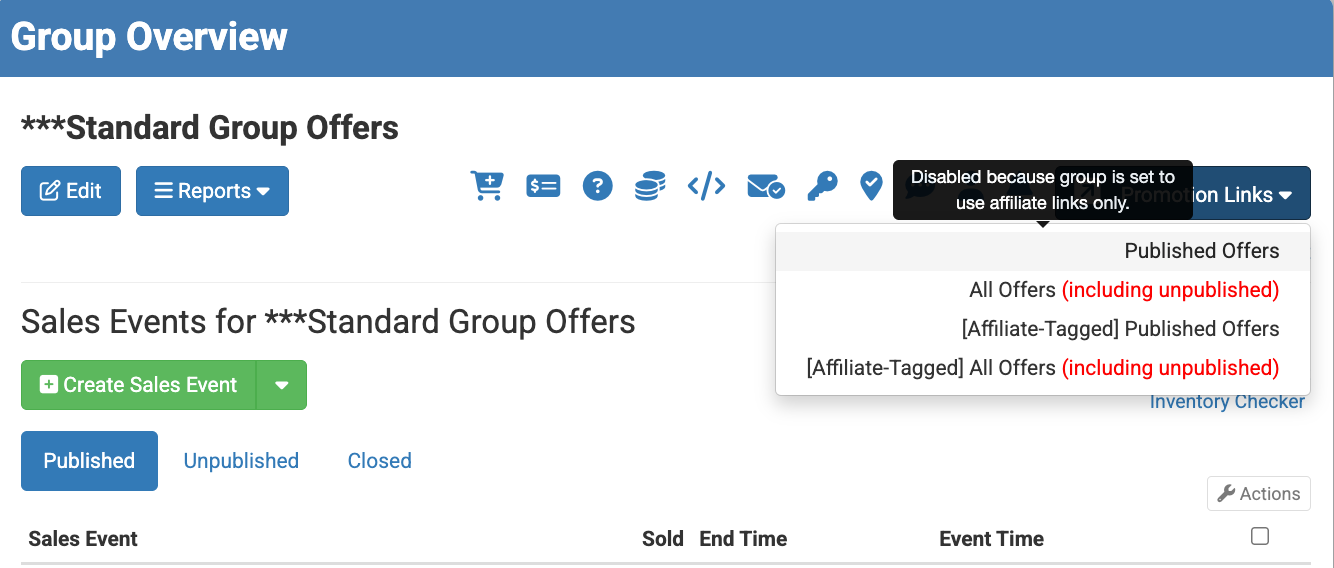
Group Level: Click on the blue "Promotion Links" button, then click "Published Offers."
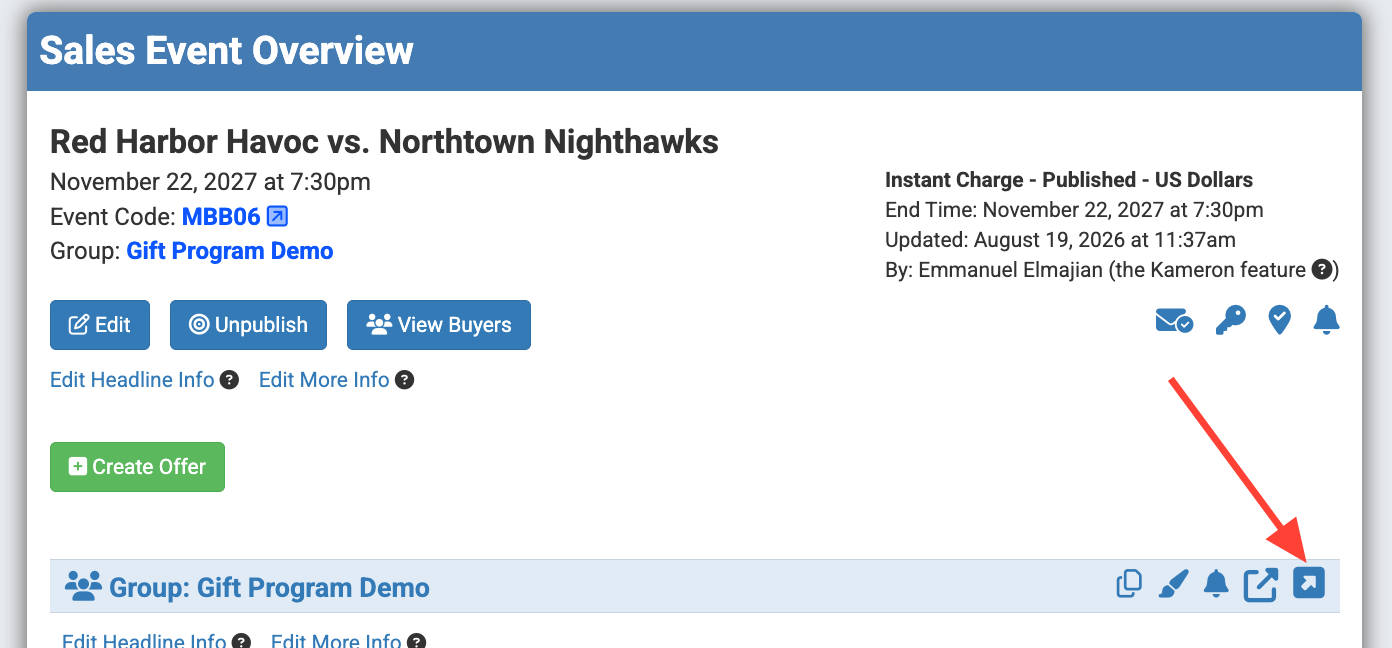
Sales Event Level: Select the specific sales event. Once on the Sales Event Overview page, locate and click the blue arrow tied to the promotion.
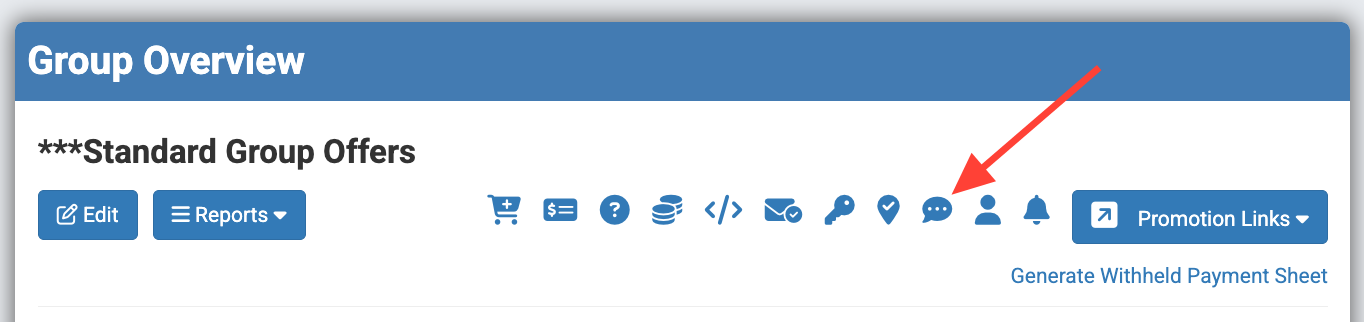
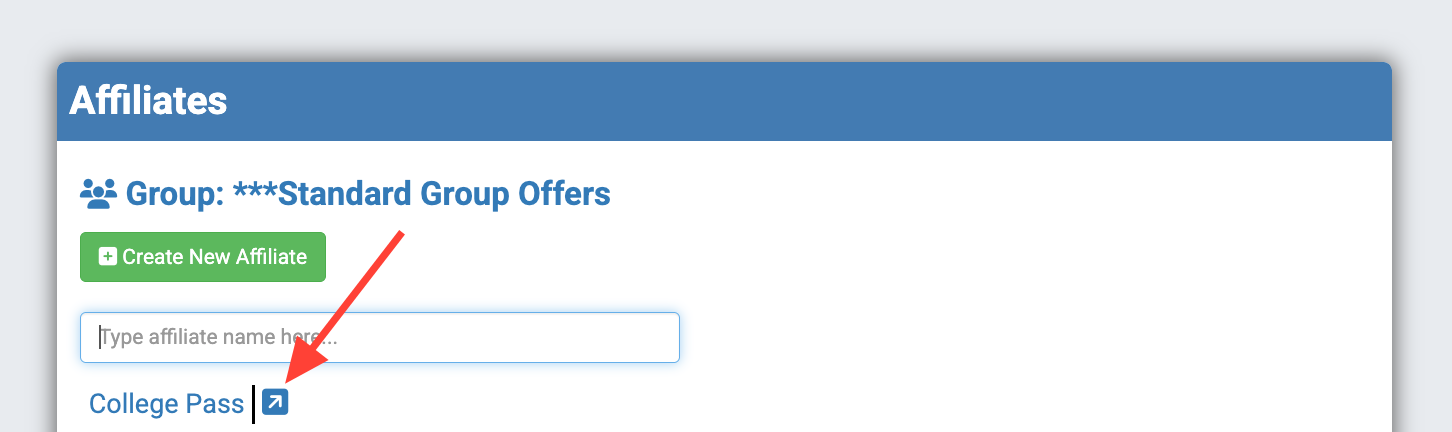
Affiliate Level: From the Group Overview page, locate and click the chat bubble icon. It's located three icons over from the "Promotion Links" button. Once under "Affiliates," select the blue arrow tied to the appropriate promotion.
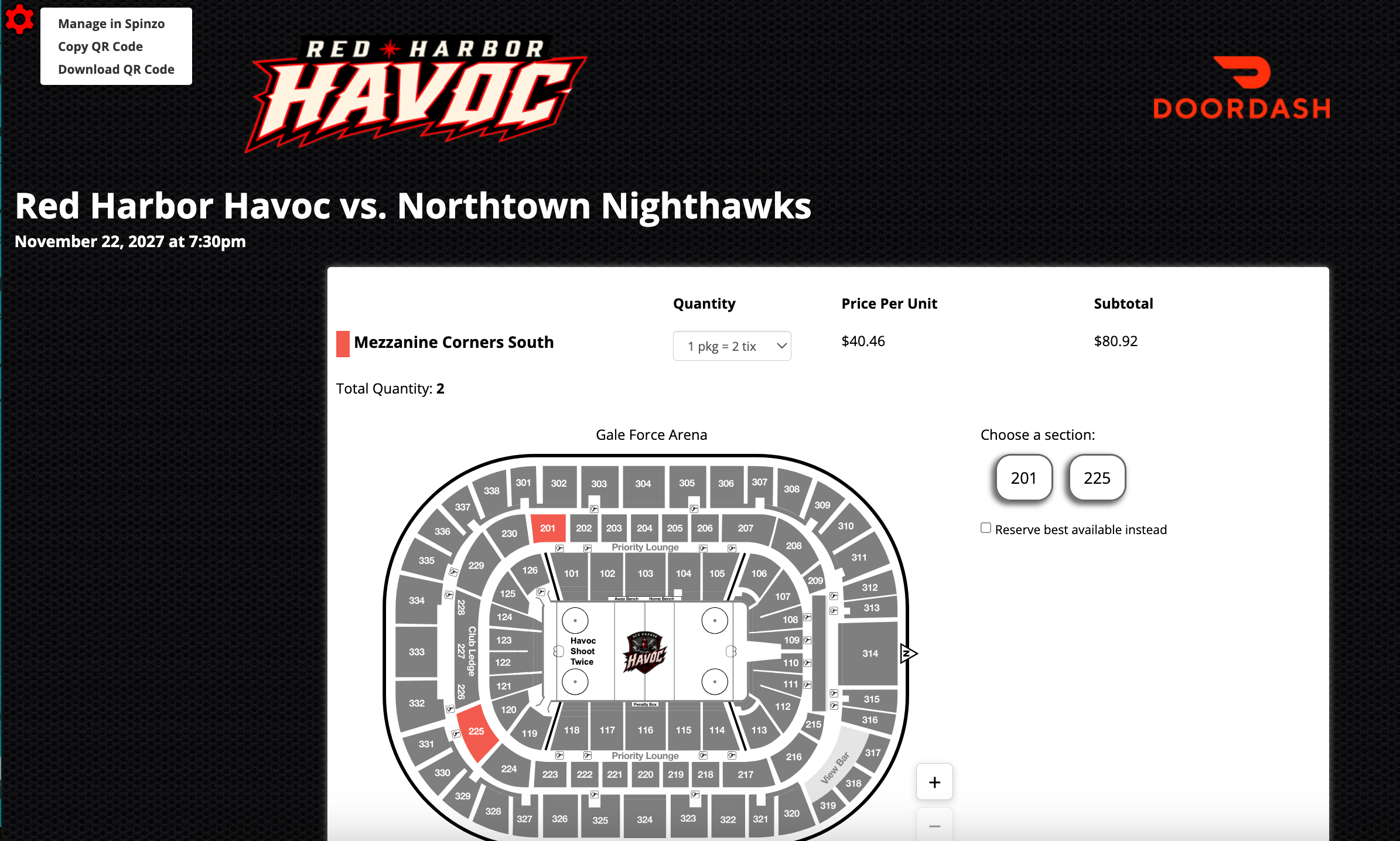
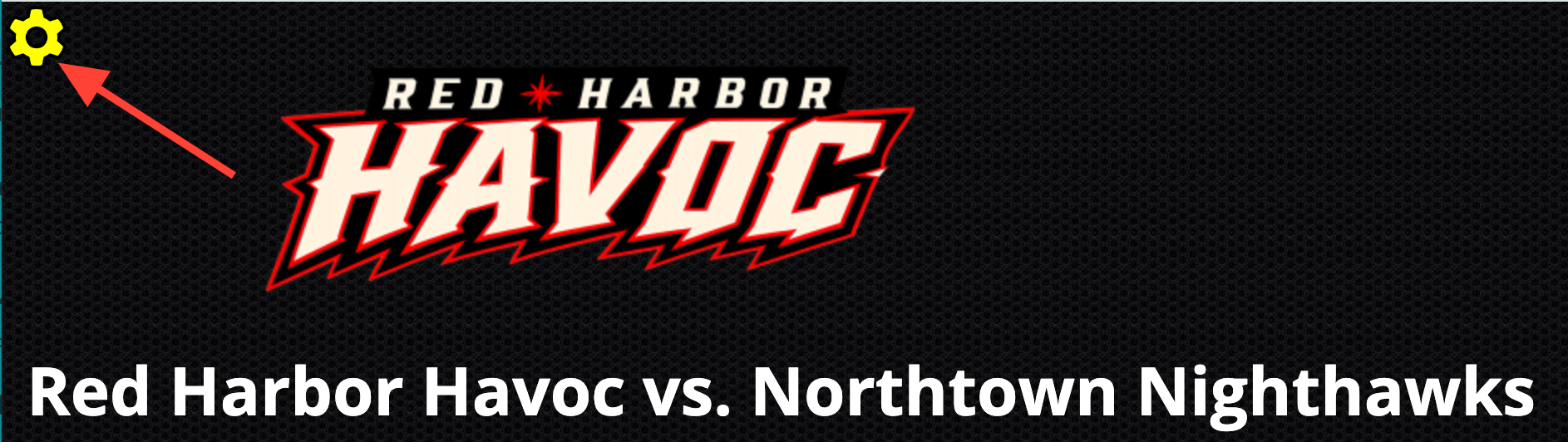
Step 3: Once on the appropriate promotion, locate and click the yellow gear icon in the top-left corner. *Note: Once you click or hover over the gear, it will turn red.
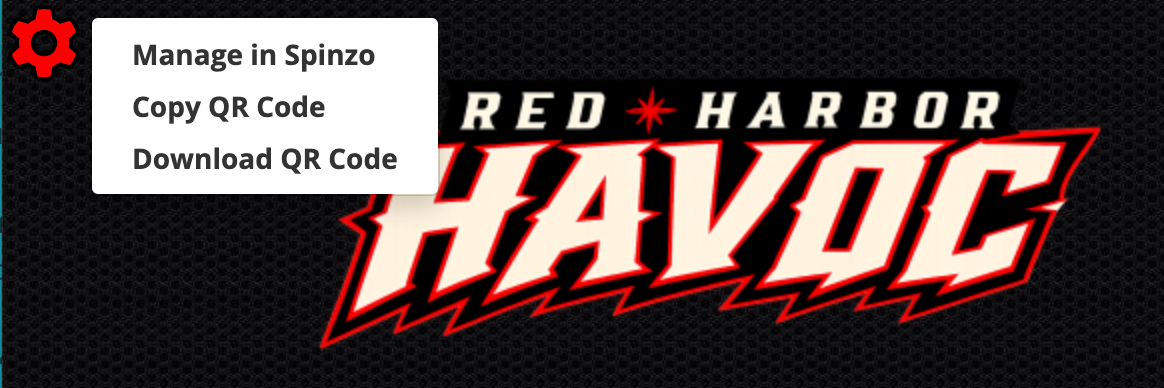
Step 4: Select "Download QR Code" to download it to your computer or select "Copy QR Code" to copy and paste it into a document, email or other form of communication.
The QR code is now ready to send to fans and will direct them to the exact page from which the code was downloaded or copied.
*Note: In addition to the group link, sales event link, or affiliate link, a QR code can also be downloaded or copied from the seat selection page prior to the final checkout.