
Customize And Override Text & Taglines
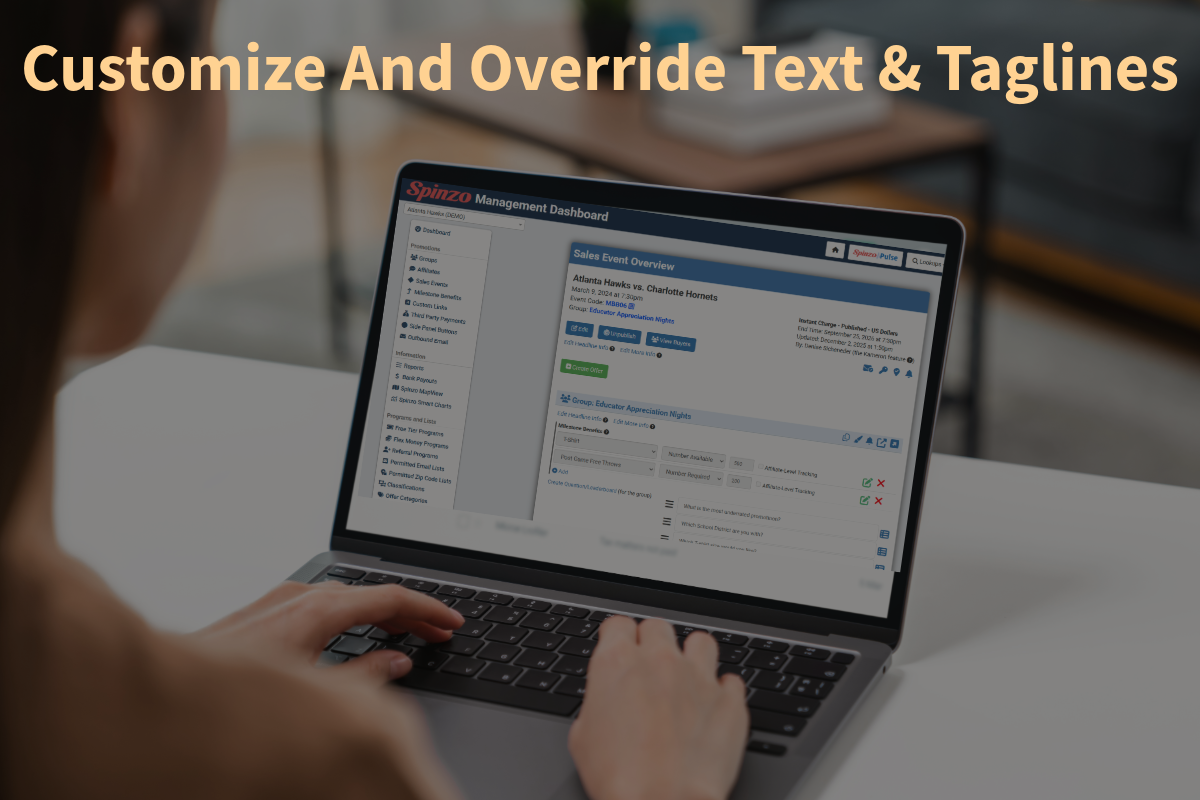
Customizing the text and taglines can help brand the page and provide more specific details in multiple locations for buyers. Similar to the way "Branding Options" can be used to customize the look and feel of the page, Spinzo also offers various ways to update and override default text. Below are three different sections where text or taglines can be customized or overridden on the main tier level.
Sales Event Name & Time
Specific sales events can be updated from the default that pulls into Spinzo from Archtics. This is, in most cases, the game-day matchup information and the time the event starts. On occasion, making updates to this information might be useful especially if there is a theme night that is being promoted or a special event that has a different time.
To edit this information, follow the steps below:
Step 1: Go to the group and sales event that needs to be edited.
Step 2: Click "Edit" on the Sales Event Overview page just below the group name.
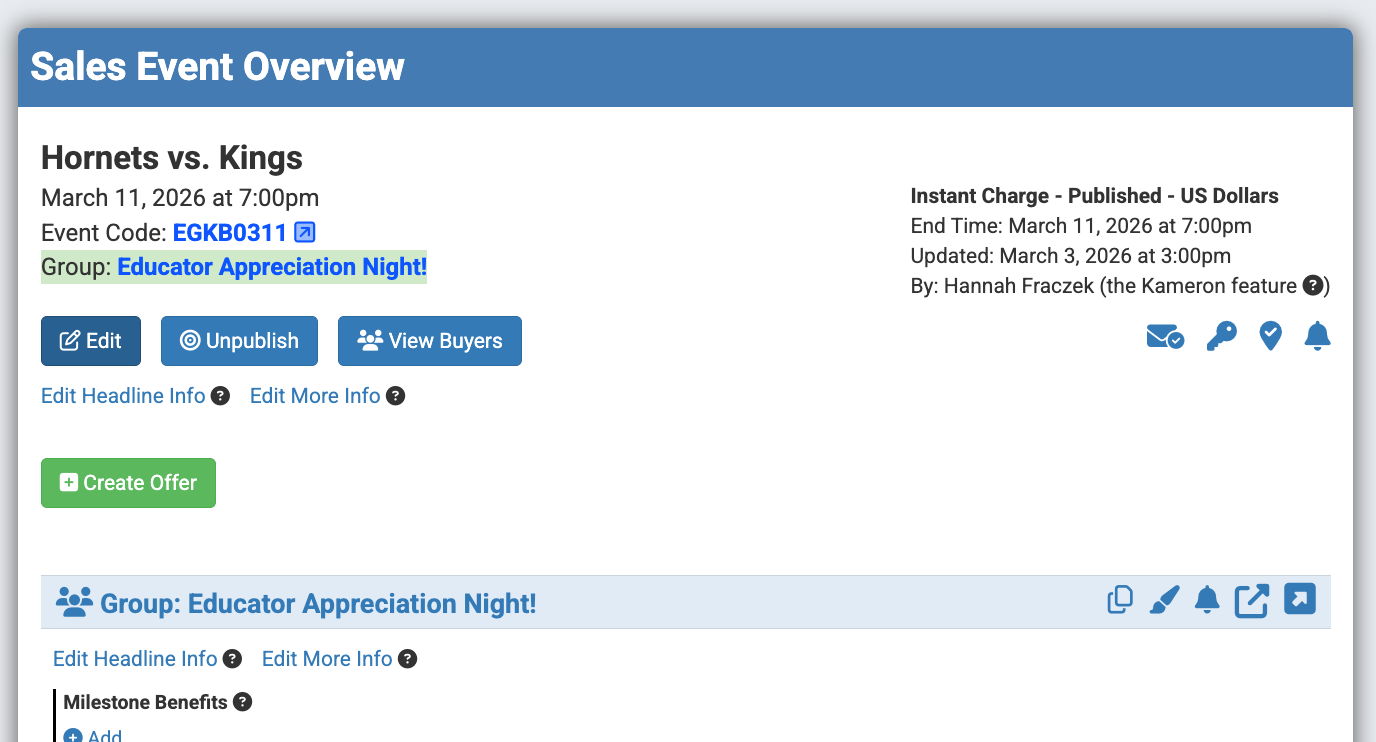
Step 3: To update the time, enter the information into the "Custom Text to replace Date/Time."
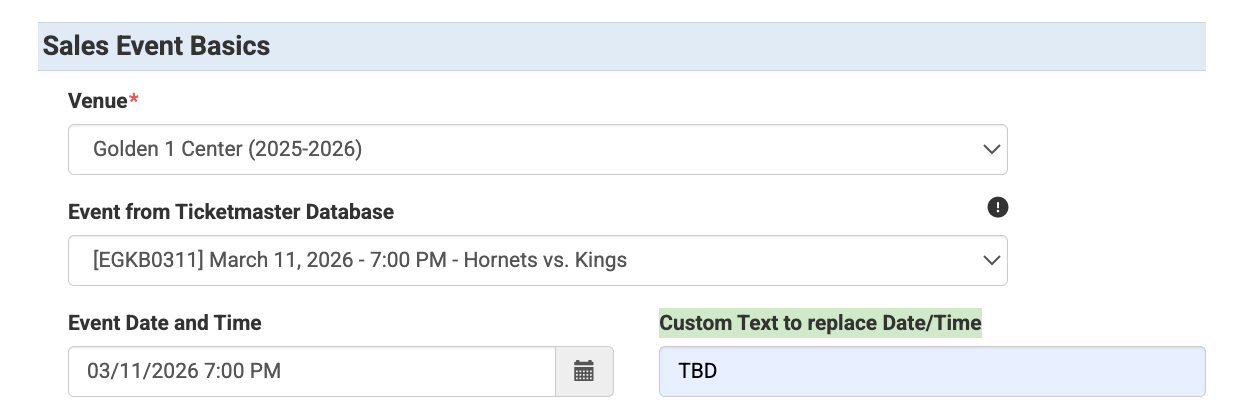
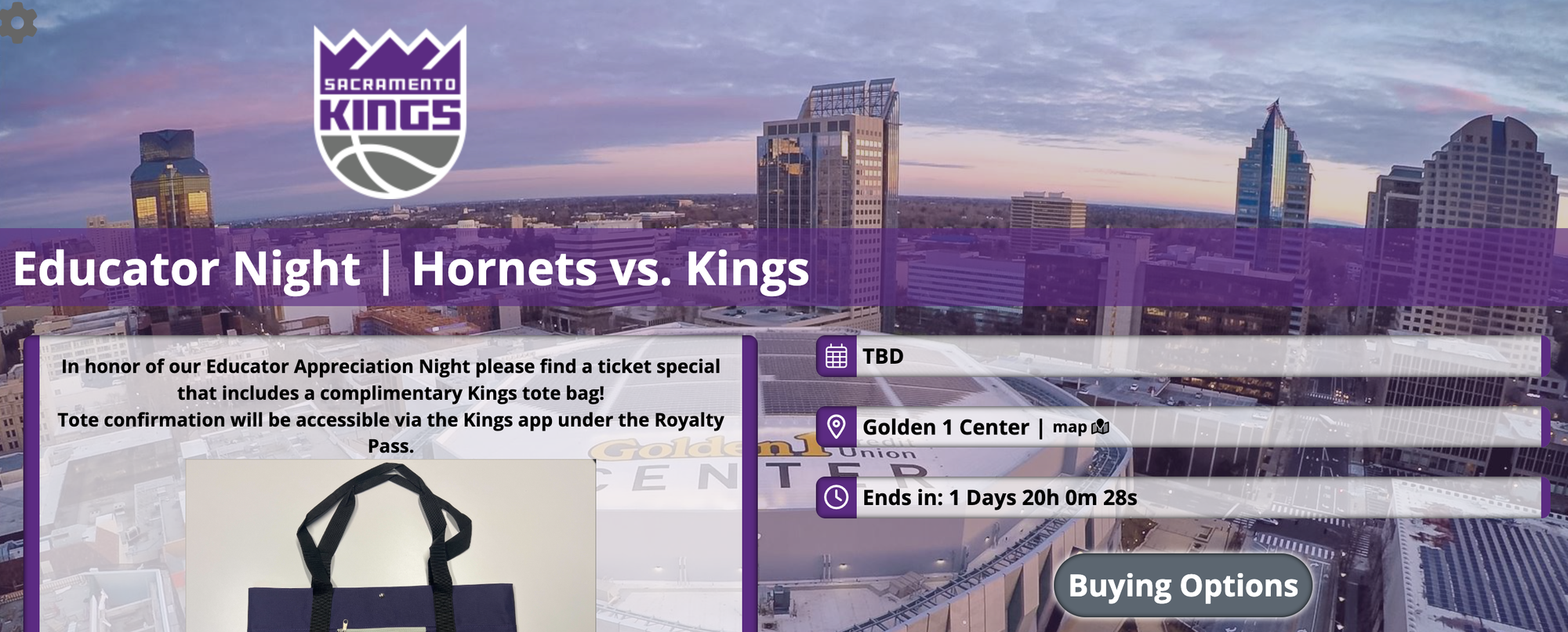
To update the Sales Event name, either remove the match-up information or add to the match-up information. In the example below, "Educator Night |" was added in addition to the matchup information.
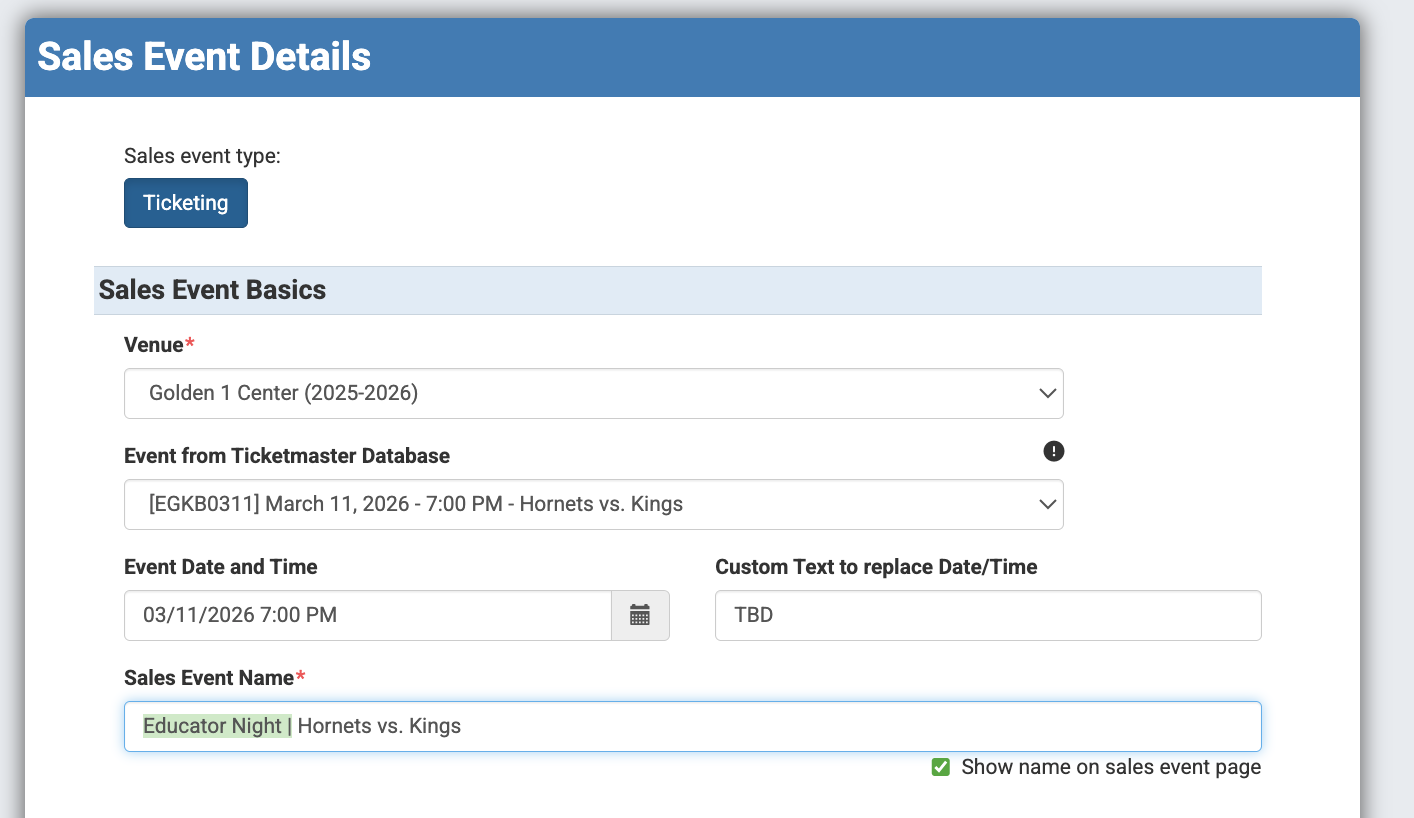
Step 4: Click "Save."
Result:
Additional Seat Location Description
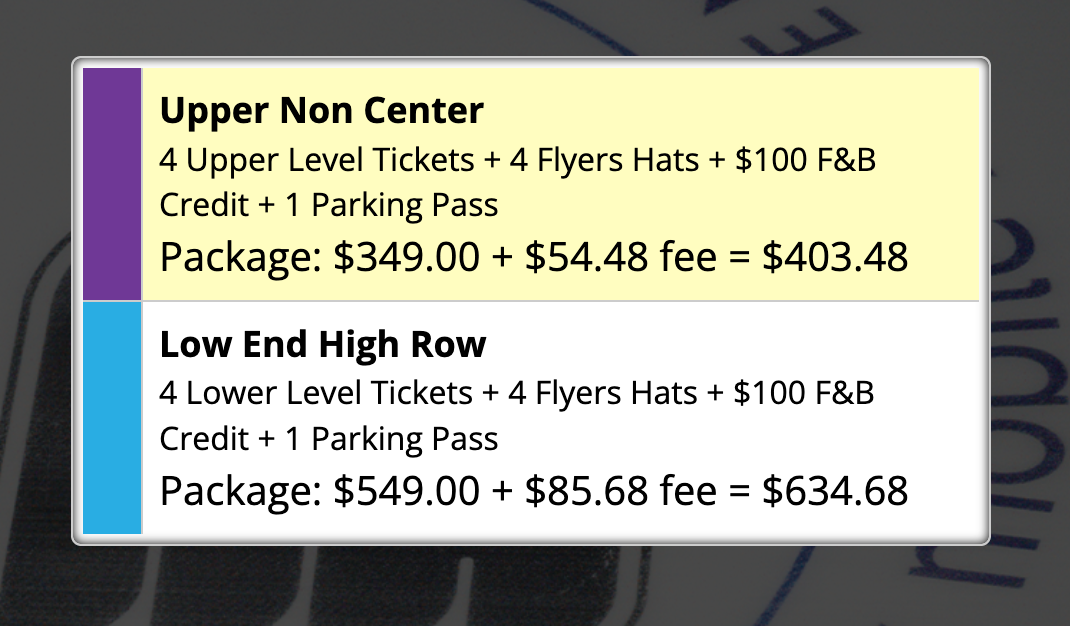
This description appears at the offer level just below the zone option. This becomes visible after selecting the "Buying Options" button and is a great way to provide clarity on what is included in a package or ticket offer or denote if it an upgrade.
To add an "Additional Seat Location Description," follow the steps below:
Step 1: Select the group and sales event that needs to be updated.
Step 2: Select the specific zone.
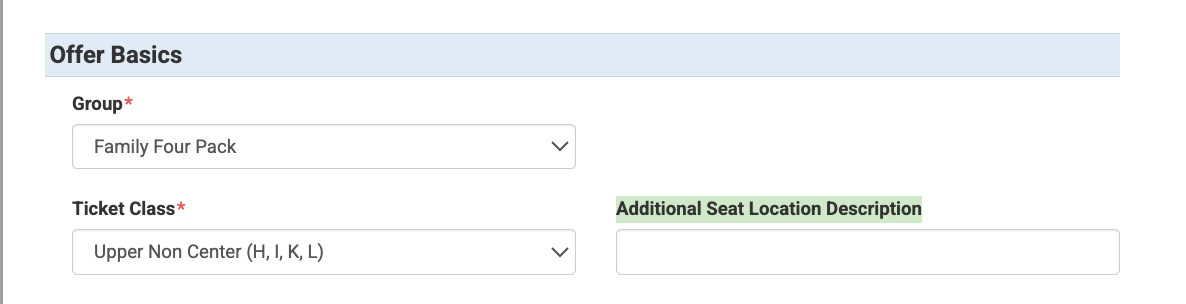
Step 3: Find the "Additional Seat Location Description" box. It is located toward the top of the page in the "Offer Basics" section, right next to "Ticket Class."
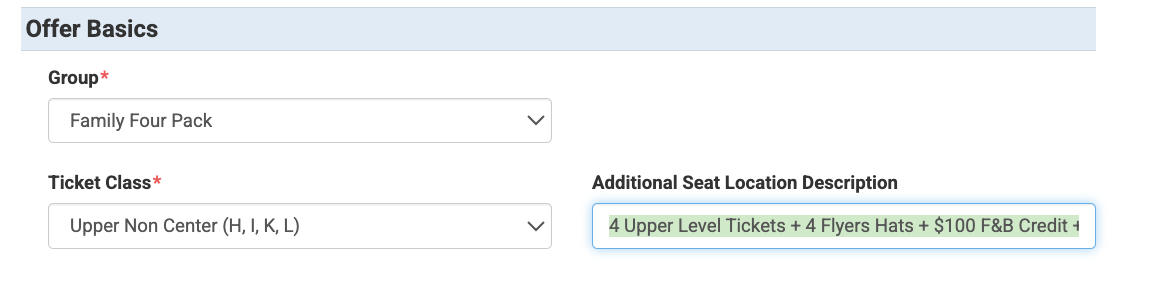
Step 4: Enter the additional information.
Step 5: Click "Save."
Result:
Price Override Text & Price Tagline
The "Price Override Text" and "Price Tagline" both show up below the zone name and below the "Additional Seat Location Description" if one exists on the page. Both of these are updated at the offer level. The "Price Override Text" replaces the dollar amount for an offer while the "Price Tagline" would show right below either the dollar amount or whatever is replacing the dollar amount. At times, the two can go hand-in-hand, or they can be used individually depending on what needs to be conveyed to the buyer.
To update the "Price Override Text" and "Price Tagline", please follow the steps below:
Step 1: Go to the group and sales event that needs to be updated.
Step 2: Select the offer or zone that needs to be updated or create an offer.
Step 3: Scroll down to the "Price Summary" red box. The "Price Override Text" box and the "Price Tagline" box both are located below this section.
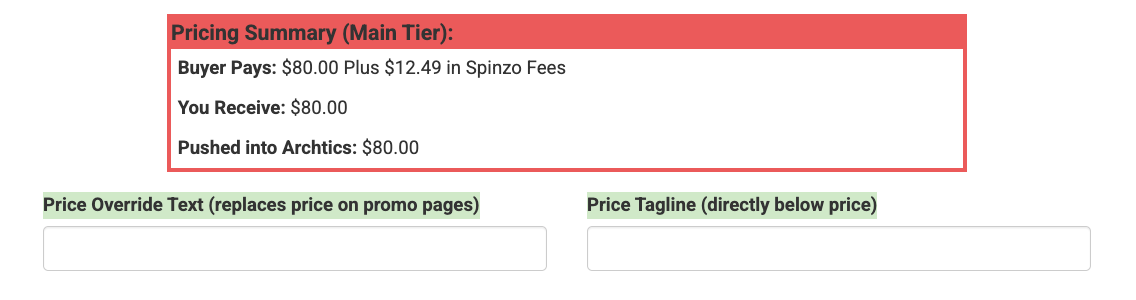
Step 4: Add the information that the buyer should see.
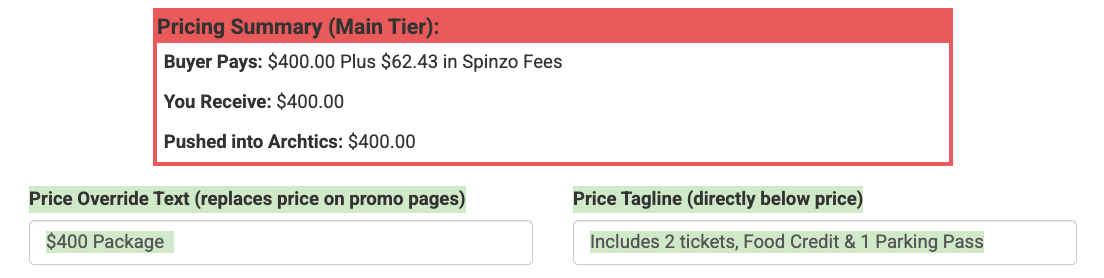
Step 5: Click "Save."
Result:
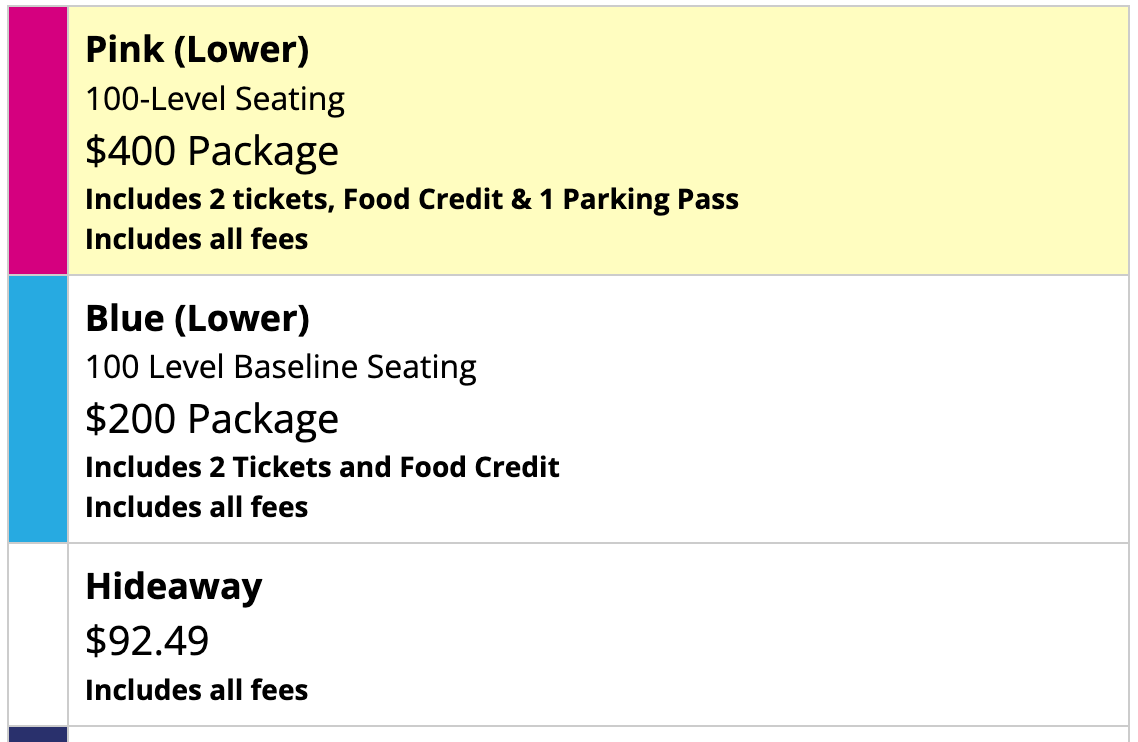
**Keep in mind if you are updating a price, be mindful of the new federal laws requiring fees to be disclosed when ticket prices are displayed.
It should be noted that these are just a few of the places where information can be customized at the sales event level and the offer level. There are also a couple of taglines or text overrides that exist at the free tier level as well. To get information on how to update those taglines, please contact service@spinzo.com.