
Check It Off In Bulk: How To Use The Bulk Update Tool
One of Spinzo's most useful efficiency features is the "Bulk Update" tool. Since its release, this tool has helped teams save time when updating multiple elements of a promotion at once.
Spinzo offers two "Bulk Update" tools: one for updating the elements at the Sales Event level and another updating elements within Offers. Both tools allow teams to make changes across multiple parts of a promotion quickly and efficiently.
Bulk Update Tool for Sales Event
When a promotion includes multiple Sales Events, the "Bulk Update" tool allows users to make changes to multiple or all Sales Events at once . Below are the steps for locating and using the "Bulk Update" tool for Sales Events.
Step 1: Select the Group that needs to be updated.
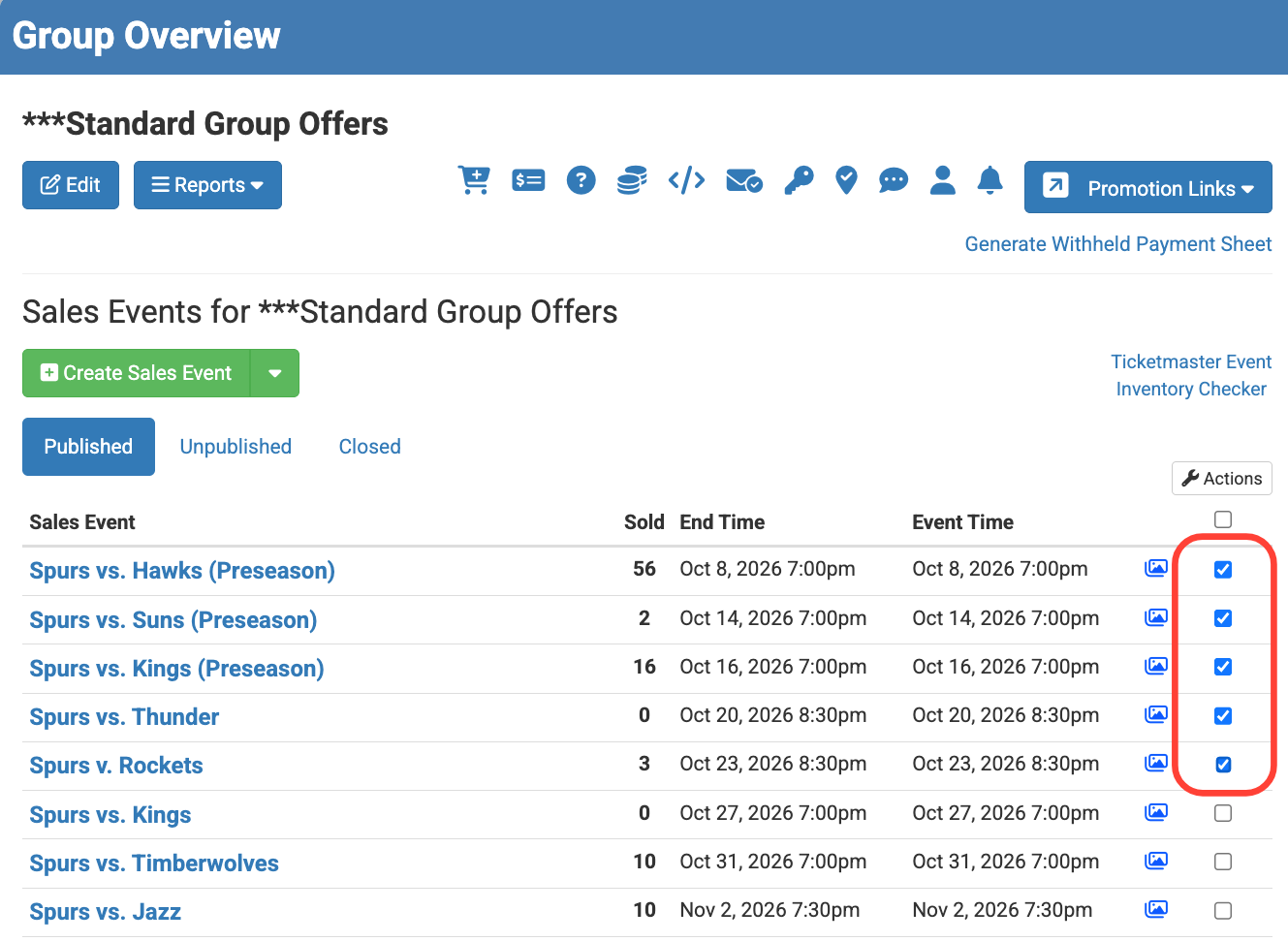
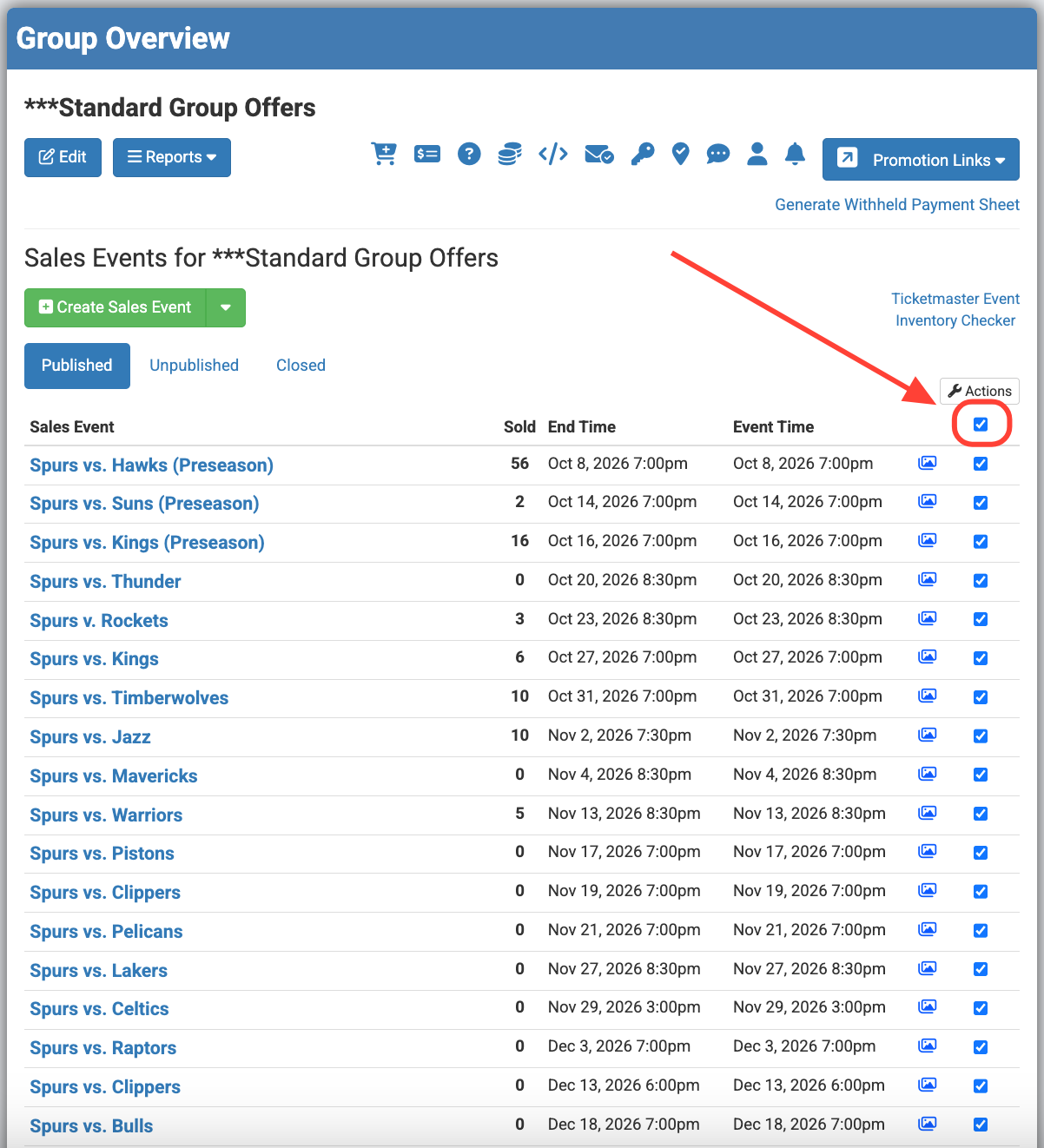
Step 2: Within the "Group Overview" page, select the Sales Events that need to be updated by checking the box on the right side of each Sales Event. To update all Sales Events, simply check the first box just below the "Actions" button. *Note: If the Sales Events are unpublished, be sure to select the "Unpublished" tab."
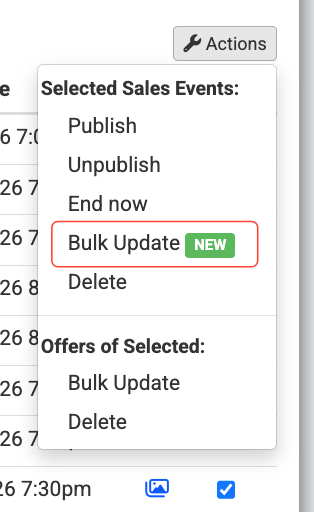
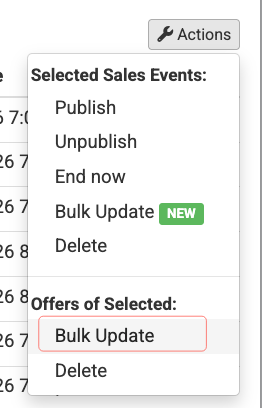
Step 3: After checking the appropriate Sales Events, locate and click on the "Actions" button just above the first checkbox. Then, select the first "Bulk Update" option located under "Selected Sales Events."
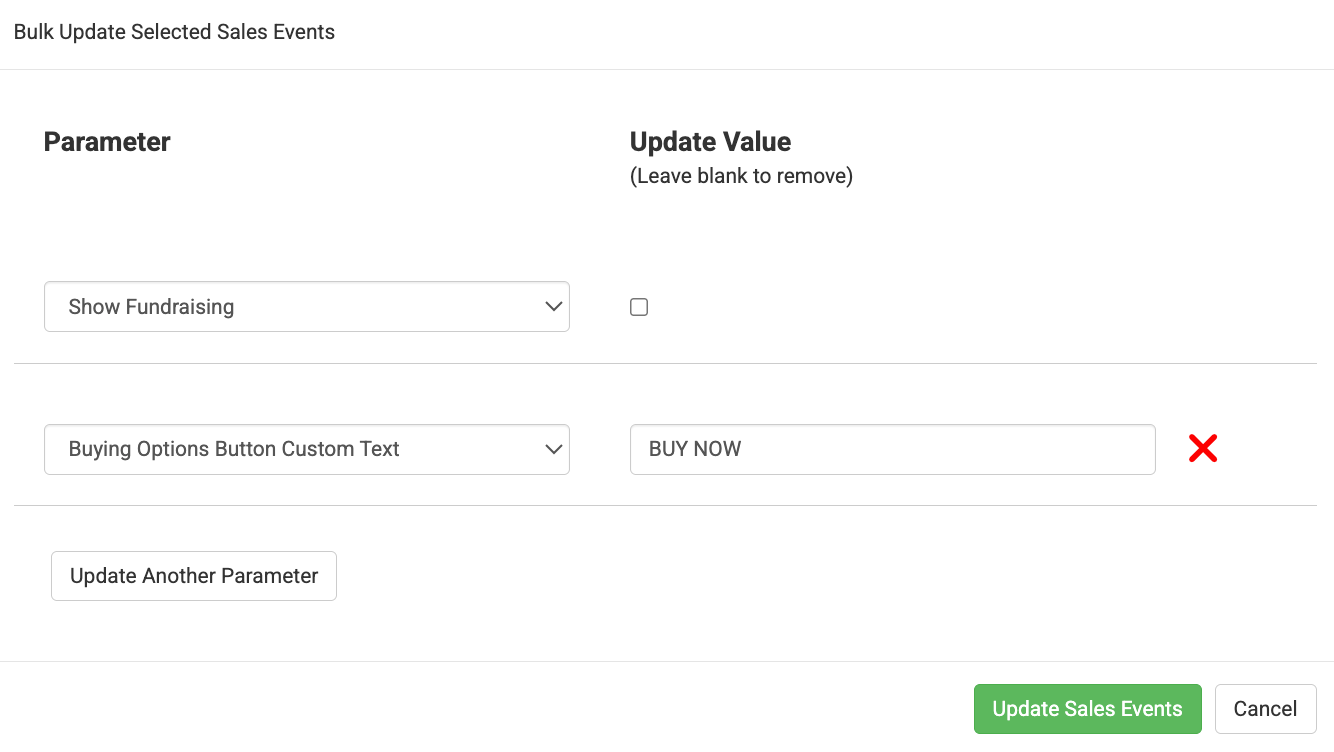
Step 4: In the parameter dropdown menu, select the option that needs to be updated for the selected Sales Events.
*Note: Some parameters include a checkbox. If a parameter needs to be removed from a page, leave the checkbox unchecked. *Note: Multiple parameters can be updated at one time. To do this, select the first parameter and then "Update Another Parameter."
In the example below, two parameters are being updated. "Show Fundraising" is being removed from the page and the "Buying Options Button Custom Text" is being updated to "BUY NOW" for all selected Sales Events.
Step 5: Click "Update Sales Events" and spot check an event to confirm the changes were applied correctly.

Bulk Update Tool for Offers
The Bulk Update tool at the Offer level is especially beneficial for promotions with multiple Offers or seating zones within a Sales Event. It can save even more time when a promotion includes multiple Sales Events. A variety of parameters can be updated through this tool, allowing users to make changes across a promotion within seconds.
Step 1: Select the Group that needs to be updated.
Step 2: Within the "Group Overview" page, select the Sales Events containing the Offers that need to be updated by checking the box on the right side of each Sales Event. To update Offers across all Sales Events, simply check the first box just below the "Actions" button. *Note: If the Sales Events are unpublished, be sure to select the "Unpublished" tab.
Step 3: After checking the appropriate Sales Events, locate and click the "Actions" button just above the first checkbox and then select the second "Bulk Update" option located under "Offers of Selected."
Step 4: *Under this "Bulk Update" tool, locate the "Ticket Classes to Update" option. Choose between updating "All of them," meaning all Offers within each Sales Event, or "Specific Ones," which allows you to select only the specific Offers or zones that need to be updated.
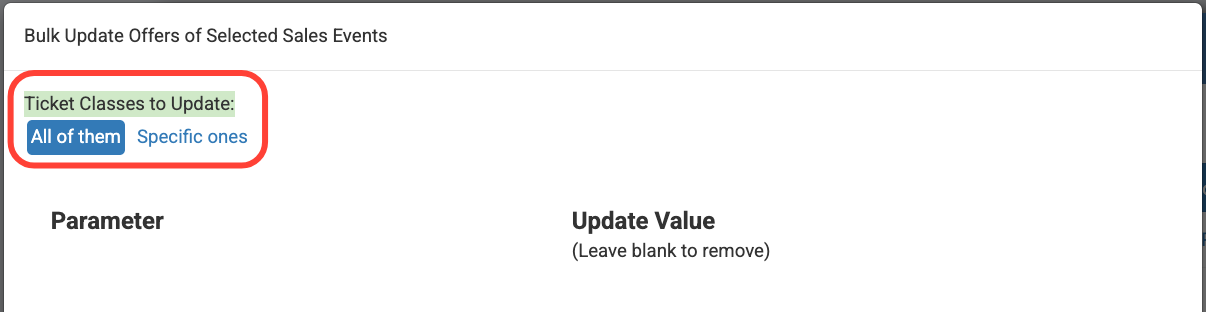
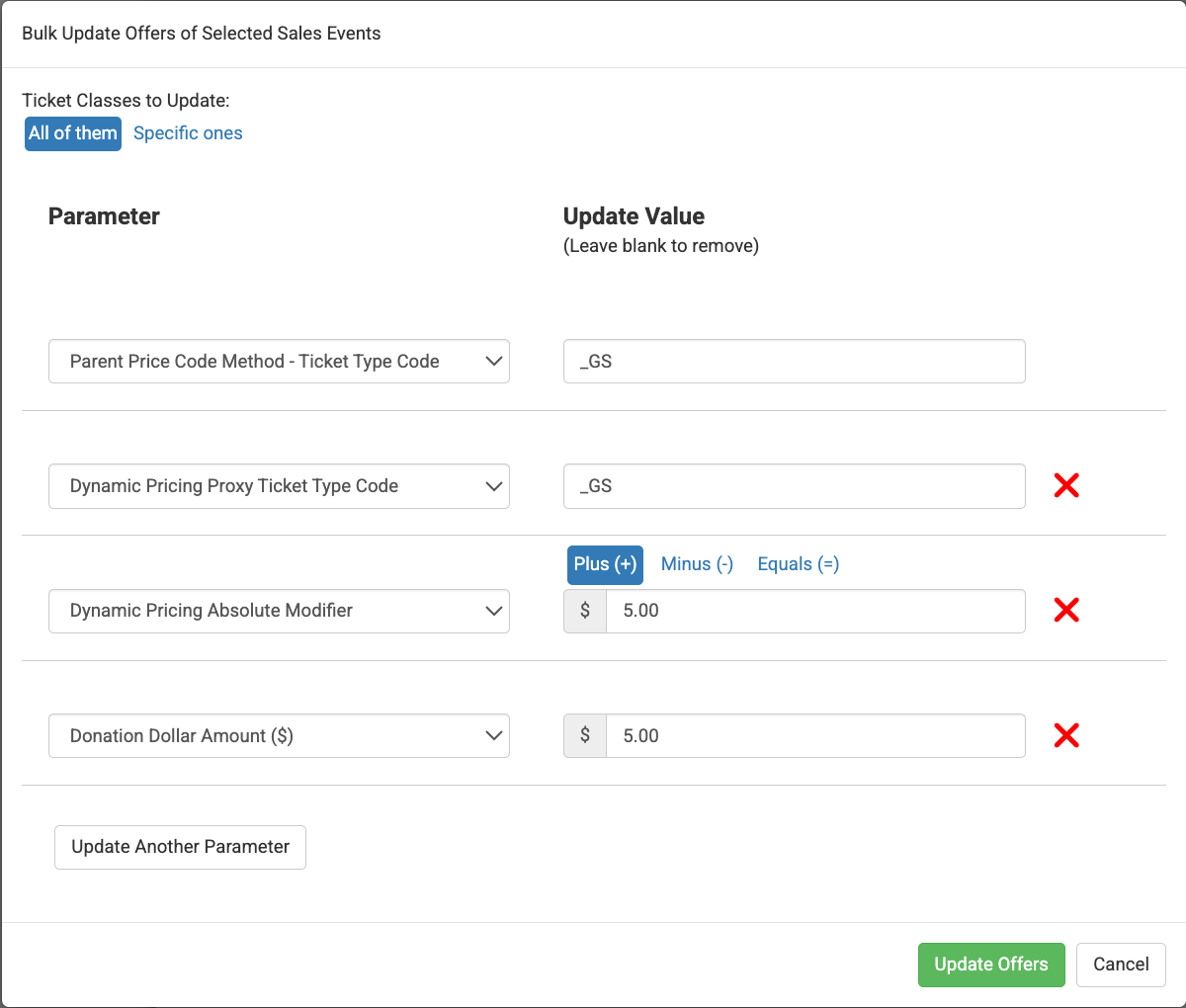
All of Them: This option updates all Offers within the selected Sales Events. In the parameter dropdown menu, select the option or options that need to be updated.
*Note: Some parameters will have a checkbox. If a parameter needs to be removed from a page, leave the checkbox unchecked. Multiple parameters can also be updated at one time by selecting the first parameter and then clicking "Update Another Parameter."
*Important: There are many parameters available under this update, please be aware of the parameters that are being updated.
In the example below, four parameters are being updated including the "Parent Price Code Method - Ticket Type Code," "Dynamic Pricing Proxy Ticket Type Code," "Dynamic Pricing Absolute Modifier," and "Donation Dollar Amount($)."
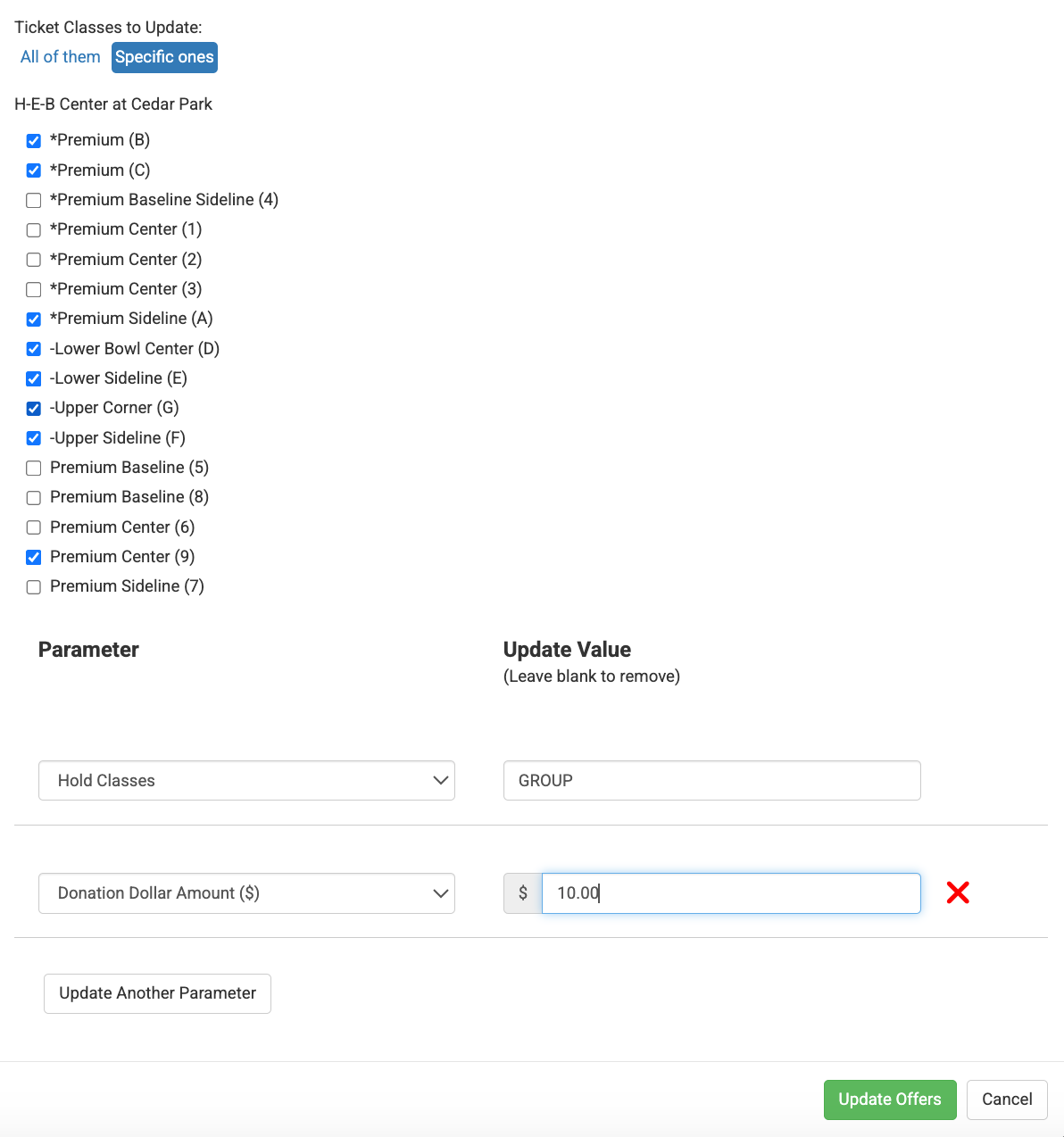
Specific Ones: This option allows users to select specific Offers or zones to update within the selected Sales Events without updating them all. Select the zones that need to be updated, then choose the appropriate parameter(s) from the dropdown menu.
*Note: Some parameters will have a checkbox. If a parameter needs to be removed from a page, leave the checkbox unchecked. Multiple parameters can be updated at one time. To do this, choose the first parameter and then "Update Another Parameter."
*Important: Before submitting the update, double-check the selected Offers and parameters to ensure the changes are being applied only where intended.
In the example below, eight zones have been selected from the list and two parameters are being updated: the "Hold Class" and the "Donation Dollar Amount."
Step 5: Click "Update Offers" and spot check the Offers.
Whether a promotion includes multiple Sales Events, multiple Offers or both, the "Bulk Update" tools can eliminate the need to make the same change over and over again. Instead of editing each Sales Event or Offer individually, users can apply changes across multiple areas of a promotion in just a few steps. When used carefully, "Bulk Update" can save valuable time while helping teams keep their promotions consistent and up to date.