
Adding Group Organizers at the Affiliate Level

Spinzo now offers an option to add a "Group Organizer" at the affiliate level in addition to the group level. This means that group organizers can access sales numbers and/or buyer information for their specific affiliate without having access to entire group's data or data from other affiliates. If needed, an organizer can be added to multiple affiliates within the same group.
How to add a Group Organizer to the Affiliate Link
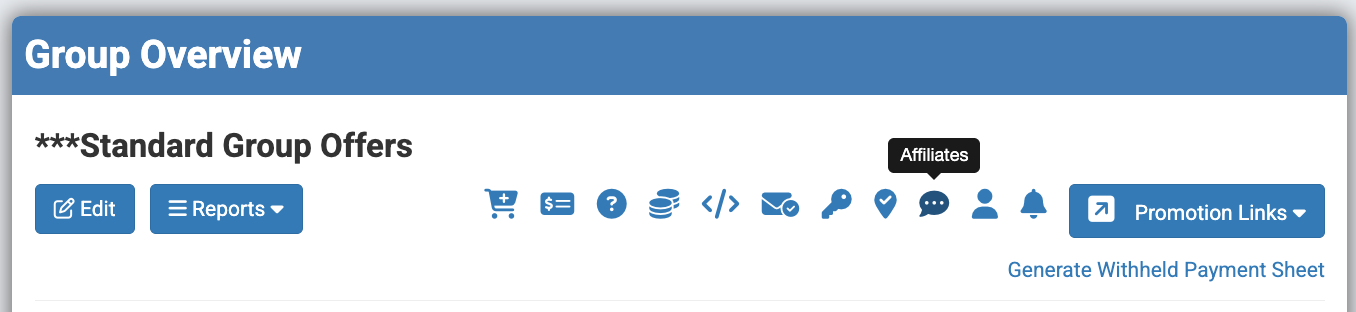
Step 1: Locate and select the group where an affiliate organizer may need to be added.

Step 2: Locate and click the "Affiliates" icon. It is the chat bubble icon located three icons over from the "Promotions Link" button.
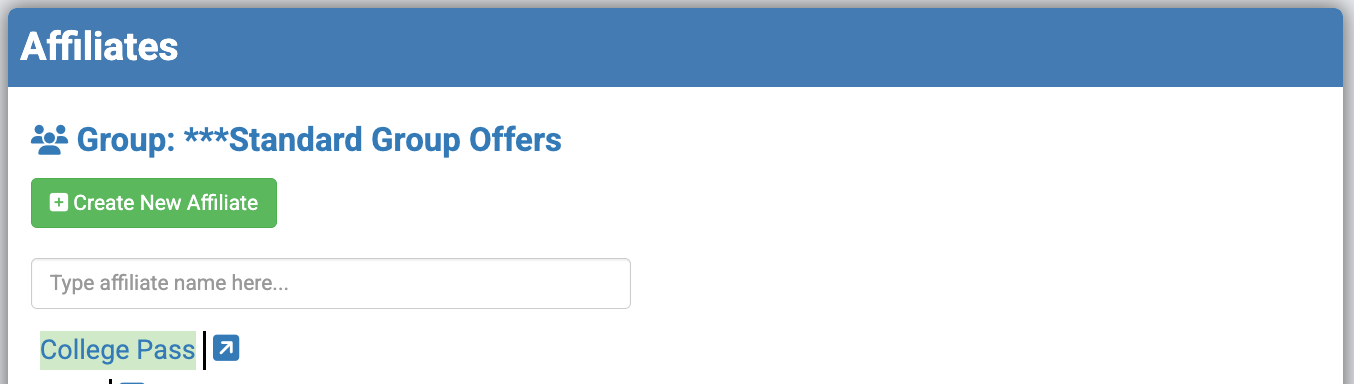
Step 3: Select the specific affiliate where a group organizer needs to be added or click "Create New Affiliate."
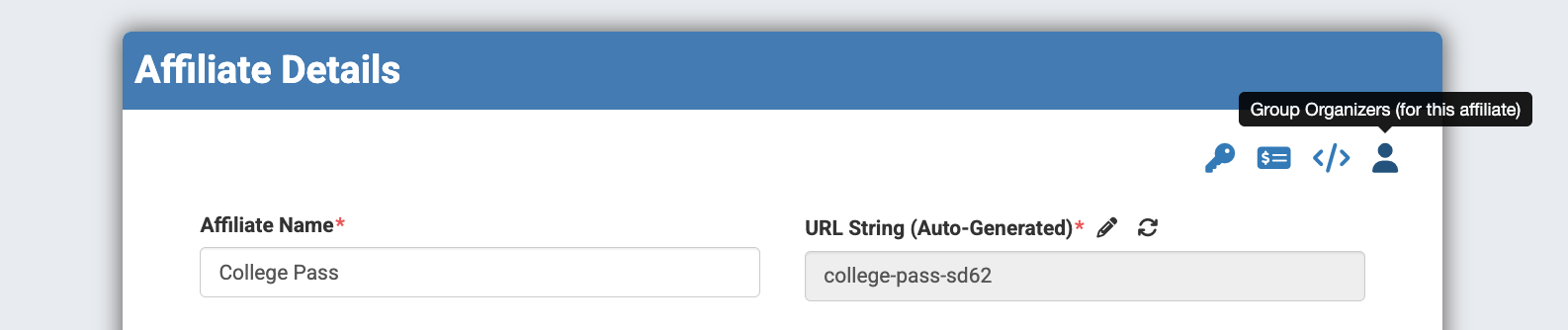
Step 4: Locate and select the person icon in the top-right corner of the affiliate build.
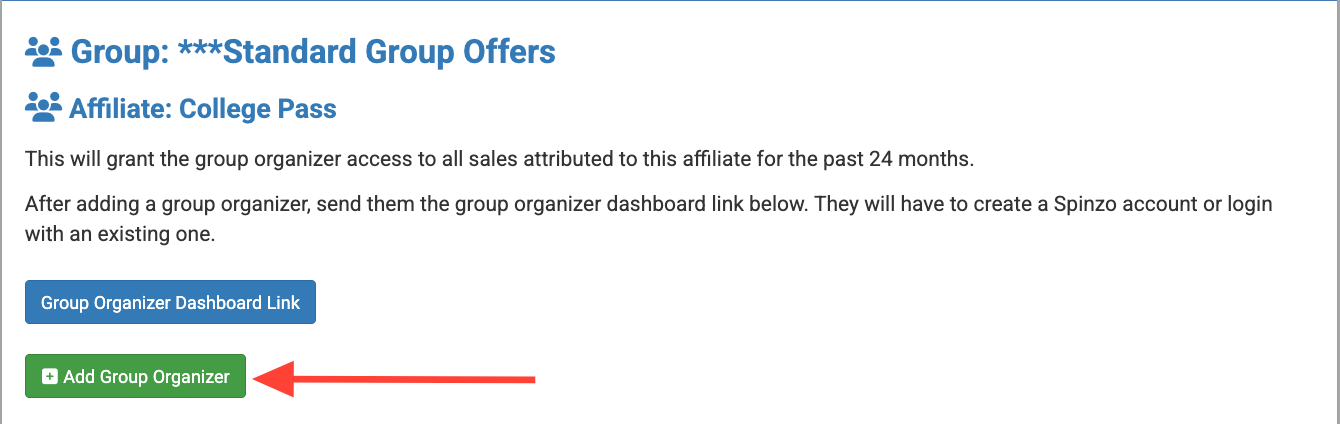
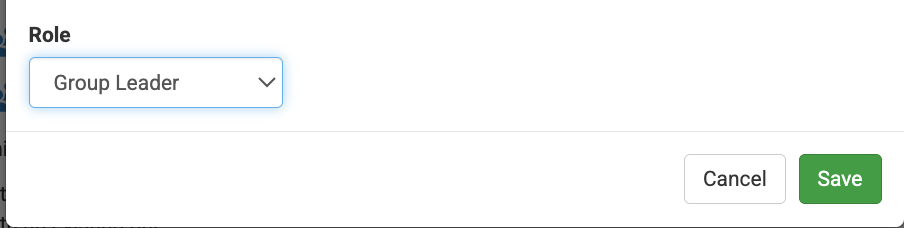
Step 5: Click the green "Add Group Organizer" button and enter the group organizer's email address. Then, decide whether the should be a "Group Leader" or a "Group Monitor." *Note: A "Group Leader" has access to the buyers list and the number of ticket sold. A "Group Monitor" has access only to the number of tickets sold.
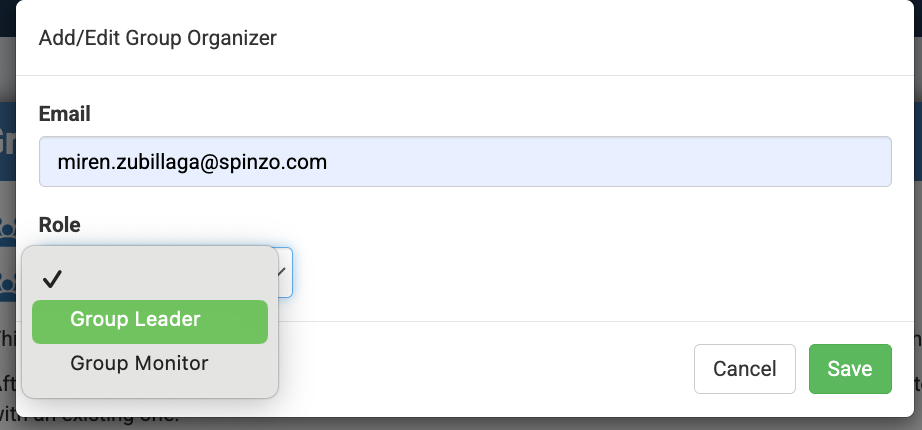
Step 6: Click "Save."
Step 7: Send the group organizer the "Dashboard" link. This will take the group organizer to a login page where they can log in if they already have a Spinzo account or create an account if they do not.

Adding group organizers at the affiliate level is especially useful for teams that utilize standard groups, corporate partner groups, or other bucket-style groups to build multiple affiliates links. This allows each organizer to access information specific to their affiliate without providing access to data from the entire group.
If it makes more sense to create a new group outside of a standard bucket and an affiliate is not needed, a "Group Organizer" can still be added at the group level. For instructions on this process, checkout this Pulse Article: Group Organizer Dashboard.